 minute read
Epic Witness Authentication Using Face Recognition
Configure the integration between Imprivata MDA and the Epic Rover app to support witness authentication using face recognition.
When used with Epic Rover, a second and unknown user captures their face during the witness signing workflow to record authorization in the Medication Administration Record (MAR).
Witness authentication enables clinical workflows that require a second user to authenticate and co-sign an action without disrupting the primary device user. This feature supports compliance-driven workflows such as medication administration, controlled substance dispensing, and waste verification.
Witness authentication is distinct from primary device authentication. The witness authenticates temporarily without unlocking the device or disrupting the primary user's session.
Clinical Workflow
The following describes the clinical workflow for witness authentication with face recognition:
|
|
User 1 is authenticated into Epic Rover using Imprivata MDA on the device. User 1 uses the medication order workflow in Epic Rover, which requires that a second user (User 2) witness and sign off on a medication order. User 1 hands the mobile device to User 2. |
|
|
User 2 validates that the medication order information is correct, and clicks Sign Off in the Epic Rover interface. |
|
|
Imprivata MDA prompts User 2 to authenticate using a capture of their face. If face recognition is not available, or if the user's face is not found, Imprivata MDA allows User 2 to enter a username and password by tapping Use another method. |
|
|
User 2 taps Submit to complete the medication order in Epic Rover. |

|
User 2 hands the mobile device back to User 1. User 1 continues to use Epic Rover. |



Before You Begin
Requirements
-
Install the latest releases of the Epic Rover.
-
Android devices running Imprivata MDA 10.2 or later.
-
AppConfig key/value pair added to your MDM for Imprivata MDA to handle OIDC requests for witnessing.
-
Requires face recognition configured as an authentication method in EAM. For more information, see Face Recognition as an Authentication Method.
-
The Imprivata Cloud Connect service to your tenant on the Imprivata Cloud Platform must be up and running.
-
The Imprivata appliances in your Imprivata enterprise must be running Imprivata Enterprise Access Management 26.2 or later. For more information on upgrading your Imprivata appliances, see the Imprivata Upgrade portal.
-
Complete the connection between your Imprivata enterprise and your tenant in the Imprivata Cloud. See Configure the Connection to Imprivata Cloud Platform.
-
For Entra ID:
-
Users in a policy enabled for face recognition must be synced from Active Directory (AD) to Entra ID.
-
The cloud must be synced from AD to Entra ID with Entra Connect.
-
Each user in scope for the facial recognition workflow must exist within Entra ID and each user must also be allocated a P1 or higher Microsoft license.
-
-
Network connectivity: Devices must have network access to reach the Imprivata appliance.
-
-
If the device cannot connect with your Imprivata Cloud Platform, an error message will appear during authentication.
-
Requires two mobile app profiles for the Epic Rover app deployed to your users and groups. For more information, see Import the Mobile App Profiles.
-
The Epic Rover SSO application profile for the first user's authentication.
-
The Epic Rover Witness Authentication profile for the second user to face recognition in the Epic witnessing workflow.
-
Considerations
-
Imprivata MDA identifies the user from the authorized enrolled user population (1:many face recognition).
-
Users must be enrolled for face recognition before they can serve as witnesses. A witness whose required method is not enrolled cannot witness until they enroll on another EAM endpoint or in Imprivata MDA.
-
The witness cannot be the user currently signed in to the Imprivata MDA app.
Limitations
-
Face recognition is not supported with offline mode.
-
This workflow does not support multi-factor authentication.
-
If the camera permission was previously denied and the witness opens Settings from the face prompt, the attempt is cancelled.
-
The witnessing user interface text is in English only.
Activity Logging
Epic Rover witness authentication events are recorded in the MDA Console on the Activity tab.
Evaluate any regulatory needs before deploying, to ensure it conforms to your regional requirements.
Configure MDA to Handle OIDC Requests
To configure MDA to handle OIDC requests for witnessing, add the following key/value pair to your MDM:
Add the following key to your MDM:
-
ConfigFlags
-
The AppConfig Configuration Key field for this feature is "ConfigFlags".
-
The AppConfig Value Type for this feature is "String".
-
The AppConfig Value is oidcInterceptOn.
-
Deploy the App Profiles for Epic Rover SSO and Witness Authentication
If you have not already done so, deploy the SSO app profile for Epic Rover.
-
Download the application profiles from the Imprivata Customer Experience Center.
-
Click Product Downloads > Mobile and click Imprivata Mobile Device Access.
-
Download the MDA Application profiles (all versions) package.
Extract the package contents to a location accessible to the Imprivata Admin Console.
-
-
Import the application profile XML:
-
In the Imprivata Admin Console, open the Applications menu, and click Single sign-on application profiles.
-
Click Add App Profile> Import from file.
-
Browse to the XML file, and import it.
-
-
Deploy the Epic Rover profile to the appropriate users and groups.
-
Deploy the Epic Rover: Witness Authentication profile to the appropriate users and groups.
Create and Assign the User Policy for Witness Authentication
Create a user policy for the Epic Rover witness authentication and associate it with a mobile device workflow for witnessing.
To create a user policy:
-
In the Imprivata Admin Console, go to Users > User policies.
-
On the User policies page, click Add.
-
Enter a name for the user policy. For example: Epic Rover Witness.
-
In Primary factors, select Password, then select Face recognition.
-
Go to Users > Workflow policy.
-
In the Mobile device workflows > Mobile Witnessing Authentication section, specify the primary and secondary authentication methods for witness authentication on mobile devices.
-
Proximity Card + Face recognition OR
-
Face recognition OR
-
Password
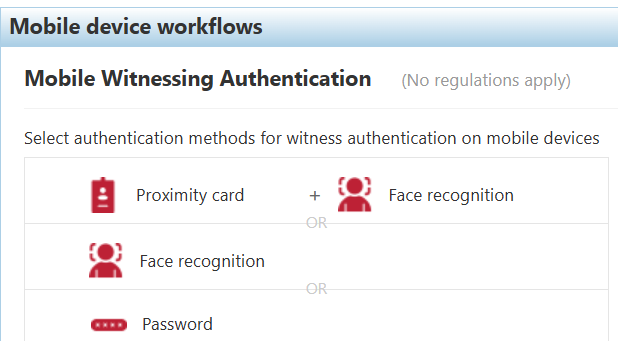
NOTE:Specifying a combination of available authentication methods allows witnessing users to select a different authentication method as a fallback if they are unable to authenticate with their face.
-
-
Click Associate user policies and select the user policy for the witnessing users.
Activity Logging
Epic Rover witness authentication events are sent to the Mobile Access server and are displayed in the Activity tab of the MDA console and dashboard.


