Configure Workflows
Workflows are collections of settings and assets to deploy to your mobile devices. A Workflow may contain several types of actions, and can be deployed to a connected device either manually (on-demand) or automatically (rules based, on connect, which can be enabled via the Automation tab).
The Workflow actions available to you depend on the Workflow model you select, the MDM system you use, and the OS of your devices.
View the Workflows List
The Workflows list includes a summary of current information, including Workflow name, platform, last modified date, and last deployment. The Automation column indicates whether any rules are enabled via automation.
Click to enlarge
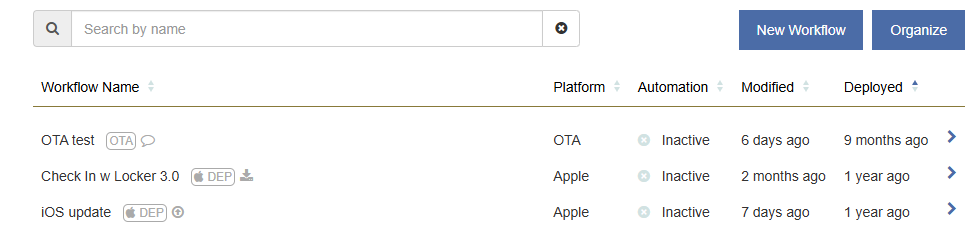
Organize your Workflows by creating folders.
View Workflow Details
The Workflow details page allows you to edit, clone, or deploy a Workflow. You can also determine whether a Workflow is automated, and access the deployment history by clicking the link in the History field.
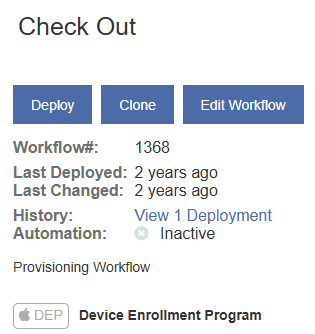
View the Workflow deployment history by selecting the View Deployment Activity tab from the menu.
Understanding Workflow Inheritance in Parent/Child Organizations
When working with multi-tiered parent/child organizations, consider the following information for Workflow inheritance:
-
Workflows inherited from a parent organization cannot be edited in the child organization.
The only operations available to the child organization are to deploy or clone the inherited Workflow.
-
Inherited Workflows may refer to objects that are only visible at the parent organization where they were created. This can include app logout definitions and Epic logout actions.
-
The parent organization cannot delete a Workflow that is in use by an automation rule at a child organization.
Workflow Models
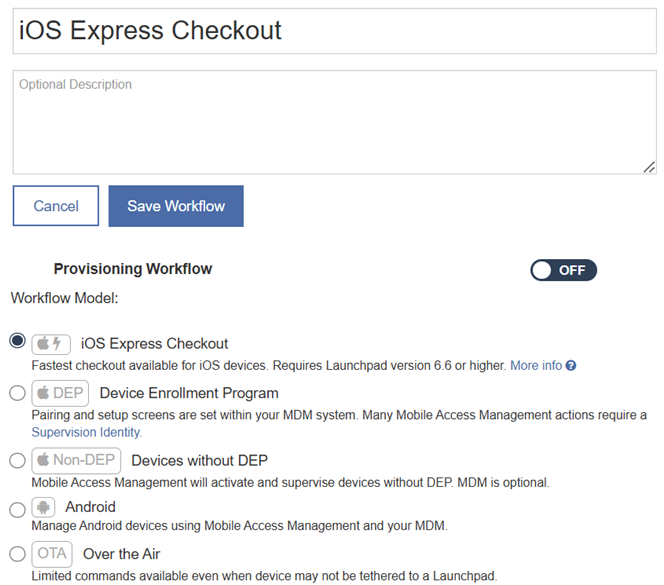
There are five types of Workflow Models:
-
iOS Express Checkout: For iOS devices. Enables the fastest checkout of iOS devices with a minimum set of Workflow actions. For more information, see iOS Express Checkout.
-
Device Enrollment Program (DEP): For iOS devices. Use with devices that are enrolled in Apple’s Business Manager / Device Enrollment Program.
-
Devices without DEP: For iOS devices. Use with devices that are not enrolled in Apple Business Manager.
-
Android: For Android devices. Manage Android devices with Mobile Access Management and your MDM.
-
Over the Air (OTA): Allows for over the air actions that can be performed on devices while not connected to MAM, including: Perform MDM Commands, Set Attributes, Send Webhook, Send Email, and Enable/Disable Lost Mode.
OTA Workflows can be deployed manually, from the device Device Details view, or using the "Not Pairing" trigger in Automation Rules.
Create a New Workflow
To create a new Workflow:
-
In the MAM admin console, go to the Workflows menu.
-
Click New Workflow.
-
In the Name box, type a name for the Workflow.
-
In the Description box, type a meaningful description for the Workflow. Add a description to capture notes about deployments and to identify it.
-
Optional. If you are creating a Workflow in a parent organization, and you need to publish this Workflow to your child organizations, switch the Publish to child organizations setting to ON.
-
Select the Workflow Model appropriate for your devices.
Add Actions to a Workflow
To add actions to a Workflow:
-
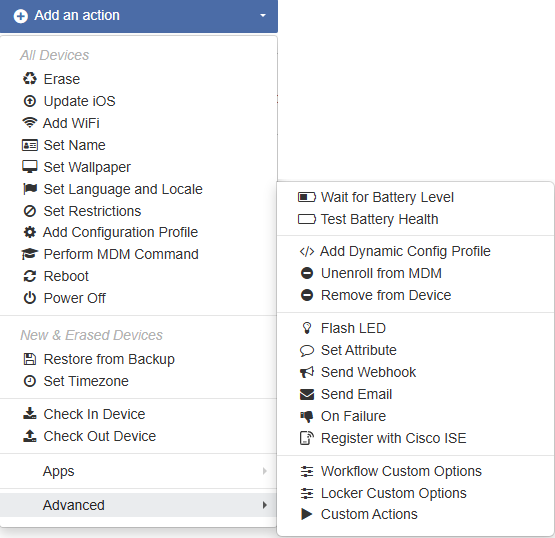
Select an action from the Add an action menu to add it to a Workflow.
Most Workflows can contain multiple actions.
-
To deploy a Workflow to a device, enter a Workflow name and save it.
For iOS devices, the Supervision action is automatically added when actions that require it are added to a Workflow.
For example, if you want to set the name on your devices, MAM will automatically supervise the device. For more information, see Supervision Options.
Deploy a Workflow
To deploy a Workflow:
-
On the Workflow Details page for a selected Workflow, click Deploy.
-
In the dialog, select one or more connected Launchpads or devices to deploy to.
-
Click Deploy Workflow.
Clone a Workflow
Cloning an existing Workflow creates a duplicate that you can then configure with different settings.
To clone a Workflow:
-
On the Workflow Details page for a selected Workflow, click Clone.
-
In the dialog, enter a new name for the cloned Workflow.
-
For parent organizations, from the Organizations list, select the organization the clone will be added to.
Delete a Workflow
To delete a Workflow:
-
On the Workflow Details page for a selected Workflow, click Delete.
-
In the dialog, click Delete.
Edit an Existing Workflow
To edit an existing Workflow:
-
On the Workflows page, select the Workflow and click Edit Workflow.
-
Edit the Workflow as needed.


