 minute read
Clearing Passcodes
For MAM organizations that enforce passcodes, review the following considerations, especially for Check Out workflows.
Clear Passcodes on iOS Devices
MAM cannot automatically connect to passcode-locked devices or clear the device’s passcode. When devices are connected to MAM but are simply unlocked, without clearing the passcode, MAM cannot work reliably, and this workflow is not supported.
However, if the device has an active internet connection, MAM can use the MDM to clear the passcode over the air.
MAM can do this in two ways that together address most scenarios:
-
Clear Device Passcode via MDM when device is not pairing with a Launchpad.
-
Perform MDM Command Workflow action to clear a device’s passcode.
Considerations
Review these considerations before you use either method:
-
Your MDM must install a profile on all shared devices to disable USB restricted mode.
-
Clearing passcodes does not work on restarted iOS devices unless they have a cellular connection, or if they are connected to a Mac and use network tethering. The iOS device can pair with any Mac Launchpad configured according to the procedure in Check In Devices with Depleted Batteries.
-
Clearing passcodes requires the iOS device to have an active network connection. For devices that cannot connect to Wi-Fi after being powered off or restarted, a configured macOS Launchpad can provide network connectivity through Internet Connection Sharing (ICS) over USB, allowing MAM to clear the device passcode.
-
Updating iOS on devices with passcodes is supported only when devices are erased.
-
If enforcing passcodes via MDM, Imprivata recommends setting this profile up during Check Out, not during Check In.
Clear Device Passcode via MDM When Device is Not Pairing
When enabled, MAM detects when a device is connected to a Launchpad but is not pairing. When this condition occurs for 5 seconds, MAM sends an MDM command to clear a device’s passcode.
Improved Handling
Beginning with MAM 7.4, the system now reliably completes a check-in workflow when the device locks mid-workflow because of the side button, the Require Passcode grace period expiring, or the Auto-Lock inactivity timer expiring. No administrator action is required to enable this behavior.
Beginning with MAM 7.3.1, the system improves how it handles passcode-locked devices.
-
When devices are not pairing, MAM can clear passcodes via MDM, as before.
MAM sends a Clear Passcode command only to devices that have a passcode set, preventing spurious Clear Passcode commands on devices that do not.
-
MAM no longer clears passcodes from personal devices. Only devices managed by MAM, with an Active or Retired MAM status, are considered for passcode clearing.
-
MAM waits up to 5 minutes for a passcode to clear, instead of the previous default of 1 minute.
If still unpaired after 5 minutes, MAM can automate the force recovery – erasing and updating devices. This is helpful for Wi-Fi only devices that are passcode-locked and have not unlocked since the last restart.
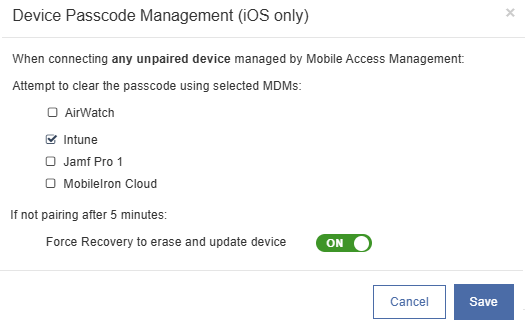
Enable Clear Device Passcode via MDM Globally
To enable globally:
-
In the MAM console, go to Admin > Launchpads > Clear Device Passcode via MDM — when device is not pairing. The page displays the MDMs you have set up with API support that also support this feature.
-
Enable the MDM or multiple MDMs to have MAM send the "Clear Passcode" API when devices are connected but not pairing.
Enable Per Launchpad
To target certain Launchpads or devices only, create a Workflow and automate it using rules.
-
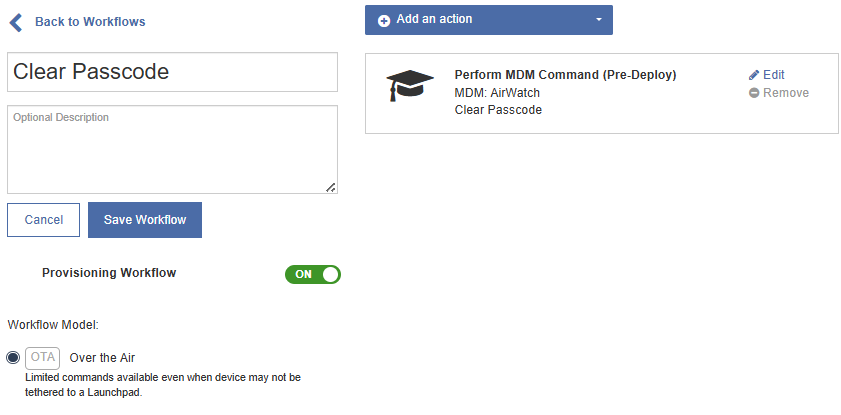
Create an Over the Air (OTA) Workflow that includes a Clear Passcode action.
-
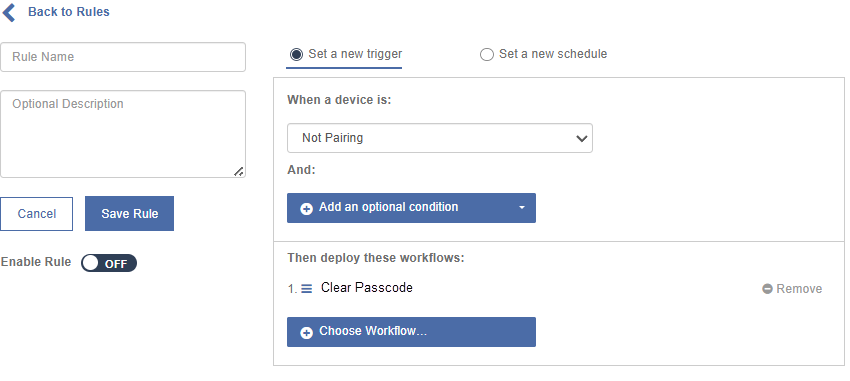
Create an automation rule that targets Unpaired Devices.
-
Select the OTA Workflow you created in step 1.
-
Save and enable the rule.
Perform MDM Command Workflow Action to Clear Passcode
Under certain conditions, devices with passcodes will still pair with Mobile Access Management.
For example, the user may connect the device while it is unlocked.
You must clear the passcode in your Workflow in any of the following cases:
-
You will check in the device for another user.
-
You will update iOS on this device. This feature may make the device unusable if it has a passcode.
-
You are performing any actions other than Erase.
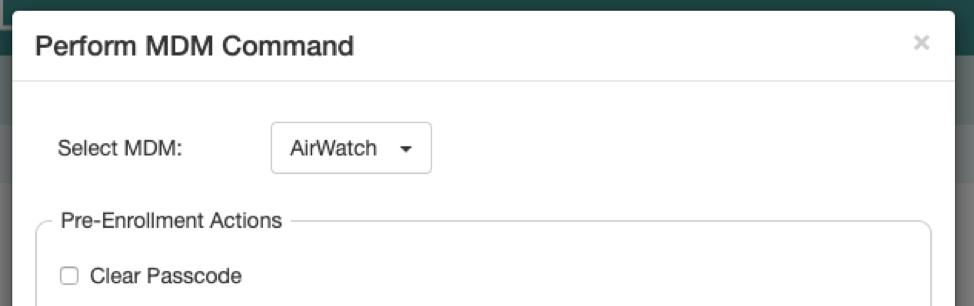
To clear a passcode without an erase action, you can use the Perform MDM Command Workflow action with supported MDMs to enable a Pre-Enrollment action to clear a device’s Passcode.
This action will be run before other Pre-Enrollment actions such as Delete Device from MDM.
If your automated Workflow includes an Erase action, you do not need to clear the passcode in the Workflow. Erase will clear the passcode.
Recover Android Devices with Passcodes
If a shared Android device is restarted or loses power while a user-defined device passcode is set, Android may require that passcode after the device restarts before normal device and application functionality is restored.
In this scenario Locker Android will not be able to check in and the device level passcode can't be reset by MAM.
If the original user is unavailable or does not know the passcode, recovery options depend on the device's Mobile Device Management (MDM) solution and configuration. Some MDM platforms may provide administrative capabilities to reset or remove the device passcode after a reboot.
Consult your MDM provider to determine whether passcode recovery is supported for your Android version, device model, and enrollment configuration. If the MDM does not provide a supported recovery method, a factory reset may be required to return the device to service.
Some MDM platforms provide administrative recovery options for Android devices that remain protected by a user passcode after reboot:
-
SOTI MobiControl and Omnissa Workspace ONE explicitly support passcode recovery in Direct Boot under supported configurations.
-
Samsung Knox Manage also provides screen-lock reset capabilities and Direct Boot support, although supported commands depend on Android version, device type, and enrollment mode.
Consult your MDM provider to confirm support for their specific deployment.
This does not apply to Microsoft Intune, because Intune uses the Managed Home screen (MHS) Session PIN to lock a device while in use.


