 minute read
Check Out Devices via Launchpad
Users tap their existing RFID-enabled employee ID badge on a proximity card reader attached to a Smart Hub. After MAM checks authorizations, it identifies the device with the greatest battery charge and performs a software unlock to reveal the preconfigured apps.
This is MAM's hardware-based solution ("Tap and Go").
Prerequisites
Take note of the following prerequisites:
-
Imprivata enabled the Check Out feature for your organization.
-
You have met the prerequisites for the Check Out and Password AutoFill features, including appropriate Imprivata licensing.
-
You configured the integration with Imprivata Enterprise Access Management.
-
The Imprivata appliances in your Imprivata enterprise must be running EAM 25.2 or later.
For more information on upgrading your Imprivata appliances, see the Imprivata Upgrade portal.
NFC Proximity Card Requirements
-
Proximity cards (badges) must be ISO/IEC 14443 Type A compliant by using the 13.56 MHz MIFARE NFC Frequency. If your current badges do not support this frequency, there are two options available:
-
Replace existing badges with new badges that support dual frequency (both 125 kHz and 13.56 MHz).
-
Attach stickers to the badges to allow for 13.56 MHz frequency to be read. When adding a sticker that supports the 13.56 MHz frequency, configure the EAM user policy to the user to enroll more than one badge. For more information, see Integrate with Imprivata Enterprise Access Management.
Available Authentication Methods for MAM Check Out from a Launchpad
MAM supports a variety of EAM authentication methods for device Check Out from a Launchpad.
The integration of MAM and Enterprise Access Management supports the following primary and secondary factors for authentication.
-
For some first factors, you can allow a limited user choice for the second factor.
For example, if proximity card is the first factor, you can allow network password as the second factor.
-
Authentication methods are configured in the Imprivata Admin Console in user policies.
-
The Authentication tab of an EAM user policy controls the authentication methods and options (authentication rules) that define authentication behaviors for Enterprise Access Management. For more information on EAM user policies, see the EAM documentation.
-
Some combinations of authentication factors are not supported by Mobile Access Management for device Check Out.
The following table illustrates the EAM primary and secondary authentication method selections and the resulting Check Out behaviors in MAM.
Primary Secondary MAM Device Check Out Behavior Check Out is initiated by the user taking a device out of the Smart Hub Password No second factor -
User taps Unlock with password on the Imprivata Locker lock screen.
-
User enters username and password.
-
The device unlocks.
-
Imprivata Locker performs the device checkout and runs the assigned workflows and automation rules.
Check Out is initiated by the user tapping their proximity card on a Launchpad Proximity Card ‡
-
User taps their proximity card on the Launchpad's proximity card reader.
-
The device is selected.
-
Imprivata Locker lights up the device's display screen.
-
Imprivata Locker app prompts for face authentication.
-
If the user's face is already enrolled, the user's facial biometric is successfully captured and the device unlocks.
-
If the user's face is not enrolled, Imprivata Locker prompts the user to enroll their face and to consent to the biometric capture. The user's facial biometric is successfully captured and the device unlocks.
-
Proximity Card No second factor -
User taps their proximity card on the Launchpad's proximity card reader.
-
The device is selected.
-
Imprivata Locker lights up the device's display screen.
-
The device is unlocked.
Proximity Card Password -
User taps their proximity card on the Launchpad's proximity card reader.
-
The device is selected.
-
Imprivata Locker lights up the device's display screen.
Proximity Card Imprivata PIN -
User taps their proximity card on the Launchpad's proximity card reader.
-
The device is selected.
-
Imprivata Locker lights up the device's display screen.
-
‡ Facial recognition requires Imprivata appliances running the 25.2 or later software and the connection to the Imprivata Cloud Platform.
Configure the Authentication Methods
Configure settings in the Check Out via Launchpad > Select Authentication Methods section.
 Allow New Badge and Imprivata PIN Enrollments to EAM
Mobile Access Management allows new badge enrollments and Imprivata PIN enrollments during checkout. This is useful when users have a new or replacement badge that is not already enrolled in EAM.
Applies to iOS and Android devices.
-
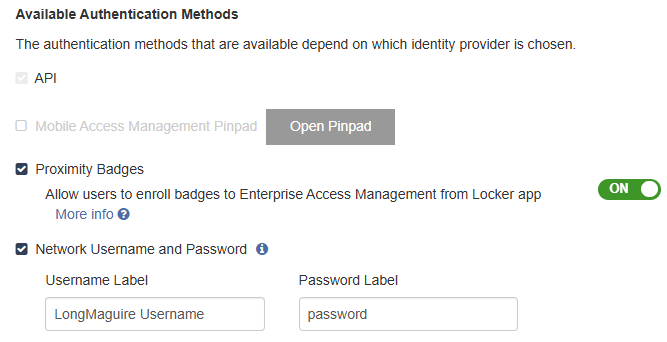
In Admin > Check Out > Check Out via Launchpad > Select Authentication Methods section, select Proximity Badges.
-
To allow new badge enrollments to EAM from the Locker app, switch the Allow users to enroll new badges to Enterprise Access Management from Locker app setting to ON.
-
When prompted, restart the Launchpads.
Require a Second Factor to Unlock the Device
This setting is enabled and not visible to disable for organizations created as of MAM 7.0 (June 2025).
This setting is displayed when the Password Autofill and SSO setting is switched to ON.
Imprivata recommends switching this setting to ON.
This setting controls whether users must provide a second factor in the Locker app during checkout to unlock the device.
During Check Out, users outside of their grace period see a Complete Verification button and must complete 2FA before exiting Locker app.
-
When the setting is switched to OFF, users outside of their grace period see a Continue button and can skip 2FA and exit Locker, but will not have access to Password Autofill or SSO.
-
When the setting is switched to ON, the user is not prompted for the second factor if the IdP does not require it.
Check Out with Username and Password
Mobile Access Management also allows checking out using a username and password as an additional authentication method. This is useful when users forget to bring their badges to work.
Imprivata recommends selecting Network Username and Password as an available authentication method.
-
In Admin > Check Out > Available Authentication Methods, select Network Username and Password.
-
Some organizations use special terms for username, such as "Network ID", "Net ID", or similar. You may customize the terms you use by editing the Username Label and Password Label fields.
When enabled, the Locker app lock screen adds a button for users to type their network username and password to unlock the device.
For EAM enterprises configured with multiple domains, the user selects their correct domain from a list box of domains.
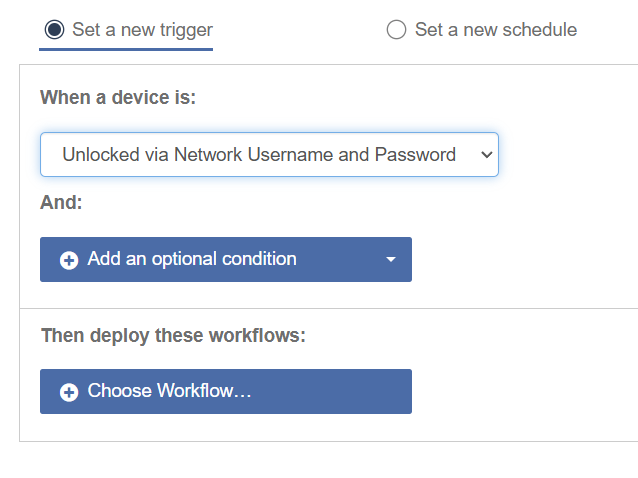
On successful checkout, Mobile Access Management can automate a Workflow. The automation must use the trigger Unlocked via Network Username and Password, and the Workflow use the Over the Air Workflow model.
 NOTE:
NOTE:Beginning with MAM 8.0, Locker Android customers must maintain the legacy trigger When devices are unlocked via Network Username and Password.
For customers who had Unlock with username/password enabled before upgrading, MAM automatically copies each rule with the When devices are unlocked via Network Username and Password trigger to a new rule with the When devices are Checked Out using Locker App (Locker iOS 8.0+) trigger.
MAM adds an automatically created OTA workflow containing the OTA Check Out action as the first workflow, before any workflows already defined in the copied rule.
The copied rule may have a name such as Unlocked via Network Username and Password. However, the new rule applies to all OTA checkouts, including badge, QR code, and Face authentication. After migration, if you enable another Locker authentication method, such as badge, the OTA checkout activity is still logged under a rule whose name no longer accurately describes the trigger.


