 minute read
Enroll Badges at Device Checkout
The integration with Imprivata Enterprise Access Management (EAM) allows users to enroll new proximity badges when checking out devices from Mobile Access Management.
Using the Locker app, users can enroll a new badge, manually authenticate and register the badge, and enroll their Imprivata PIN without needing to tap into an EAM desktop workstation.
This feature is supported by both Tap and Go (Checkout via Launchpad) and Grab and Go (Checkout via Locker) modes.
Prerequisites
Take note of the following prerequisites:
- Imprivata enabled the Check Out feature for your organization.
-
You have met the prerequisites for the Check Out and Password AutoFill features, including appropriate Imprivata licensing.
-
You configured the integration with Imprivata Enterprise Access Management.
-
Users must have an EAM user account.
Expected Behavior
The following assumes a user has not yet enrolled their proximity badge when checking out a device.
| Check Out via Launchpad (Tap and Go) | Check Out via Locker iOS (Grab and Go) - 8.0 UAT only | ||
|---|---|---|---|
|
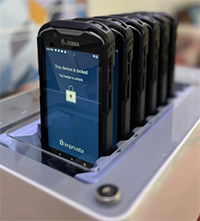
Devices are locked and charging in the Smart Hub. The user taps their badge on the card reader attached to the Launchpad. |
|
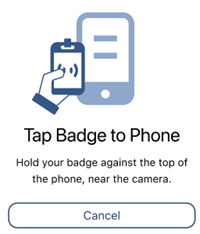
The iOS device is locked. The user taps their NFC badge on the iPhone. Grab and Go is not supported for Android devices. |
|
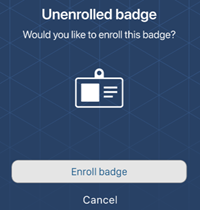
If the user's proximity badge was not previously enrolled, the locked device displays a message of " During the badge enrollment, the Launchpad disables all badge scans, so that multiple users can't check out devices at the same time. |
|
If the user's proximity badge was not previously enrolled, the locked device displays a message of "Unenrolled badge" and prompts the user to enter credentials to enroll the badge. |
|
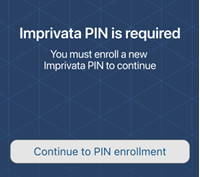
If multifactor authentication is enabled and set to Imprivata PIN, the user is prompted to enroll their Imprivata PIN according to the PIN length and character requirements set in EAM. |
|
If multifactor authentication is enabled and set to Imprivata PIN, the user is prompted to enroll their Imprivata PIN according to the PIN length and character requirements set in EAM. |
|
|
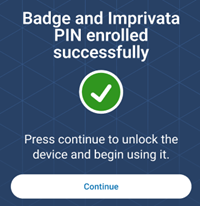
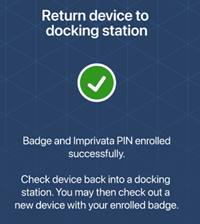
The badge and Imprivata PIN enrollment succeeds.
|
|
The badge and Imprivata PIN enrollment succeeds. The iOS device is unlocked and checked out the user. |
Mobile Access Management Configuration
To allow new badge enrollments:
-
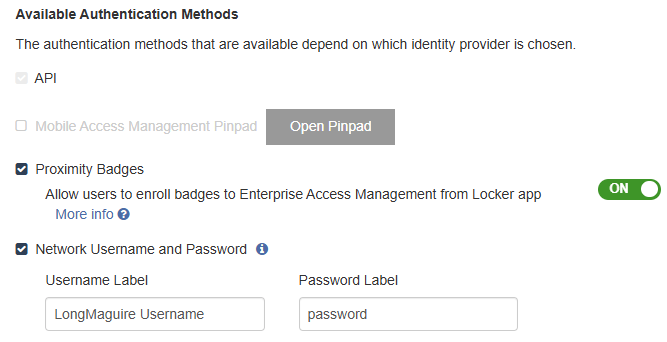
In the MAM console, go to Admin > Check Out > Available Authentication Methods.
-
Select Proximity Badges as the authentication method.
-
Switch the Allow users to enroll new badges to Enterprise Access Management from Locker app setting to ON.
Click to enlarge
-
Specify other settings, as needed.
-
When prompted by the system, restart the Launchpads.


