 minute read
Remove Epic Notifications
When you are configuring the Imprivata mobile policy, you can customize the settings to specify which lock screen notifications can appear for Epic.
To remove Epic notifications when there is no logged in user:
-
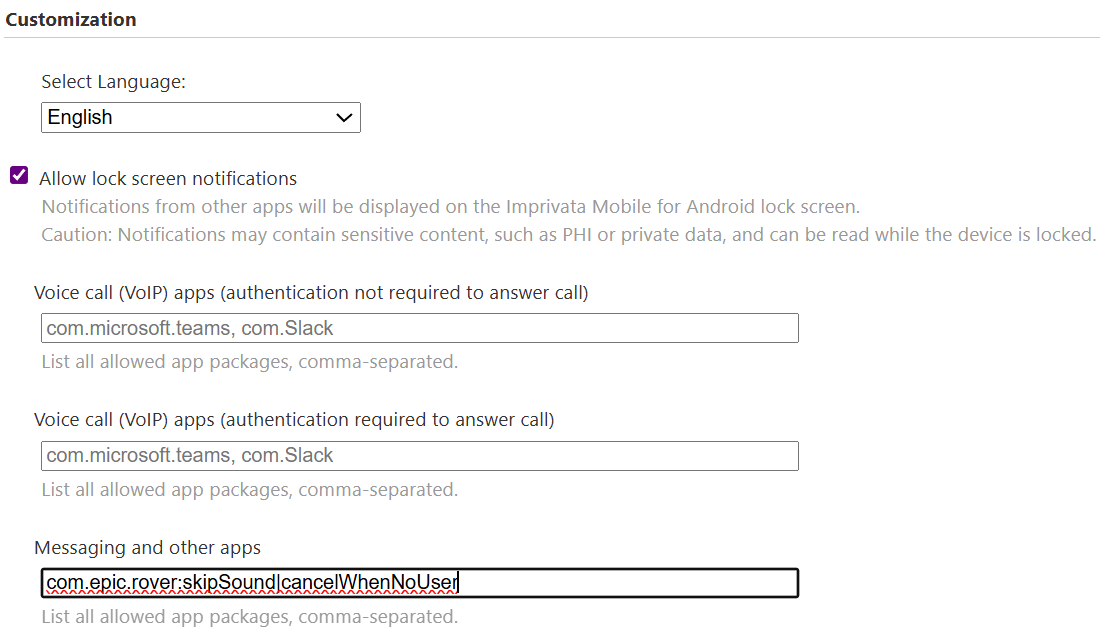
In the Imprivata Admin Console, open the Computers menu, click Mobile policy, and configure the setting in the Customizations section.
-
Select Allow lock screen notifications, and then in Messaging and other apps enter the package name for the Epic app where push notifications should be allowed.
The following attributes are supported for the setting, separated by the pipe character "|":
-
cancelWhenNoUser indicates that MDA will not display a notification on the MDA lock screen when there is no logged in user.
-
skipSound indicates that MDA will not play a notification sound for the app.
-
skipEmptyCategory indicates that MDA will not display empty grouping notifications for alarm notifications and foreground service notifications that don't carry any useful information for the user.
Example
Click to enlarge
-
-


