 minute read
Configure the Mobile Policy and User Authentication
The mobile policy applies to every device enabled for Imprivata MDA.
You can override mobile policy device settings by AppConfig using your MDM.
To configure the mobile policy, in the Imprivata Admin Console, open the Computers menu, click Mobile policy, and configure the following sections:
 Device Management
To configure device settings:
-
Go to the Access Management section.
-
(Optional) Select Allow guest mode.
By default, users must authenticate to access the device. When enabled, users can tap Guest to access the device without having to authenticate. When a user access the device in this way, single sign–on is not available.
-
(Optional) Select Automatically log out a user.
By default, a user's session remains active until the user logs out or a user switch occurs. You can specify a duration after which time the authenticated user is automatically logged out.
-
(Optional) Select Inactivity re-authentication.
By default, a user's session remains active until the user logs out or a user switch occurs. You can specify a duration after which time the device is locked and the user is required to re–authenticate.
-
(Optional) By default, users authenticate using a proximity card. You can:
-
Add an Imprivata PIN or password as a second factor.
Select Turn on grace period for second authentication factor, and specify the grace period.
The grace period is the time during which subsequent authentications do not require the second factor.
-
Enable the policy for a username and password + an Imprivata PIN.
Select Unlock with Imprivata PIN instead of proximity card, and specify the grace period.
The grace period is the time during which subsequent authentications require an Imprivata PIN only.
Use this setting when configuring Countdown to lock mode to renew a session using the Imprivata PIN.
-
Web Browser Management
By default, all open Google Chrome and Zebra Web browsers are closed when a user logs out or during a user switch.
To change the default web browser data settings:
-
Go to the Web Browser Management section.
-
(Optional) Enable one of the settings:
-
Do nothing
-
Force stop all browsers — Stops all related browser services.
-
Clear cache on all browsers — Clears all cached images and files.
-
Clear data on all browsers — Clears the cache and deletes all data associated with the browser.
-
Authentication
By default, the Imprivata appliance does not check whether user credentials have been changed outside of EAM (out of band). If a user has updated their password out of band, authentication fails.
When enabled, Imprivata MDA checks for an out of band password change before authentication:
-
If detected, the user is prompted to reenter their credentials.
-
After the user successfully authenticates, the new credentials are saved.
To check for an out of band password change:
-
Go to the Authentication section.
-
(Optional) Select Validate stored domain credentials before authenticating.
Customization
Customization settings let you:
-
Specify which push notifications are allowed to appear on the home screen.
By default, Imprivata MDA blocks the push notifications from all apps from appearing on the home screen.
To configure customization settings:
- Go to the Customization section.
-
In Imprivata MDA 7.14 and later, the language is controlled by the device level localization settings, commonly configured in your MDM, and not by the mobile policy.
-
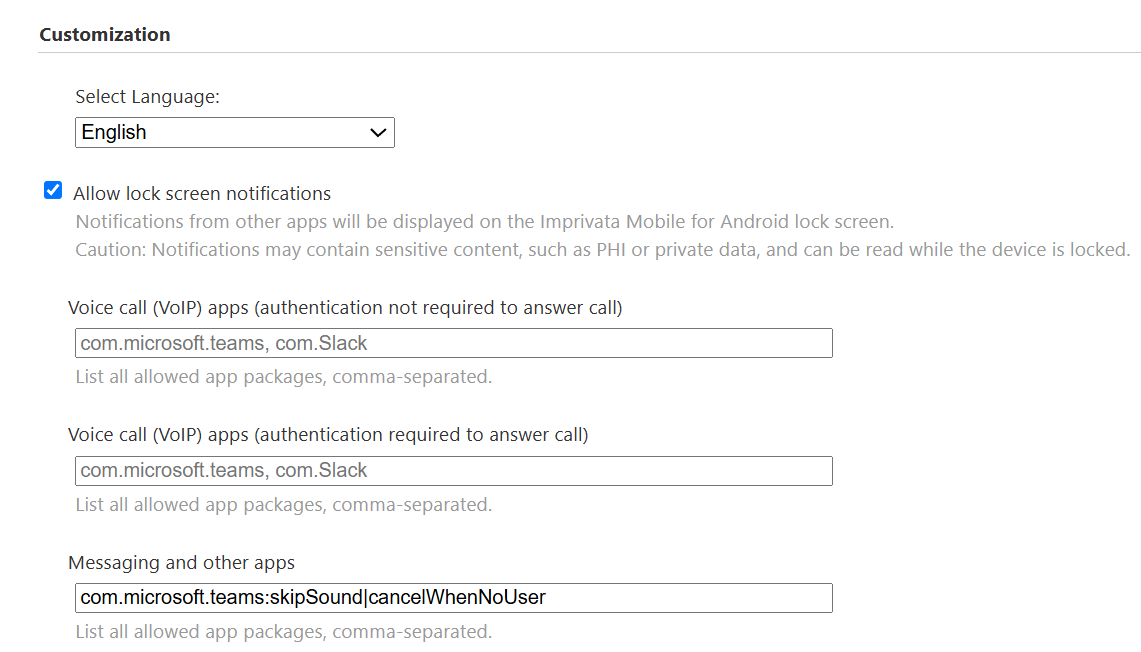
(Optional) Select Allow lock screen notifications, and enter the package name for each application whose push notifications should be allowed. Configurations in each setting apply only to a related notification type.
IMPORTANT:Notifications may contain sensitive information, such as PHI or private data, and can be read while the device is locked.
Users can interact with notifications based on the following settings:
-
Voice call (VoIP) apps (no authentication required to answer call) — Users can answer or decline a voice call from the Imprivata MDA home screen.
-
Voice call (VoIP) apps (authentication required to answer call) — A notification appears on the home screen stating that there is an incoming call. Users must authenticate to the device to answer or decline the voice call.
-
Messaging and other apps — A notification appears on the home screen stating that there is a notification. Users must authenticate to the device to read it.
The following attributes are supported for each of these settings, separated by the pipe character "|":
-
skipSound indicates that MDA will not play a notification sound for the app for the notification type.
-
cancelWhenNoUser indicates that MDA will not display a notification on the MDA lock screen when there is no logged in user.
For regular messaging notifications, add the notification canceling flag to the Messaging and other apps setting.
Example
-
skipEmptyCategory indicates that MDA will not display empty grouping notifications for alarm notifications and foreground service notifications that don't carry any useful information for the user.
-
partialWake indicates that when a notification is received, the screen won't be turned on, but the CPU will awaken.
-
skipWake indicates that when the device is in sleep or doze mode and a notification is received, the device will not wake.
-
lockOnLogoutFail indicates that MDA locks the device only on the specified app's logout failure; the prior user's session is preserved for re-authentication.
-
-
-
(Optional) Select Allow floating Home button. Applies to Workspace ONE Launcher configuration.
Determine the Package Name If You Don't Know It
-
If you do not know the package name, you may be able to use its Imprivata MDA profile or its Google Play Store app URL to find it:
While the profile for a partner app cannot be edited, others can be opened to view settings.
-
To use an app profile to identify a package name, go to the Single sign-on application profiles page, locate the required app, and click Edit profile.
-
To identify the package name for a partner app, or any other third-party app on the device, you can use its Google Play Store app URL.
From the Google Play Store, search for the app, and then open its page.
The package name forms the end part of the URL after the "?id=".
For example, https://play.google.com/store/apps/details?id=com.imprivata.Messaging
-


