 minute read
Hide the Password AutoFill Prompt During Check Out
Applies to iOS devices only.
Supported in MAM 7.3 and later.
Administrators can configure a Locker Custom Options setting to hide the 'You need to configure some settings to use Password Autofill' prompt on iOS devices during check out. This is helpful for organizations that are only interested in SSO, but not Password AutoFill.
This allows organizations to deploy Imprivata Locker SSO (OIDC) without prompting users to enable Password AutoFill or requiring a technician to physically touch each device.
Workflow
When the Locker Custom Options setting is configured:
-
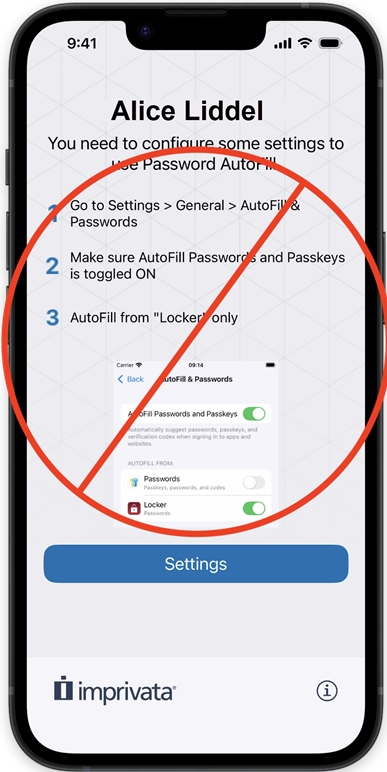
During device check out, the user will not be prompted with the
You need to configure some settings to use Password Autofillscreen.Click to enlarge
Prerequisites
Take note of the following prerequisites:
-
Requires Imprivata Locker for iOS 4.3 and later.
Configure Locker Custom Options
Add Locker Custom Options to your devices by one of the following methods:
-
At a global level by an Admin > Check Out setting.
-
To multiple devices by adding the Locker Custom Options to your Workflow.
-
To a single device by its Device Details.
Add Locker Custom Options Globally
-
In MAM’s console, go to Admin > Check Out > Locker Custom Options, click Configure.
-
In the Locker Custom Options field, enter the key/value pairs in JSON format and click Save.
JSON Syntax
{
    "HidePasswordAutoFillPrompt": true
}
where:
-
true hides the "
You need to configure some settings to use Password Autofill" prompt during device check out.On the device, the Settings > AutoFill Passwords and Passkeys screen will not display Imprivata Locker.
If you already have Locker Custom Options defined for your devices, you can add this key/value pair to your JSON as another line:
Example
{
    "DefaultDomain": "mydomain.onmicrosoft.com",
    "HidePasswordAutoFillPrompt": true
}The key portion of Locker Custom Options key/value pairs are case-sensitive. The values may be case-insensitive.
Add Locker Custom Options to Multiple Devices
To apply custom options to multiple devices at once, add the Custom Options action to a Workflow.
-
In MAM’s console, go to Workflows.
-
Create a new Workflow, or edit an existing Workflow.
-
Click Add an action > Advanced > Locker Custom Options.
-
Enter the key/value pairs in JSON format and click Save.
-
Click Save Workflow and deploy to the devices.
Add Locker Custom Options to a Single Device
To apply custom options to a single device:
-
In MAM’s console, go to Devices, and select the device from the Device List. In the Device Details dialog, click Custom Options.
-
Click Edit, enter the key/value pairs in JSON format and click Save.
-
Click Deploy Workflow to deploy to the device.


