 minute read
Configure Locker SSO to OpenID Connect-enabled Apps
Applies to iOS devices only.
Imprivata Mobile Access Management adds authentication to OpenID Connect (OIDC) apps that are configured for OIDC with Imprivata as the Identity Provider (IdP). Authentication is sharing the MAM user session with a third party app so that a user does not need to enter credentials for authentication to the third party app.
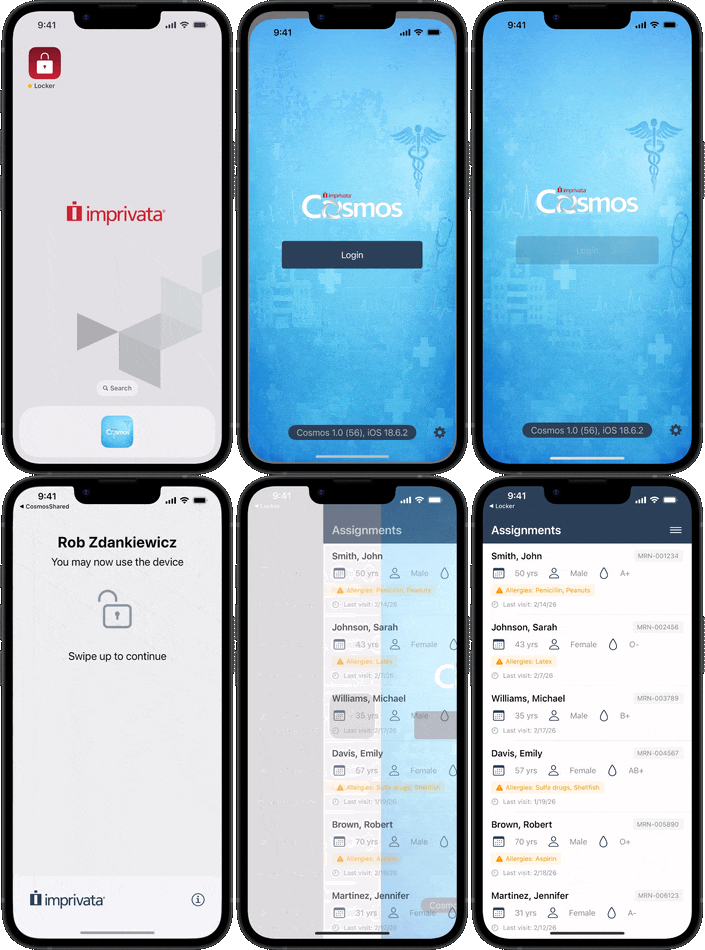
The app session is secured with the user's personal device passcode.
Locker SSO is not mutually exclusive with Password Autofill. You can still use Password Autofill on other applications, however, you may want to hide the Password Autofill prompt by configuring a Locker Custom Option.
Prerequisites
Supported in MAM 7.3 and later.
Take note of the following prerequisites:
-
Imprivata Locker app for iOS - 4.3 or later
-
Password Autofill and SSO setting is enabled in MAM console (Admin > Check Out > Password Autofill and SSO).
-
Integration with Imprivata Enterprise Access Management.
The following EAM dependencies for OIDC integration must be completed:
-
Imprivata appliances are running a maintained release of EAM. For more information, see the EAM Supported Components.
-
Imprivata licensed for Single Sign On.
-
OpenID Connect applications are added to your Imprivata enterprise.
-
OpenID Connect applications are deployed to selected set of users.
-
Imprivata users are assigned to a user policy enabled for Single Sign On.
-
SSO Extension profile is deployed from your MDM.
-
Network Requirements
Ensure that your firewall policy is configured to allow communication for Locker SSO.
Add the following hosts to your firewall allowlist:
*.cloud.imprivata.com
 Step 1: Imprivata Appliance Configuration
Validate OpenID Connect integration settings in the Imprivata Admin Console:
| Setting | Required / Optional | Imprivata Admin Console location |
|---|---|---|
| Appliance is running a maintained release of Imprivata Enterprise Access Management | Required | Help menu |
| Imprivata Single Sign On is licensed | Required | Gear menu > License |
| Imprivata enterprise is provisioned and connected to the cloud | Required | Gear menu > Cloud connection |
| OpenID Connect applications are added and enabled in Imprivata Admin Console | Required | Applications > Single sign-on application profiles |
| OpenID Connect applications are deployed to selected set of users | Required | Applications > Single sign-on application profiles |
| Imprivata users are assigned to user policy enabled for Single Sign On | Required | Users > User policies |
Step 2: Imprivata Cloud Connection
Imprivata Services will enter the Enterprise ID and one-time cloud provisioning code required to establish trust between your Imprivata enterprise and the Imprivata cloud:
-
In the Imprivata Admin Console, click the gear icon > Cloud connection.
-
Services will enter your Enterprise ID and cloud provisioning code. (The cloud provisioning code expires 5 minutes after it's generated. Generate a new code if 5 minutes has elapsed.)
-
Click Establish trust.
IMPORTANT:The cloud connection must be established by Imprivata Services.
Step 3: Exchange IdP and RP Metadata
Imprivata SSO (IdP) and your OpenID Connect application, the Relying Party (RP), need metadata from each other.
Open both consoles at the same time and import this metadata as follows:
-
In your RP's administrator console, copy the RP client credentials and Redirect URIs.
-
In the Imprivata Admin Console, go to the gear icon > Web App Login Configuration.
-
In the Identity provider (IdP) metadata section, click View and copy Imprivata (IdP) OpenID Connect metadata.
-
Provide the Client ID and Client Secret values to the RP's admin console.
-
Provide the endpoint URL metadata to the RP. This can be entered manually, or by providing the IdP metadata URL.
-
-
Save your work.
Step 4: Add an OIDC Application
In the Imprivata Admin Console, only the superadmin role can configure SSO application profiles:
-
In the Imprivata Admin Console, go to Applications > Single sign-on application profiles.
All Single sign-on application profiles, including Mobile app profiles and OpenID Connect application profiles, are managed from this page.
-
Click Add App Profile > Application using OpenID Connect. The Add application using OpenID Connect page opens.
-
In the Application profile name box, type the application profile name. This name is only visible to administrators.
-
In the Application user-friendly name box, type a user-friendly name for the application. This is the application name your users will see when they log in.
-
In the Redirect URIs box, type the Redirect URIs from the RP. Click Add URI to add another Redirect URI.
If you don't have Redirect URIs yet, leave this window open and go to the RP's admin console in another window.
-
Conditional - In the Claims section, review the default claims, and configure any custom claims and their attribute mappings required for your integration.
-
Select ID token or Access token to specify whether the claim and associated attribute mapping are to be used for ID tokens or Access tokens or both.
-
-
Conditional - In the Workflow section, review the default ACR values and Workflow items.
Configure any claims required for your integration.
-
In the Client credentials section:
-
Click Generate Client credentials to provide to the RP. A Client ID and Client secret are created. Provide these to the RP.
-
Conditional - Select Public client to work with public OIDC clients. By default, all OIDC profiles are confidential.
IMPORTANT:Public clients are less secure. Use with caution.
-
-
Click View and copy Imprivata (IdP) OpenID Connect metadata.
-
Copy the Issuer URL to provide to the RP.
-
-
Click Save.
Step 5: Deploy an SSO Extension
In your MDM, create and deploy an SSO Extension that enables single sign on.
-
In your MDM's admin console, create an SSO extension profile with the following information:
-
Give the profile a unique, identifiable name, such as 'Imprivata Locker SSO Extension'.
-
Extension identifier: com.imprivata.b2b.locker.ssoextension
-
Type: Redirect
-
URLs: https://oidc.idp.cloud.imprivata.com
-
-
Assign the SSO Extension to the devices.
Microsoft Intune
-
In Devices > iOS/iPadOS |Configuration > Manage devices > Configuration, create a new policy with the name 'Imprivata Locker SSO Extension'.
-
Select Templates from the Profile type list.
-
Select Device features and click Create.
-
-
Expand the Authentication section of the new policy.
-
For Extension identifier, type
com.imprivata.b2b.locker.ssoextension -
For Type, select Redirect.
-
For URLs, type
https://oidc.idp.cloud.imprivata.com -
Save the SSO Extension and assign it to your devices.
Omnissa Workspace ONE
-
In Resources > Profile Details > SSO Extension, configure the SSO extension for Imprivata Locker.
-
On the SSO Extension tab, configure the following information:
-
For Extension identifier, type
com.imprivata.b2b.locker.ssoextension -
For Type, select Redirect.
-
For URLs, type
https://oidc.idp.cloud.imprivata.com
-
-
Save the SSO Extension and assign it to your devices.
Step 6: Configure MAM
Configure several settings in MAM to support the integration.
-
In the MAM console, go to Admin > Check Out.
-
Switch the Password Autofill and SSO setting to ON.
-
Switch the Require a second factor to unlock the device setting to ON.
This setting controls whether users must provide a second factor in the Locker app during checkout to unlock the device.
NOTE:This setting is enabled and not visible to disable for organizations created as of MAM 7.0 (June 2025).
Face Authentication for OIDC-enabled Apps
Beginning in 7.3, as a standard workflow, you can eliminate the device passcode and allow users to use face authentication for OIDC-enabled apps.
-
At device checkout, users are not prompted for a device level passcode. Instead, MAM secures the apps with Face authentication and short inactivity timeouts.
-
Supports any apps that use OIDC.
-
Gives high assurance that the user of the app matches the user who checked out the device.
Requirements
Face authentication for OIDC-enable apps requires the following:
-
Requires an Imprivata Advanced Passwordless Access (APA) license.
Considerations
Application-level timeouts that require the user to re-authenticate are controlled by the individual apps themselves.
There is no way to configure this in either EAM or MAM, and is not affected by EAM user policy grace periods for multi-factor authentication (MFA).


