 minute read
Epic Apps and Mobile Access Management
Mobile Access Management integrates with Epic apps, including Epic Rover, for simplified login and logout of users on shared devices.
Epic is a registered trademark of Epic Systems Corporation.
This topic covers the following configuration tasks:
-
Configure Epic Rover for Password Autofill — iOS devices only.
-
Configure Imprivata Enterprise Access Management for Rover Password Autofill — iOS devices only.
-
Automatically hide the EULA for newly provisioned devices — iOS and Android devices.
-
Configure Epic witness authentication using face recognition — iOS devices. Supported in 7.4 and later.
-
Configure Force Quit of the Epic Rover app — iOS devices only.
-
Configure Epic API Logout — iOS and Android devices.
 Configure Epic Rover for Password Autofill
Beginning with MAM 7.3 and Locker 4.3, using Locker SSO to Epic Rover is the preferred method for authenticating to Epic Rover. The method below is still supported.
-
The Imprivata Locker app allows users to easily check out a device, quickly access Rover with Password AutoFill, then have their data securely removed during check in.
-
Users can set a personalized device PIN during checkout to encrypt and secure all apps on the device. This allows users to repeatedly access the whole device and alleviates the need for frequent re-authentication in Epic Rover.
The PIN is automatically removed and Epic Rover data cleared when the device is returned.
When configured for username and password authentication, Epic Rover works seamlessly with Password Autofill. Mobile Access Management can even check that Epic Rover is successfully installed when provisioning iOS devices to ensure they are ready to be checked out.
Requirements
On iOS, Mobile Access Management requires disabling the local Keychain when enabling Password AutoFill from the Imprivata Locker iOS app.
Epic admins can define the Epic Rover user experience and set environment specific configurations in the Rover app using a managed AppConfig delivered by the MDM.
For Password AutoFill to work on Epic Rover 10.4.1 or later, Epic admins must configure the setting LOGIN.ENABLE_AUTOFILL to Yes.
For detailed Rover configuration options and instructions, Imprivata recommends working directly with Epic.
Configure Imprivata Enterprise Access Management for Rover Password Autofill
Beginning with MAM 7.3 and Locker 4.3, using Locker SSO to Epic Rover is the preferred method for authenticating to Epic Rover. The method below is still supported.
Enterprise Password Autofill with the Imprivata Locker (iOS) app uses profiles in Enterprise Access Management to allow users to select from a list of securely stored credentials when logging into apps.
Apps with associated domains like Epic Rover also support 1 tap autofill for an even faster login.
For the best user experience, the Epic Rover profile should be configured to prompt for 1 tap autofill using the iOS quicktype keyboard.
An example profile is provided.
For more information, see Create Imprivata Enterprise Access Management Profiles.
<SSO>
    <global verCreate="6.0" verLastMod="6.0"/>
        <app nm="epic.com" desc="Epic Rover" profileType="2" appType="0">
            <env type="200" nm="iOS">
                <scn nm="" auto="0" dgs="1">
                    <ctl var="USR"/>
                    <ctl var="PWD"/>
                </scn>
            </env>
        </app>
    <containers/>
</SSO> Setting the nm="epic.com" allows users to use 1 tap autofill and does not require the user to select from a list of credentials.
Automatically Hide the EULA for Newly Provisioned Devices
Epic Rover for iOS and Android supports automatically hiding the End User License Agreement for newly provisioned devices using AppConfig keys.
For more information, see your Epic documentation: Automatically Accept the End User License Agreement (EULA) for Managed Devices.
To hide the EULA on newly-provisioned devices:
-
In your MDM, add the following key/value pair to the Epic Rover app config settings:
Key Type Description EpicShowEula boolean Show or hide the Epic end user license agreement (EULA) screen.
Valid values: true, false
false - hides the EULA screen for newly-provisioned devices.
Configure Force Quit of the Epic Rover App
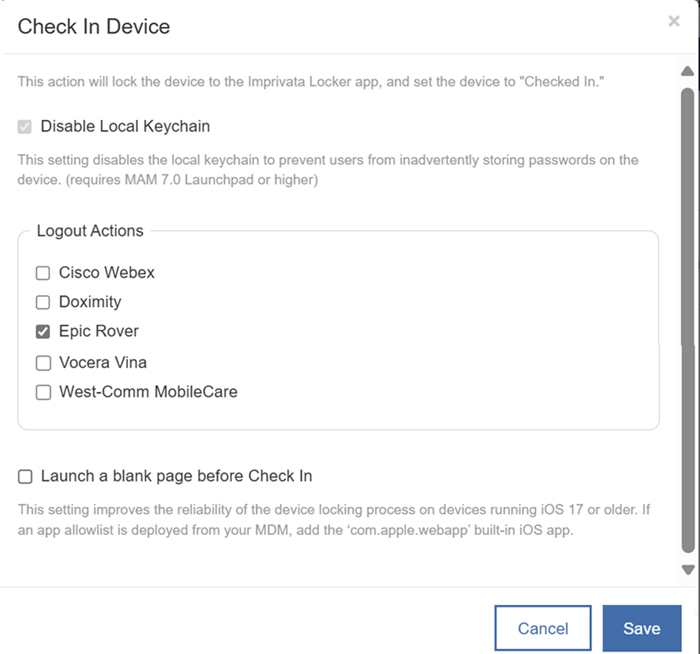
Mobile Access Management supports logout of Epic Rover by force quitting the app to clear the current user session.
For iOS, select the Epic Rover item in the Check In action app list to force quit Epic Rover during a check in.
Epic Rover will be logged out, and on the next check out will prompt the next user to log in.
This method affects only the device, and does not communicate the logout to the Epic environment.
Click to enlarge
Configure Epic API Logout
Applies to iOS and Android devices.
Use the Epic API logout feature to disassociate a user from a device in Epic and prevent push notifications (messages, alerts, or calls) from being sent to the device after check in.
For customers configuring Epic API Logout on multiple MAM environments such as Production and User Acceptance Test (UAT), configure connections to non-prod Epic environments only in UAT MAM, and production Epic environments only in production MAM.
Epic only allows connection to a single MAM environment per Epic environment type (non-prod vs. prod).
Customers with a single MAM environment can configure both non-production and production Epic environments in the Epic API Logout section of the App logouts Admin page.
Configure non-production first, then production.
Supported Epic Apps
This feature is compatible with Epic Rover, Epic Haiku, and Epic Canto apps on iOS and Android and should be used together with a force quit logout action.
Epic Documentation
For more information, see the Epic Galaxy documentation:
Interconnect User Case Guide – Disassociate a Mobile Device.
Epic Requirements
-
The Epic environment (Interconnect Server) must be reachable from the MAM server and have a valid TLS certificate.
-
Minimum Epic release. The integration requires Epic November 2023 release and later.
- Epic licensing. This feature utilizes the DisassociateMobileDevice Epic API, which is often included in customers' existing Epic licensing. Customers are encouraged to check with their Epic representative to confirm.
-
Your MDM App Configuration. In your MDM, assign the Epic mobile app's three AppConfig keys. See below.
-
Create and Associate a New Background User. See Step 1: Epic - Create and Associate a New Background User.
Configuration Steps
Complete the following steps in order.
Step 1: Epic - Create and Associate a New Background User
Perform this step in Epic to create and associate a new background user.
The steps apply to Epic February 2024 and later.
To create and associate a new background user:
-
In Epic, create a new background user for the Interconnect OAuth2 back-end service.
No specific security points or classes are required.
-
Associate the new background user with the Interconnect OAuth2 back-end service:
-
From the Interconnect Administrator's menu, select OAuth2 Management, then Environment-Specific Client Settings.
-
Select Create/Edit Settings and enter
Imprivata Mobile Access Connectorin the Client field. -
Specify the background user that you created in the Background user field.
-
-
Specify the background user that you created in the Associated User column.
Step 2: Configure MDM AppConfig Settings for the Epic App
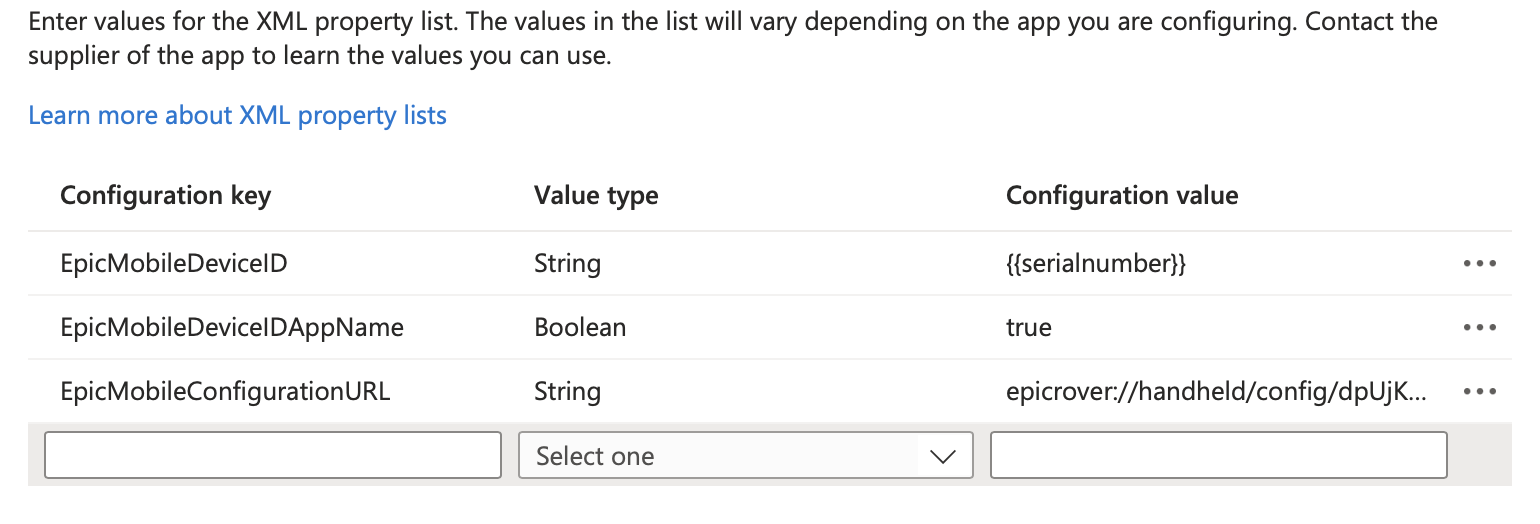
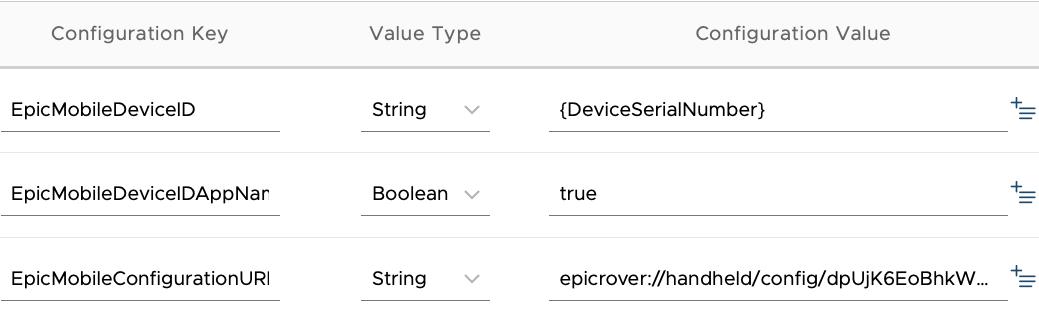
For the Epic app, in your MDM, set the following AppConfig key/value pairs.
| Configuration Key | Value Type | Configuration Value | Description |
|---|---|---|---|
| EpicMobileDeviceID | string |
|
Sets a unique MDM device ID for use with Epic API logout. IMPORTANT: The unique configuration value for EpicMobileDeviceID is based on how your MDM treats device serial numbers. |
| EpicMobileDeviceIDAppName | Boolean | true |
Enables the Epic App name to be appended to the unique install ID. This allows for different app installations running on the same device to be uniquely identified. |
| EpicMobileConfigurationURL | string | epicrover://handheld/config/XXXX |
The unique Epic configuration URL. To obtain the EpicMobileConfigurationURL for your environment, contact your Epic administrator. |
Microsoft Intune
-
In the Microsoft Intune admin console, select the app to configure from the Associated app.
-
Click Configuration settings and select Use configuration designer from the Configuration settings format list.
-
Add a new key for EpicMobileDeviceID AppConfig. Set the Value Type to String, and set the Configuration Value to {{serialnumber}}.
-
Add a new key for the EpicMobileDeviceIDAppName. Set the Value Type to Boolean and set the Configuration Value to true.
-
Add a new key for the EpicMobileConfigurationURL. Set the Value Type to String, and set the Configuration Value to your unique Epic configuration URL.
Omnissa Workspace ONE
-
In the Workspace ONE UEM console, specify the user groups that will receive the Epic app.
-
On the distribution screen, name the assignment and in the Assignment Groups field, enter the name of the user group or smart group.
-
-
From the menu on the left, click Application Configuration.
-
Add a new key for EpicMobileDeviceID AppConfig. Set the Value Type to String, and set the Configuration Value to {DeviceSerialNumber}.
-
Add a new key for the EpicMobileDeviceIDAppName. Set the Value Type to Boolean and set the Configuration Value to true.
-
Add a new key for the EpicMobileConfigurationURL. Set the Value Type to String, and set the Configuration Value to your unique Epic configuration URL.
-
Save the change, then click Save and Publish, then Publish.
Validate the Epic App's AppConfig Settings
To validate that you applied the AppConfig setting to the Epic app:
-
Open the mobile app, tap the environment selector at the top of the login window, tap the Back button in the top left, then tap the Identifier button in the bottom left.
This should display the Install ID in a format of the device's serial number with the app name directly following.
For example, J4X7X22WGARover.
If the Install ID is still a long alphanumeric string, try reinstalling the app. The Install ID must match the device’s serial number with the app name appended, or the logout action will fail with the error “…Install ID not found.”
Step 3: Request the Mobile Access Connector
In the Epic Showroom, click Request Imprivata Mobile Access Connector to request access to the Imprivata Connector from the Imprivata Epic team.
When the request is complete, your Epic Showroom displays a status of Ready.
The Epic Showroom will show a status of Pending until Step 4 (below) is completed. After Step 4 is complete, it will send the Request that Imprivata will approve and the status of Pending will change to Ready.
Step 4: Configure Epic API Logout in MAM
To configure Epic API Logout for Epic Rover:
-
In the MAM console, go to Admin > Check In > Epic API Logout.
-
Click Add Epic Environment.
-
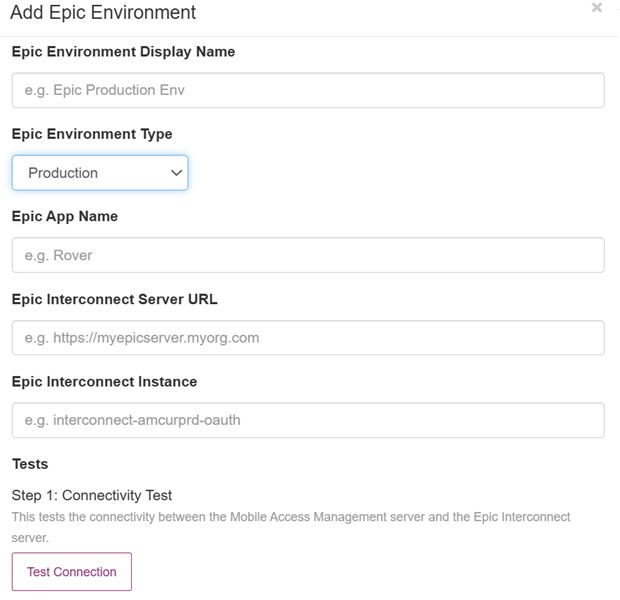
In the Add Epic Environment dialog, enter the settings for your Epic environment:
-
In the Epic Environment Display Name, type a descriptive name.
-
In the Epic Environment Type, select Non-production first.
IMPORTANT:You can create both Non-production and Production, but Epic requires Non-production to be completed first.
No actions will be taken in either environment until Step 6: Add Logout Actions To The Check In Device Workflow is configured.
-
In the Epic App Name, type the Epic app name, for example: Rover.
Epic App Name name is case sensitive.
-
In the Epic Interconnect Server URL, type the URL of the Epic Interconnect Server.
-
In the Epic Interconnect Instance, type the instance name, for example: APIProxyPRD or APIProxyTST.
-
In the Tests section, click Test connection to test the connection between the Mobile Access Management and Epic Interconnect servers. Authentication failures are expected until step 3 is complete.
-
Click Save to save the configuration.
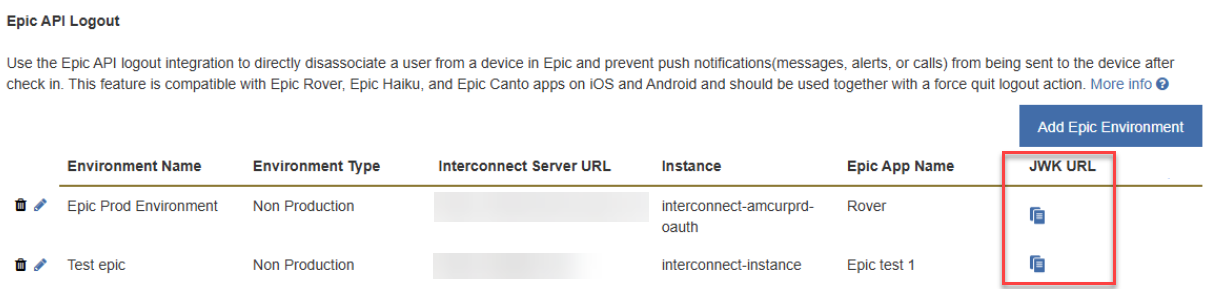
The MAM server generates a JWK URL.
-
Epic May 2026 and Later
Beginning with the May 2026 release of Epic, organizations can directly retrieve the automatically-gnerated MAM JWK URL for input into the Epic Interconnect Admin Utility.
If you are using an earlier release of Epic than May 2026, skip this section and see the section Earlier Epic Releases.
-
In the MAM console, go to Admin > Check in > Epic API Logout.
-
In the Epic API Logout section, copy the JWK URL to your clipboard for your non-production and production environments.
-
In the Epic Interconnect Admin Utility, paste the JWK URLs into their respective settings for your non-production and production environments.
Earlier Epic Releases
For organizations using earlier Epic releases than May 2026, the process involves the Imprivata Epic team facilitating the upload of the JWK URL to Epic:
-
The Imprivata Epic team uploads the JWK URL generated by the MAM server to Epic.
NOTE:It may take up to 12 hours to sync the JWK URL. During this time, authentication to your Epic environment will not succeed.
The 12 hour wait time can be expedited by contacting your Epic TS.
The Mobile Access Management server now has access to communicate securely with your Epic environment.
Access to Epic Showroom is limited to your organization’s Epic administrators.
Step 5: Conditional - Configure Additional Epic Apps for Logout
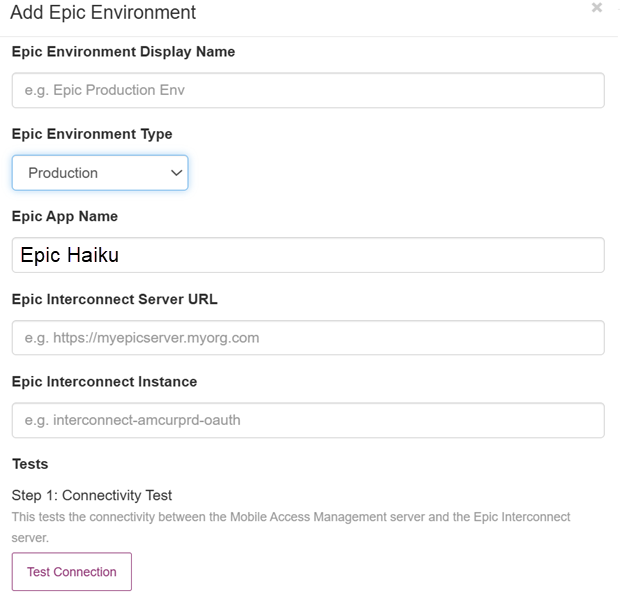
Use this step if your organization needs multiple Epic apps, such as Epic Rover plus Epic Haiku or Epic Canto.
To configure additional Epic apps for logout:
-
Repeat the procedure in Step 4: Configure Epic Logout in MAM, with the same Epic environment information, except for the Epic App Name box, type Haiku or Canto to identify the additional Epic apps.
-
Add the Epic Haiku or Epic Canto apps to your Check In Device workflow as in Step 7: Add Logout Actions to the Check In Device Workflow.
Step 6: Test the Epic Logout API
After the environments sync, perform a logout test. This tests the logout API call on a device without performing a Check In workflow.
-
In the Add Epic Environment dialog, in the Tests section, type a device serial number in the Device Serial Number box.
-
Click Test Epic API Logout.
If successful, the Epic app is immediately logged out and returns to its login screen. This simulates the behavior that will take place during a Check In Workflow.
Step 7: Add Logout Actions to the Check In Device Workflow
For devices with Epic apps, add a Check In Device workflow with logout actions for Epic API Logout.
In the Check In Device dialog, select Epic API Logout.
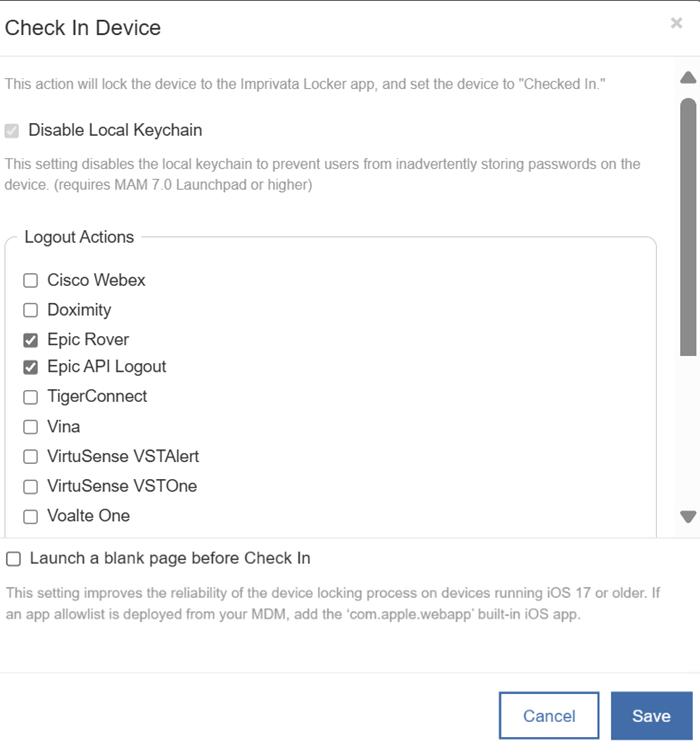
API requests to Epic may fail with an error of '…Install ID not found…' if no user has yet logged into the app after applying the EpicMobileDeviceID and EpicMobileDeviceIDAppName AppConfig settings.
This API failure will not fail the Check In workflow and the force quit app action will proceed normally.


