Data Transformation
Preparation
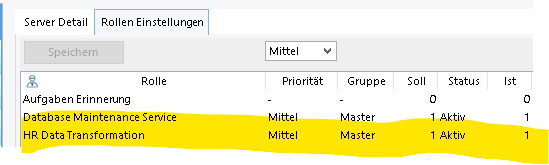
If you performed an update you need to start the Roles associated with the Data Transformation Wizard in the master client first in order to use it.
Data source
All data sources must be available on all Management Servers. If there is more than one management server, this means, for example:
-
CSV files should be located on a file share.
-
The MS-SQL server must be accessible from all management servers.
-
ODBC data sources must be available on all management servers and have the same name.
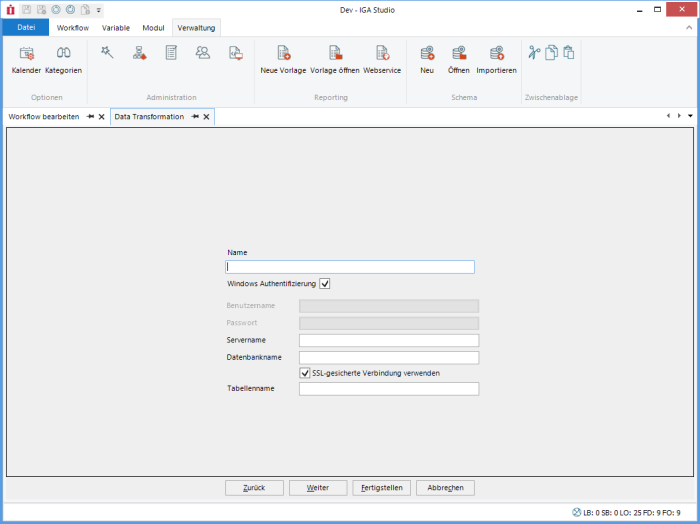
Each data source has an internal name that is displayed later when linking. This is freely selectable. The name must be unique.
CSV
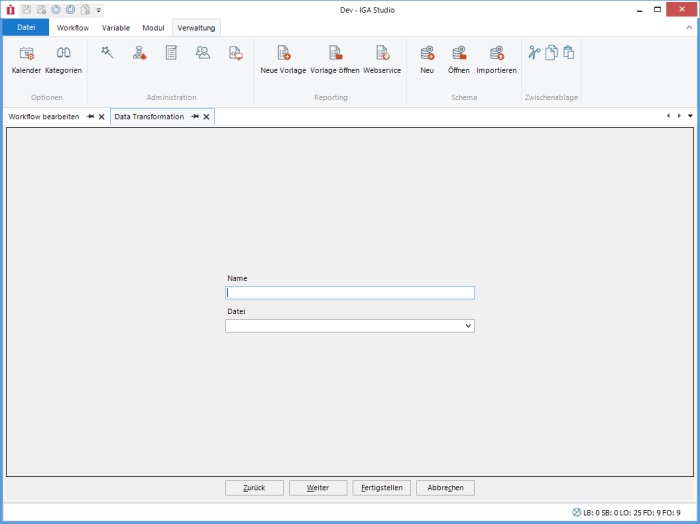
The 1st line must contain the column names.
The file path is relative to the path in the variable “HR_IMPORT_CSV_PATH” (HR data CSV import folder)
Paths into the Windows directory are not permitted. Attempts to access higher-level directories are not permitted.
The File combo box shows available files from the directory of the variable “HR_IMPORT_CSV_PATH”. The path is retrieved on one of the management servers. Which server this is depends on where the Data Transformation role is currently active.
The columns are separated by semicolons.
MS-SQL
ODBC
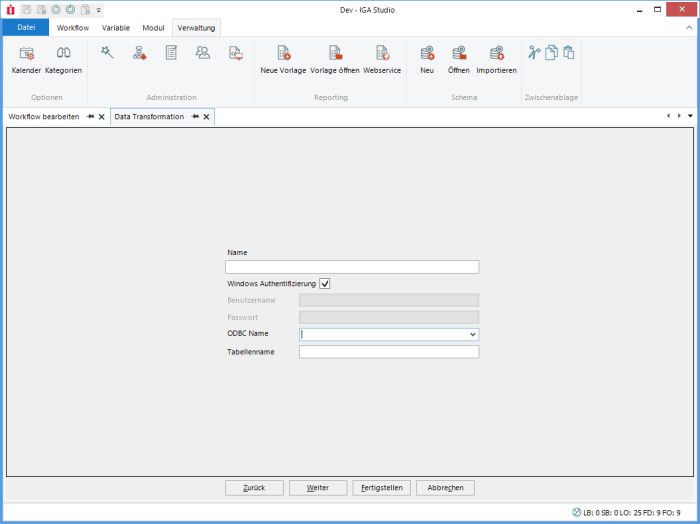
The ODBC Name combo box shows available ODBC data sources on one of the management servers. Which server this is depends on where the Data Transformation role is currently active.
The ODBC data sources must have the same name and configuration on each management server. Otherwise, different results or errors can be expected.
unimate Data
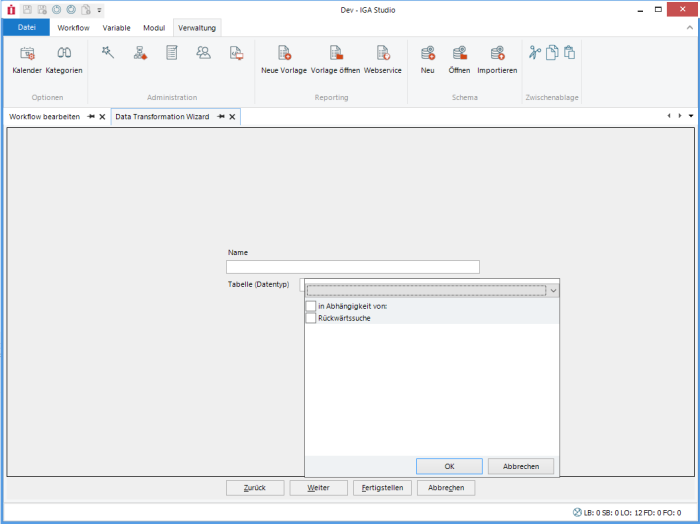
Edit Import
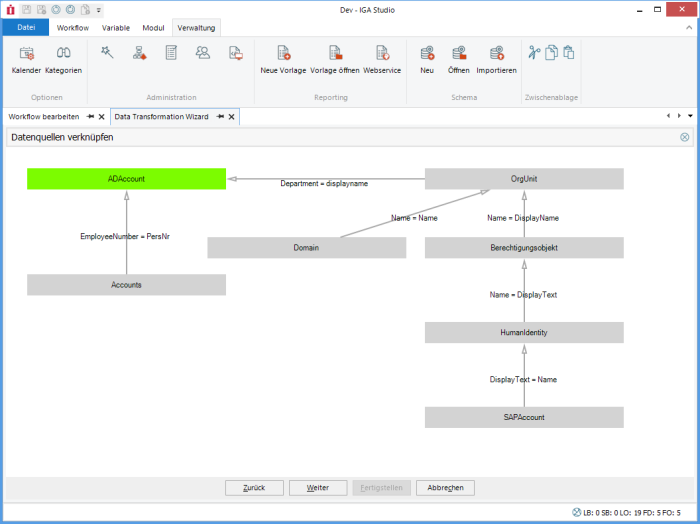
Foreign key/auxiliary tables
If more than one data source is defined, one data source must be defined as the primary data source (green). This is the data source over whose rows the loop runs. All other data sources are set to a suitable data record via the foreign key assignment or are empty.
Only data sources that do not have a foreign key assignment can be set as Primary (context menu via right-click).
The tables shown in the illustration are only examples to show which complex data models would be possible.
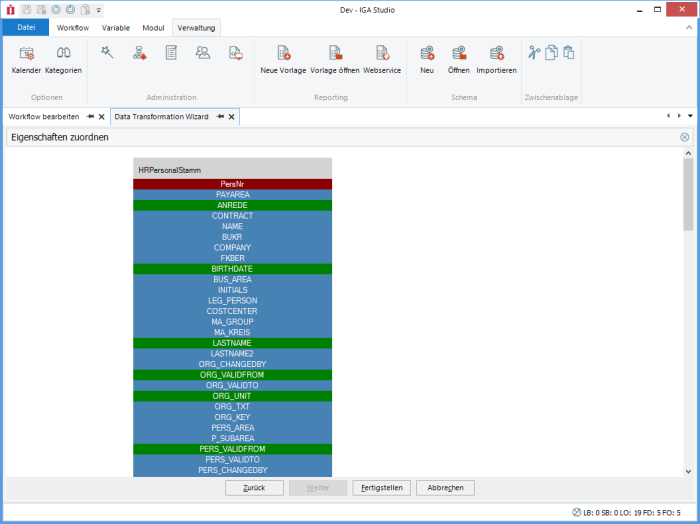
Field mapping
The columns from the data sources are assigned to the columns of the target data type here. Required columns that have not yet been assigned are displayed in red. Green columns are assigned. Blue columns are empty, but also optional.
Each column can contain a validity check. Columns without a check are always valid. If the field or the FX result is empty, the default value is used. This can also be a calculated value, e.g. the current date or a GUID.
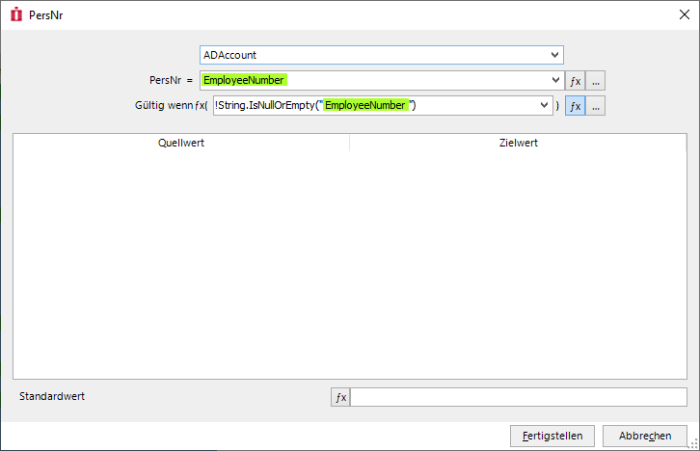
During the preview, rows with invalid columns are displayed. These rows are omitted during the actual import.


