 minute read
Deploy Appliances on Google Cloud Platform
This topic explains how to deploy Imprivata appliances in a Google Cloud project by using the Imprivata deployment package.
-
The package uses OpenTofu and Terragrunt to create and manage the required Google Cloud resources as Infrastructure as Code (IaC).
-
Each appliance is deployed on a Compute Engine virtual machine.
-
The deployment configuration identifies the Google Cloud project, region, network, subnet, firewall settings, appliance VM settings, and other environment-specific values.
-
The resources are deployed in and managed through your Google Cloud environment.
Download a PDF of this guide.
 Assumptions
This documentation assumes the following:
-
You are familiar with Google Cloud Platform terminology and basic administration tasks. For more information, see Google Cloud documentation.
Appliance Specifications on GCP
The Imprivata appliance runs as a GCP Compute Engine VM instance with the following components:
-
Compute Instance: GCP Compute Engine VM running the Imprivata appliance image
-
Boot Disk: Minimum 300 GB SSD persistent disk (pd-ssd type)
-
Networking: Attached to an existing VPC or a new dedicated VPC with Cloud NAT
-
Access: Serial console, IAP tunnel, or direct IP (depending on network configuration)
Supported Instance Types
-
N2 series - For production environments.
-
n2-standard-2 - 2 vCPU, 8 GB RAM
-
n2-standard-4 - 4 vCPU, 16 GB RAM
-
n2-standard-8 - 8 vCPU, 32 GB RAM
-
-
E2 series - For test environments.
-
e2-standard-2 - 2 vCPU, 8 GB RAM
-
e2-standard-4 - 4 vCPU, 16 GB RAM
-
e2-standard-8 - 8 vCPU, 32 GB RAM
-
Supported Regions and Zones
Appliance deployment is supported in the following US regions:
-
us-central1 (Iowa)
-
us-east1 (South Carolina)
-
us-east4 (Northern Virginia)
-
us-east5 (Columbus)
-
us-south1 (Dallas)
-
us-west1 (Oregon)
-
us-west2 (Los Angeles)
-
us-west3 (Salt Lake City)
-
us-west4 (Las Vegas)
A zone is a specific isolated deployment location (e.g., us-central1-a) within a larger geographic region (e.g., us-central1).
Each region contains multiple zones (typically 3) for redundancy and high availability. You must specify a zone when deploying the appliances.
Number of Appliances to Deploy
Imprivata supports the deployment of database and service appliances on GCP.
Database appliances must have the same or greater processing power and capacity than service appliances in an enterprise.
You must deploy appliances with enough RAM and disk resources to handle the load expected for them as database or service appliances.
-
For an enterprise of only two database appliances, the n2-standard-2 may be sufficient.
-
For higher performance needs, you can optionally scale up to using two n2-standard-4s.
-
For a larger enterprise of four or more appliances, the database appliances must be n2-standard-8 to provide sufficient performance.
The number and type of appliances appropriate for an enterprise depends on numerous factors, including user counts, authentication methods, network topology, site configuration, and failover requirements.
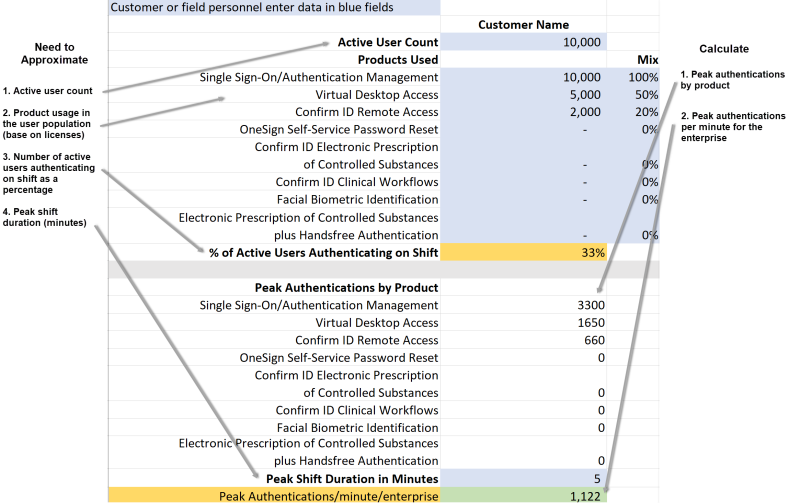
Estimate the maximum number of user authentications per minute needed for your enterprise at peak usage.
Use the sample information in the graphic below as a general guide for estimation. Peak usage typically occurs at or near the start of a major work shift. Your Imprivata sales engineer or support person can help you with this estimation.
Choose a Networking Mode
Determine how you handle networking for the newly deployed appliance VMs:
-
Attach VMs to an existing VPC or Subnet
-
Create a new VPC with subnets (and optional secondary ranges)
You can also enable default or custom firewall rules.
Before You Begin
GCP Prerequisites
Before deployment, prepare your GCP project to host the Imprivata appliances.
-
GCP Project - Create a target GCP project, or identify an existing project to host the Imprivata appliances. Take note of your Project ID for use in later steps.
-
Regions and zones - Identify the geographic regions and zone where you will host the Imprivata appliances.
Take note of the region and zone for use in later steps. For more information, see Google Cloud documentation.
-
-
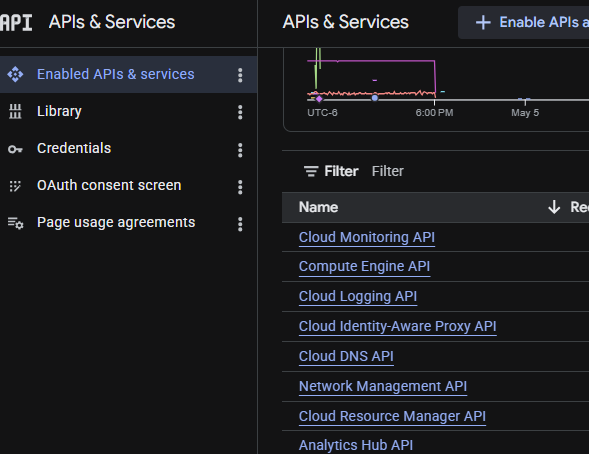
Required APIs - In the target GCP project, enable the required APIs, including Compute Engine, Cloud Resource Manager and IAM.
Required APIs. Click to enlarge
-
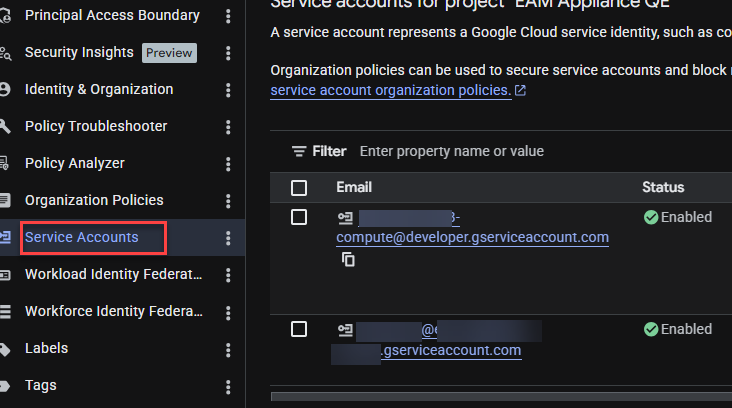
IAM Permissions - Provision a Service Account with sufficient IAM roles to run the infrastructure deployment.
-
roles/compute.admin - to create and manage Compute Engine resources.
-
roles/iam.serviceAccountUser - to attach service accounts to VMs.
-
roles/iap.tunnelResourceAccessor - to set up an Identity-Aware Proxy (IAP) tunnel to access the appliance management interface when the Imprivata appliance has only a private (internal) IP address.
-
-
Network prerequisites (for the existing VPC deployment):
-
Existing VPC and subnet in the target region.
-
Subnet with available IP addresses.
-
Default route to internet gateway (for outbound connectivity) or Cloud NAT configured separately.
-
Obtain the GCP Deployment Package
-
Obtain the GCP deployment package from Imprivata.
-
Request the GCP Appliance Virtual Machine Image be shared with your Google Cloud Platform Project and provide the Project ID.
Set Up Your Workstation with Prerequisites
The tasks in this section prepare your workstation with the required utilities.
Install the Just Utility
The Just utility is a lightweight command runner. Imprivata's automated setup automatically handles the installation and configuration of all other required tools, such as mise, OpenTofu, Terragrunt, and gcloud.
To install just on your workstation:
-
Open a terminal window and run the following command, based on your operating system.
Operating system Command to install the Just utility Windows
Requires
wingetwinget install Casey.JustmacOS
Requires
breworcurlbrew install justLinux
Requires
apt,dnf,brew, orcurlcargo install justor
sudo apt install just
-
Verify the installation by running the following command:
just --version -
After the installation is complete, restart your terminal so that just is on your PATH environment variable.
Bootstrap the Development Environment
-
Run the bootstrap command to automatically install all required tools (mise, OpenTofu, Terragrunt, and gcloud CLI):
Copyjust bootstrapNOTE:The bootstrap process may take several minutes to complete.
-
Verify the installation by running the following command:
Copyjust versionsExpected output:
Copyopentofu 1.9.0
terragrunt 0.77.22
gcloud (latest version) -
If the versions do not display correctly, restart your terminal and run
just versionsagain.
Authenticate to Google Cloud Platform
Once per workstation, authenticate to the Google Cloud Platform.
Choose one of the following authentication methods based on your organization's GCP access configuration:
-
Direct user authentication: Recommended for interactive deployments. Use this option when:
-
Deploying interactively from your workstation.
-
You have a GCP user account with required IAM roles.
-
No service account key management is required.
-
-
Service account authentication with key file: Use this option when:
-
Automating deployments via CI/CD pipelines
-
Your organization's policies require service account authentication
-
You have a service account key file with required IAM roles.
-
-
User authentication with Service Account impersonation: Use this option when:
-
Your organization uses service account impersonation for privilege separation.
-
You need to assume a service account's permissions temporarily.
-
Required by GCP organization policies.
-
Option A: Direct User Authentication
Authenticate using your GCP user account:
gcloud auth application-default loginFollow the browser prompts to authenticate.
Option B: Service Account Authentication with Key File
Authenticate using a service account JSON key file:
export GOOGLE_APPLICATION_CREDENTIALS="$(pwd)/key.json"Replace key.json with the path to your service account key file.
Option C: User Authentication with Service Account Impersonation
Authenticate as your user account, then impersonate a service account:
gcloud auth application-default login
export GOOGLE_IMPERSONATE_SERVICE_ACCOUNT=SERVICE_ACCOUNT@PROJECT.gserviceaccount.com
Replace SERVICE_ACCOUNT@PROJECT.gserviceaccount.com with the target service account email.
Extract the Deployment Package
Extract the deployment package to a new directory on your workstation.
From a command prompt, run the following commands in order:
unzip eam-marketplace-<timestamp>.zip -d ~/eam/
cd ~/eam/gcp
just bootstrap
mise trust ./mise.toml
just init-all
where
-
just bootstrapinstalls the pinned tool versions. -
mise trustauthorizesmise.toml. -
just init-allregenerates every environment'sgenerated/tree, withglobalfirst.
Configure Environment Variables
To configure deployment variables:
-
Navigate to your GCP deployment directory.
-
In the
gcpdirectory, create aterraform.tfvarsfile.-
To attach to an existing VPC/Subnet, create the
terraform.tfvarsfile with the following content:Copyproject_id = "YOUR_GCP_PROJECT_ID"
region = "us-central1"
zone = "us-central1-a"
instances = {
vm1 = {
instance_name = "imprivata-appliance-1"
instance_type = "e2-standard-4"
}
}
# Attach to existing VPC/subnet
deploy_network = { enable = false }
network_interface = [
{
subnetwork = "projects/YOUR_PROJECT_ID/regions/us-central1/subnetworks/YOUR_SUBNET_NAME"
}
] -
To create a new VPC with Cloud NAT, create the
terraform.tfvarsfile with the following content:Copyproject_id = "YOUR_GCP_PROJECT_ID"
region = "us-central1"
zone = "us-central1-a"
instances = {
vm1 = {
instance_name = "imprivata-appliance"
instance_type = "e2-standard-4"
}
}
# Create new VPC with Cloud NAT
deploy_network = {
enable = true
create_nat = true
ip_cidr_range = "10.0.0.0/24"
}This option creates:
-
New VPC network
-
New subnet in the specified region
-
Cloud Router
-
Cloud NAT (for outbound internet access without external IPs)
-
Static internal IP address for the appliance
-
-
Variable Definitions
| Variable | Type | Required | Description | Notes |
|---|---|---|---|---|
| project_id | string | required | The GCP project ID | Replace "YOUR_GCP_PROJECT_ID" with your GCP project ID. |
| region | string | required | The GCP region where the VM will be created. |
Must belong to a valid US region, such as: us-central1 us-east1 us-east4 us-east5 us-south1 us-west1 us-west2 us-west3 us-west4 |
| zone | string | required | The GCP zone withing the region | "us-central1-a" |
| instances | map | required | The map of VM instance definitions | |
| instance_name | string | required | Unique and identifiable name for the appliance VM. | Example: imprivata-vm1 |
| instance_type | string | required | The machine type for the VM. |
Adjust Supported instance types:
|
| deploy_network.enable | boolean | required | Create new VPC (true) or use existing (false) |
Example: true or false |
| deploy_network.create_nat | boolean | optional | Create Cloud NAT (requires enable = true) |
Set Set |
| deploy_network.ip_cidr_range | string | optional | Subnet CIDR range (requires enable = true) |
Example: 10.0.0.0/24 |
| network_interface | list | optional | Existing VPC/subnet reference (requires enable = false) | |
| YOUR_SUBNET_NAME | string | optional | Name of the existing subnet. | Replace YOUR_SUBNET_NAME with the name of your existing subnet |
| vm_disk_size | string | required | Specifies the size of the VM boot disk in gigabytes (GB). | Must be greater than 300 GB. |
Initialize OpenTofu
Initialize the OpenTofu working directory and download required provider plugins:
tofu initExpected output:
-
Downloads the Google Cloud provider plugin
-
Initializes the backend configuration
-
Displays "
Terraform has been successfully initialized!"
Validate the Configuration
Validate the configuration syntax and consistency:
tofu validateExpected output:
-
When validation succeeds, it displays "
Success! The configuration is valid." -
If validation fails, review the error message and correct the
terraform.tfvarsfile.
Preview the Deployment
-
Generate a deployment plan to preview the resources that will be created:
Copytofu plan -var-file="terraform.tfvars" -
Review the plan output carefully:
-
Verify the VM instance name, type, and zone.
-
Verify the network configuration (VPC, subnet, Cloud NAT if applicable).
-
Verify the boot disk size (minimum 300 GB).
-
Verify firewall rules, if configured.
-
Expected Resources - Existing VPC
-
1 Compute Engine instance
-
1 static internal IP address
Expected Resources New VPC with Cloud NAT
-
1 VPC network
-
1 subnet
-
1 Compute Engine instance
-
1 Cloud Router
-
1 Cloud NAT
-
1 external IP address (for Cloud NAT)
-
1 static internal IP address (for appliance)
Deploy the Appliance
-
Apply the configuration to create the appliance and associated resources:
Copytofu apply -var-file="terraform.tfvars" -
Type
yesto when prompted to confirm the deployment.NOTE:The deployment may take five to ten minutes to create the VMs, initialize disks, and configure the network.
Record the Output Parameters
After deployment completes, OpenTofu displays output parameters with commands for accessing the appliance.
Example
INSTANCE_PARAMS = {
  "imprivata-appliance" = {
    "console_connection" = "gcloud compute connect-to-serial-port --project=YOUR_PROJECT_ID --zone=us-central1-a --port=1 imprivata-appliance"
    "instance_ip"        = "10.0.0.2"
    "instance_name"      = "imprivata-appliance"
    "port_forward"       = "gcloud compute start-iap-tunnel --project=YOUR_PROJECT_ID --zone=us-central1-a imprivata-appliance 81 --local-host-port=localhost:81"
  }
}
Save the following commands for post-deployment configuration tasks:
-
console_connection: The command to connect to VM serial console. -
port_forward: The command to set up IAP tunnel (for private-IP appliances).
-
instance_ip: The internal IP address of the appliance.
Post-Deployment Configuration
After deploying the appliance, complete the following configuration steps to finalize network settings and access the appliance management interface.
Connect to the VM Serial Console
From the deployment output, run the console_connection command to connect to the VM serial console:
gcloud compute connect-to-serial-port --project=YOUR_PROJECT_ID --zone=us-central1-a --port=1 imprivata-appliancewhere:
-
YOUR_PROJECT_ID is your GCP project ID.
-
zone is the zone you specified for your appliance.
-
imprivata-appliance is the instance name of your appliance.
To exit the serial console, use the following keyboard shortcuts:
-
Windows and Linux: Press CTRL + ]
-
macOS: Press Cmd + ]
Update the Network Netmask
By default, GCP assigns a /32 netmask to VM network interfaces. The appliance cannot communicate with other hosts on the subnet with the /32 netmask. You must update the netmask to match your subnet configuration.
For example, if your subnet is 10.0.0.0/24, update the netmask from /32 to /24.
Verify Network Connectivity
From the appliance console, test outbound network connectivity:
ping -c 4 8.8.8.8Expected Results
-
If using Cloud NAT or existing VPC with internet gateway:
pingsucceeds. -
If using a private VPC without NAT/gateway: ping fails. This is expected if no outbound internet access is configured.
If ping fails and internet access is required:
-
Verify that Cloud NAT is configured (for new VPC deployments with
create_nat = true). -
Verify that the default route to your internet gateway exists (for existing VPC deployments).
Set Up Appliance Access
Access Private-IP Appliance via IAP Tunnel
When the appliance has only a private (internal) IP address, set up an Identity-Aware Proxy (IAP) tunnel to access the management interface.
Prerequisites
-
The user account must have
roles/iap.tunnelResourceAccessororroles/compute.adminIAM role. -
Firewall rule allowing TCP traffic from
35.235.240.0/20(IAP IP range) to the appliance.
-
From the deployment output, run the port forwarding command:
Copygcloud compute start-iap-tunnel --project=YOUR_PROJECT_ID --zone=us-central1-a imprivata-appliance 81 --local-host-port=localhost:81where:
-
YOUR_PROJECT_ID is your GCP project ID.
-
zone is the zone you specified for your appliance.
-
imprivata-appliance is the instance name of your appliance.
-
81 is the port.
-
localhost:81 is the localhost and port for the management interface.
-
-
Leave this command running in a terminal window. The tunnel remains active until you terminate the command by pressing CTRL+C.
-
Open a browser to:
http://localhost:81.
Access Public-IP Appliance Directly
Security reminder: External IPs expose the Imprivata appliance to the internet.
Ensure that your firewall rules restrict access to authorized IP addresses only.
When the appliance has an external (public) IP address, access the management interface directly.
Prerequisites
-
The appliance must have external IP assigned (configured via
network_interface.access_configin your deployment variables). -
A firewall rule allowing TCP port 81 from your IP address or corporate network range.
-
Retrieve the external IP address by running the following command:
Copygcloud compute instances describe imprivata-appliance --project=YOUR_PROJECT_ID --zone=us-central1-a --format="get(networkInterfaces[0].accessConfigs[0].natIP)" -
Open a browser to:
http://<EXTERNAL_IP>:81.
Complete the Initial Appliance Configuration
Access the appliance management interface, via IAP tunnel or direct IP.
Follow the on-screen setup wizard to configure:
-
Authentication policies
-
User directory integration (Active Directory, LDAP, etc.)
-
Certificate management
-
Other appliance-specific settings
Verify the Appliance is Operational
After completing post-deployment configuration, verify the appliance is operational.
To verify the appliance is operational:
-
Verify the VM instance status by running the following command:
Expected output:
Appliance instance appears with the status RUNNING.
Copygcloud compute instances list --project=YOUR_PROJECT_ID --filter="name:imprivata-*" -
Verify the boot disk configuration by running the following command:
Copygcloud compute disks list --project=YOUR_PROJECT_ID --filter="name:imprivata-*"Expected output:
-
The boot disk size is greater than 300 GB
-
The disk type is
pd-ssd.
-
-
Verify the network configuration:
-
For deployments with Cloud NAT, verify the NAT external IP address:
Copygcloud compute addresses list --project=YOUR_PROJECT_IDExpected output:
-
External IP address exists for Cloud NAT (when create_nat = true).
-
-
Troubleshooting
Deployment Failures
Quota 'CPUS' exceeded in region [REGION]
Symptom
Error of "Quota 'CPUS' exceeded in region [REGION]".
Cause
Your GCP project has insufficient CPU quota in the target region.
Resolution
-
Verify your current quota by running the following command:
Copygcloud compute project-info describe --project=YOUR_PROJECT_ID -
Request a quota increase:
-
In the GCP Console, go to IAM & Admin > Quotas.
-
Filter on Compute Engine API > CPUs (per region).
-
Select your target region and request an increase.
-
User Does Not Have Permission to Access Project
Symptom
Error of "The user does not have permission to access project [PROJECT_ID]".
Cause
Insufficient IAM permissions or authentication is not configured.
Resolution
-
Verify authentication is active:
Copygcloud auth list -
Verify IAM roles are assigned to your user account:
Copygcloud projects get-iam-policy YOUR_PROJECT_ID --flatten="bindings[].members" --filter="bindings.members:user:YOUR_EMAIL" -
Confirm that
roles/compute.adminandroles/iam.serviceAccountUserare present. -
Re-authenticate if necessary:
Copygcloud auth application-default login
Invalid Value for Field 'resource.zone'
Symptom
Error of "Invalid value for field 'resource.zone'"
Cause
The zone value is not in a supported region.
Resolution
Update the zone in the terraform.tfvars file to a zone in a supported US region.
Disk Size Must Be At Least 300 GB
Symptom
Error of "Disk size must be at least 300 GB".
Cause
The vm_disk_size variable is set below the 300 GB minimum.
Resolution
-
Remove
vm_disk_sizefromterraform.tfvars(defaults to 300 GB) -
Or set explicitly:
vm_disk_size = 300or greater.
Post-Deployment
Cannot Access the Appliance Management Interface
Symptom
You cannot access the Imprivata appliance
Cause
The Network netmask is still the default GCP asssignment of /32.
Resolution
-
Connect to serial console by running the following command:
Copygcloud compute connect-to-serial-port --project=YOUR_PROJECT_ID --zone=us-central1-a --port=1 imprivata-appliance -
Correct the netmask to match your subnet.
IAP Tunnel Command Fails with Permission Denied
Symptom
The IAP Tunnel Command Fails with "Permission Denied"
Cause
The IAP firewall rule was not configured or the IAM role is missing.
Resolutions
-
Verify that the IAP firewall rule exists:
Copygcloud compute firewall-rules list --project=YOUR_PROJECT_ID --filter="sourceRanges:35.235.240.0/20" -
If missing, create the firewall rule allowing TCP from 35.235.240.0/20 to the appliance.
-
Verify IAM role assignment:
Copygcloud projects get-iam-policy YOUR_PROJECT_ID --flatten="bindings[].members" --filter="bindings.members:user:YOUR_EMAIL" -
The user must have
roles/iap.tunnelResourceAccessororroles/compute.admin.
Appliance Has No Outbound Internet Connectivity
Symptom
The appliance has no outbound internet connectivity.
Cause
The Cloud NAT not configured or default route missing.
Resolution
For existing VPC deployments:
-
Verify the default route to the internet gateway exists:
Copygcloud compute routes list --project=YOUR_PROJECT_ID --filter="destRange:0.0.0.0/0" -
If no route exists, configure Cloud NAT or internet gateway separately.
For new VPC deployments:
-
Verify
deploy_network.create_nat = trueinterraform.tfvars. -
Verify the Cloud NAT exists:
Copygcloud compute routers nats list --project=YOUR_PROJECT_ID --region=us-central1 -
If the Cloud NAT is missing, re-run
tofu applywith the corrected configuration.


