 minute read
Collect Imprivata ID Logs
Collect and send verbose logs to assist Imprivata support in diagnosing issues with the Imprivata ID app.
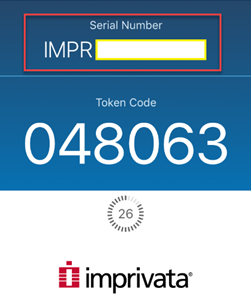
When collecting logs, take note of the Serial Number displayed in Imprivata ID; Imprivata Technical Support needs this to find the file.
 iOS Devices
On iOS devices:
-
Reproduce the issue.
-
Open the Imprivata ID app.
-
Take note of the Serial Number. This is the IMPR #####. Imprivata Technical Support needs this to find the file.
-
Tap Features, then tap Settings. This takes you to iOS settings for the Imprivata ID app.
-
Select Troubleshooting.
-
Switch back to the Imprivata ID app. Logs are sent and you receive a message indicating "Imprivata ID Log File sent successfully".
If you did not receive the notification, then the log may not have been sent.
-
Send an email to Imprivata Support indicating that the serial number (IMPR #####) was sent for troubleshooting.
Android Devices
On Android devices:
-
Reproduce the issue. Take a screenshot of the Imprivata ID app, showing the clock.
-
Open the Imprivata ID app.
-
Take note of the Serial Number. This is the IMPR #####. Imprivata Technical Support needs this to find the file.
-
Tap Features, then tap Send logs. Wait for the message "
The logs were sent successfully. Thank you.". -
Send an email to Imprivata Support indicating that the serial number (IMPR #####) was sent for troubleshooting.


