 minute read
Epic Witness Authentication Using Badge Tap
Configure the integration between Imprivata MDA and the Epic Rover app to support witness authentication with the tap of a badge.
When used with Epic Rover, a second and unknown user can tap their badge during the witness signing workflow to record authorization in the Medication Administration Record (MAR). Imprivata MDA ignores any card taps during the 10 second period after witness authentication with an NFC card.
Witness authentication enables clinical workflows that require a second user to authenticate and co-sign an action without disrupting the primary device user. This feature supports compliance-driven workflows such as medication administration, controlled substance dispensing, and waste verification.
Witness authentication is distinct from primary device authentication. The witness authenticates temporarily without unlocking the device or disrupting the primary user's session.
Clinical Workflow
The following describes the clinical workflow for witness authentication using a badge tap:
|
|
User 1 is authenticated into Epic Rover using Imprivata MDA on the device. User 1 uses the medication order workflow in Epic Rover, which requires that a second user (User 2) witness and sign off on a medication order. User 1 hands the mobile device to User 2. |
|
|
User 2 validates that the medication order information is correct, and clicks Sign Off in the Epic Rover interface. |
|
|
Imprivata MDA prompts User 2 to tap their badge. User 2 taps their badge. Imprivata MDA authenticates the user and injects the credentials for User 2 into the appropriate fields in Epic Rover. |
|
|
To complete the medication order in Epic Rover, User 2 clicks Submit. |

|
User 2 hands the mobile device back to User 1. User 1 continues to use Epic Rover. |



Before You Begin
Requirements
-
Install the latest releases of the Epic Rover and Imprivata MDA apps.
-
Imprivata licenses. This workflow requires Imprivata Confirm ID for Clinical Workflows licenses. For more information see, Imprivata Licensed Features.
-
Requires two mobile app profiles for the Epic Rover app deployed to your users and groups. For more information, see Import the Mobile App Profiles.
-
The Epic Rover SSO application profile for the first user's authentication.
-
The Epic Rover Witness Authentication profile for the second user to use their badge tap in the Epic witnessing workflow.
-
Limitations
-
This workflow does not support multi-factor authentication.
-
This workflow does not support Imprivata MDA's face recognition as an authentication method.
-
This functionality does not record an event within Imprivata Enterprise Access Management, only in Epic.
Deploy the App Profiles for Epic Rover SSO and Witness Authentication
If you have not already done so, deploy the SSO app profile for Epic Rover.
-
If you have not already done so, download the application profiles from the Imprivata Customer Experience Center.
-
Click Product Downloads > Mobile and click Imprivata Mobile Device Access.
-
Download the MDA Application profiles (all versions) package.
Extract the package contents to a location accessible to the Imprivata Admin Console.
-
-
Import the application profile XML:
-
In the Imprivata Admin Console, open the Applications menu, and click Single sign-on application profiles.
-
Click Add App Profile> Import from file.
-
Browse to the XML file, and import it.
-
-
Deploy the Epic Rover profile to the appropriate users and groups.
-
Deploy the Epic Rover: Witness Authentication profile to the appropriate users and groups.
Create and Assign the User Policy for Witness Authentication
Create a user policy for the Epic Rover witness authentication and associate it with a mobile device workflow for witnessing.
To create a user policy:
-
In the Imprivata Admin Console, go to Users > User policies.
-
On the User policies page, click Add.
-
Enter a name for the user policy. For example: Epic Rover Witness.
-
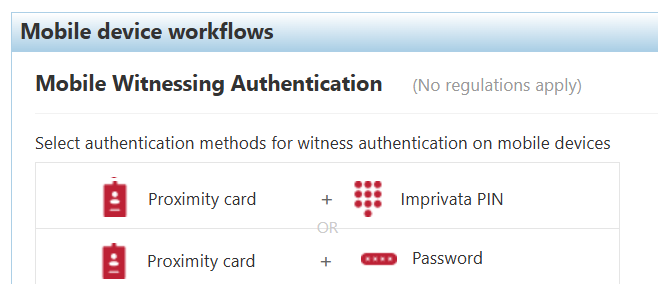
In the Mobile device workflows > Mobile Witnessing Authentication section, specify the primary and secondary authentication methods for witness authentication on mobile devices.
-
Go to Users > Workflow policy.
-
In the Mobile device workflows > Mobile Witnessing Authentication section, specify the primary and secondary authentication methods for witness authentication on mobile devices.
Select Proximity card + Imprivata PIN
-
Click Associate user policies and select the user policy for the witnessing users.


