Imprivata MDA Authentication and Single Sign–on Workflows
Imprivata Mobile Device Access supports Imprivata authentication management and single sign–on to mobile devices and apps.
Imprivata MDA supports the following authentication methods:
| Primary Factor | Secondary Factors | Description |
|---|---|---|
| NFC enabled proximity card |
|
This is the default configuration. In this configuration:
For additional details, see Workflow — Proximity Card with a Second Factor |
| Face recognition |
|
In this configuration:
For additional details, see Workflow — Proximity Card with Face Recognition as a Factor. |
| Username and password + (alternative) Imprivata PIN | None |
This configuration supports deployments where proximity cards are not in use. In this configuration:
For additional details, see Workflow — Username/Password + an Alternative Imprivata PIN |
| FIDO security key |
|
This configuration supports deployments where a FIDO security key is used to authenticate users to the mobile device. In this configuration:
For additional details, see Workflow — FIDO Security Key |
| External proximity card reader |
|
Certain Android devices don't support NFC; as an alternate method, Imprivata MDA supports the use of certain models of Imprivata-branded rf IDEAs external USB proximity card readers. See External Proximity Card Readers In this configuration:
For additional details see, Workflow — Proximity Card with a Second Factor |
Workflow — Proximity Card with a Second Factor
As illustrated in the following diagram:
-
At the beginning of their shift, users authenticate by tapping their proximity card, and optionally, entering their password or an Imprivata PIN as a second factor.
-
During a specified grace period, the authenticated user can use a badge tap to authenticate.
-
Users can enroll a proximity card and an Imprivata PIN from either the mobile device or the Imprivata enrollment utility on a Windows workstation.
When a new proximity card is detected or when a PIN is not enrolled, Imprivata MDA steps users through the enrollment.
NOTE:The diagram includes optional functionality, which you configure in the mobile policy.
Click to enlarge.
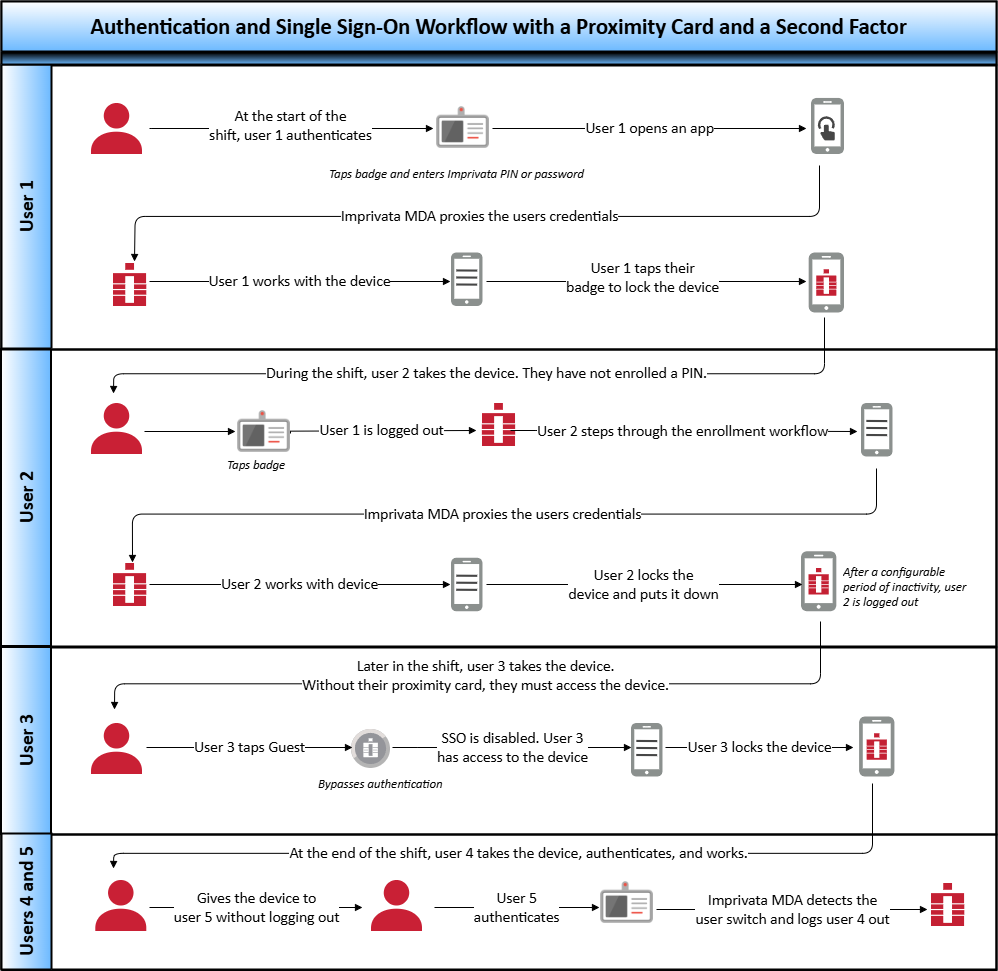
For details on configuring, see Configure the Mobile Policy and User Authentication.
Workflow — Username/Password + an Alternative Imprivata PIN
As illustrated in the following diagram:
-
At the beginning of their shift, users authenticate by entering their username and password.
-
During a specified grace period, the authenticated user can use an Imprivata PIN for subsequent authentications.
The alternative method can be used until another user authenticates to the device or enters Guest mode.
-
Users can enroll an Imprivata PIN from either the mobile device or the Imprivata enrollment utility on a Windows workstation.
Imprivata MDA steps users through the enrollment if a PIN is not enrolled.
NOTE:The diagram includes optional functionality, which you configure in the mobile policy.
Click to enlarge.
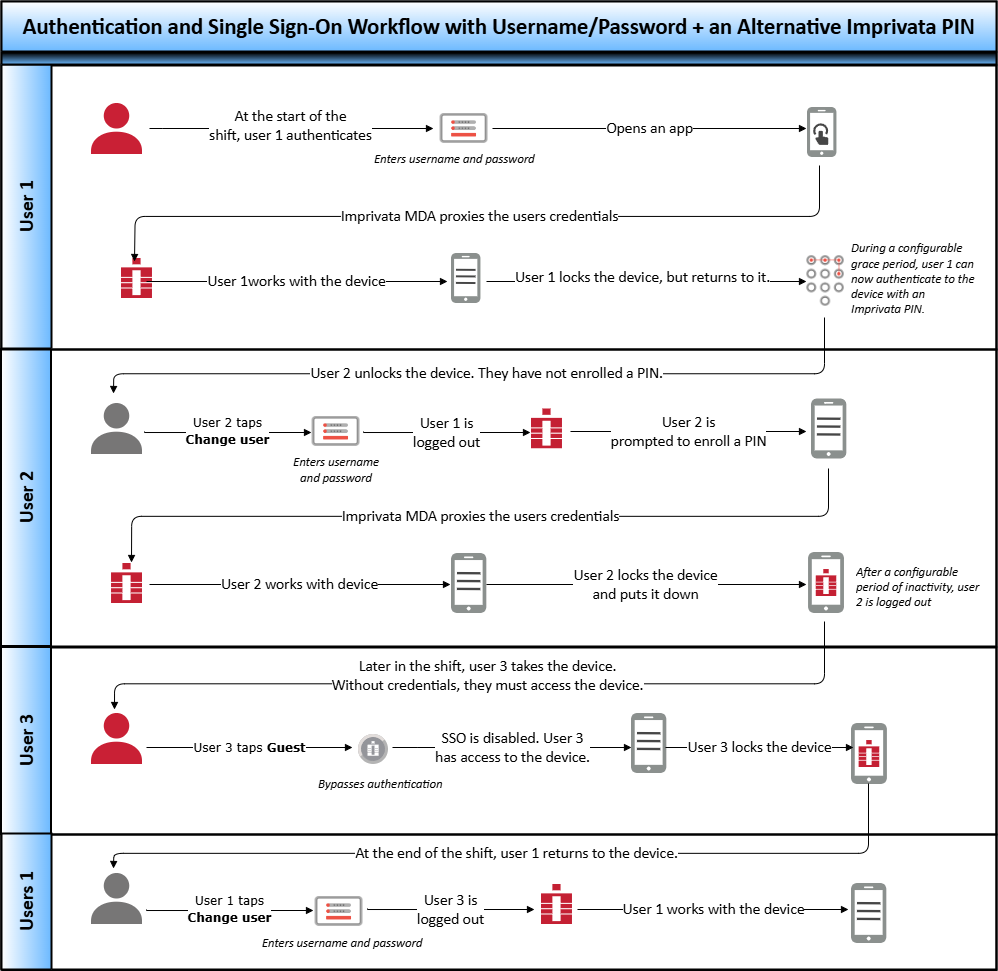
For details on configuring, see Configure the Mobile Policy and User Authentication.
Workflow — Proximity Card with Face Recognition as a Factor
As illustrated in the following diagram:
-
At the beginning of their shift, users authenticate for the first time by tapping their proximity card and then capturing their face as a second factor.
-
During a specified grace period, the authenticated user can unlock a device with their face only.
-
Users can enroll a proximity card and their face from either the mobile device or the Imprivata enrollment utility on a Windows workstation.
-
When a new proximity card is detected or when a user's face is not yet enrolled, Imprivata MDA steps the users through the enrollment.
NOTE:The diagram includes optional functionality, which you configure in the mobile policy.
Click to enlarge.
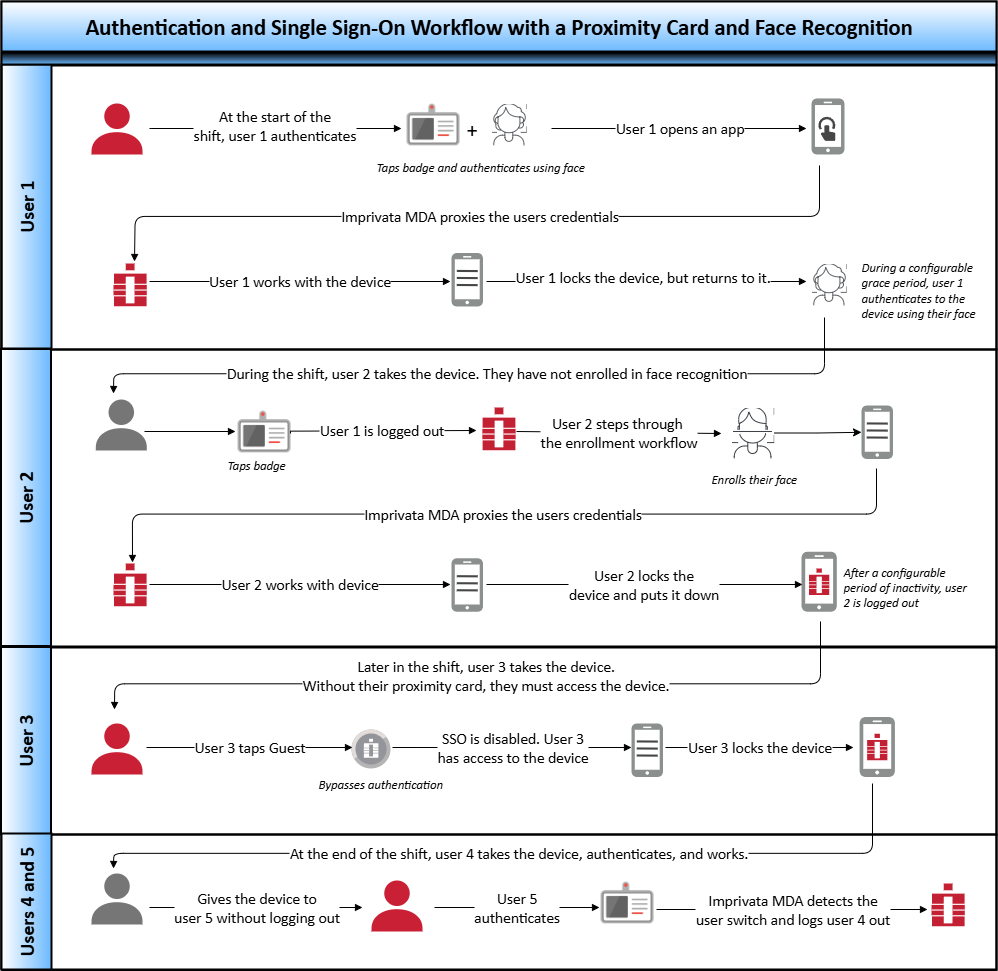
For details on configuring face recognition, see Face Recognition as an Authentication Method.
Workflow — FIDO Security Key
Hardware Requirements
Each FIDO security key user needs a physical FIDO2-capable security key.
Limitations and Considerations
-
Supported in Imprivata MDA 8.1 and later.
-
Enrollment of an unenrolled FIDO security key is supported in Imprivata MDA 8.2 and later.
-
Offline authentication is not supported. If the user attempts a FIDO authentication while offline; they are prompted to use a different authentication method.
Enrolling Users for FIDO Security Key Authentication
Each user's security key must be enrolled before it can be used to authenticate to Imprivata MDA.
Delete FIDO Security Key Enrollment
Users enroll their FIDO security key using one of the following methods:
-
The Imprivata enrollment utility on a Windows workstation with a supported FIDO reader.
-
The Imprivata MDA app on the mobile device. Supported in MDA 8.2 and later.
If a security key is lost, damaged, stolen or must be taken out of circulation for any other reason, you can delete an enrollment from its enrolled user via the user's user record.
FIDO Security Key Grace Period
You can set a grace period for the second authentication factor after successful security key authentication, up to 24 hours 59 minutes.
Workflow Diagram
As illustrated in the following diagram:
-
At the beginning of their shift, users authenticate to Imprivata MDA by tapping and holding their FIDO security key to the device and optionally, entering their password or an Imprivata PIN as a second factor.
IMPORTANT:The user should tap and hold their FIDO security key for up to a second.
-
During a specified grace period, subsequent authentications on the mobile device require the user to tap and hold their badge only.
The diagram includes optional functionality, which you configure in the mobile policy.
Click to enlarge.
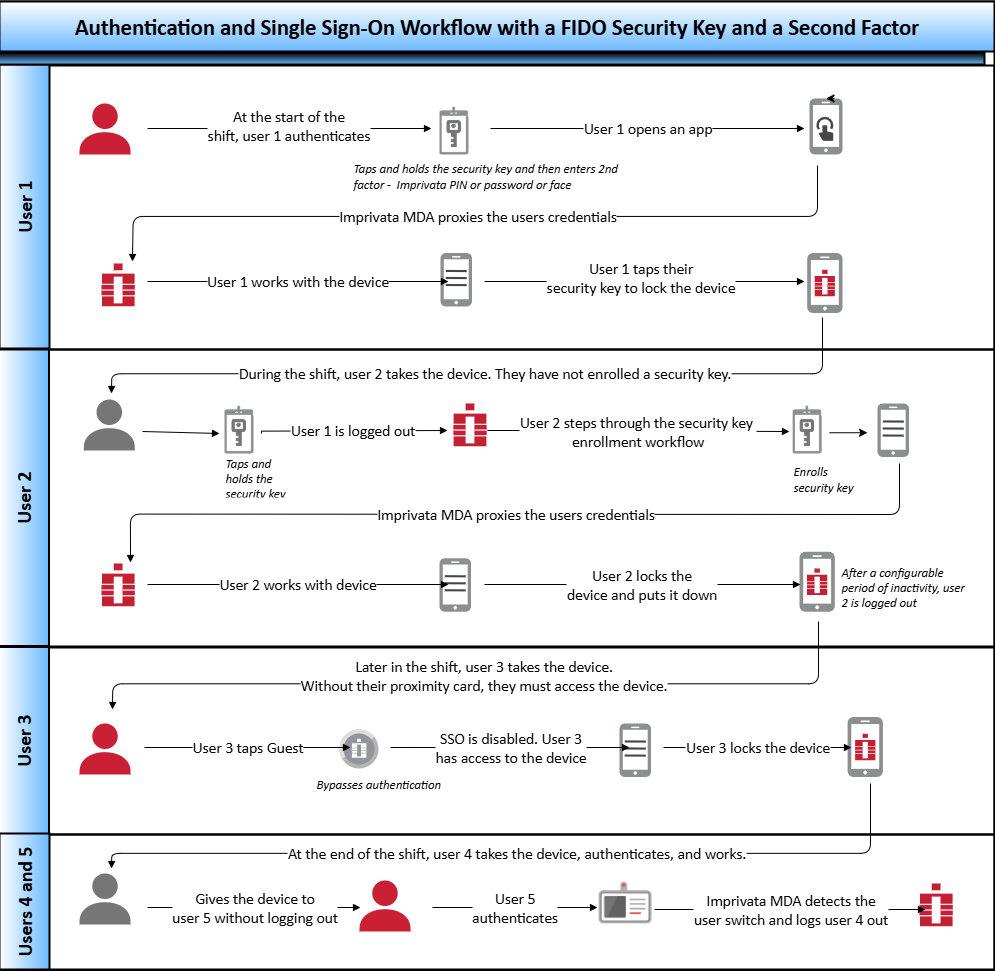
For details on configuring, see Configure the Mobile Policy and User Authentication.
Configure the Ability to Enroll FIDO Security Keys from the MDA App
This feature is configured via the AppConfig using an MDM. See the Imprivata MDA AppConfig Reference for supported MDM AppConfig keys.
To configure the ability for users to enroll FIDO security keys from the Imprivata MDA app, add the following key to your MDM:
-
The AppConfig Configuration Key field for this feature is "ConfigFlags".
-
The AppConfig Value Type for this feature is "String".
-
The AppConfig Value is fidoEnrollmentOn.
If fidoEnrollmentOn is not set, users will not be able to enroll their FIDO security keys from their devices and would need to enroll from a workstation.
NOTE:If treatNfcTapAsProx (see below) is set, Imprivata MDA will ignore fidoEnrollmentOn.
Configure Proximity Card-Only Mode for FIDO Security Keys
For customers with proximity cards that communicate with the same protocol as FIDO security keys, treatNfcTapAsProx in AppConfig enables proximity card-only mode.
This feature is configured via the AppConfig using an MDM. See the Imprivata MDA AppConfig Reference for supported MDM AppConfig keys.
To configure the proximity card-only mode, add the following key to your MDM:
-
The AppConfig Configuration Key field for this feature is "ConfigFlags".
-
The AppConfig Value Type for this feature is "String".
-
The AppConfig Value is treatNfcTapAsProx.
If treatNfcTapAsProx is not set, FIDO security keys previously enrolled as proximity cards will fail to authenticate to MDA 8.1 and later.


