 minute read
Set Time Zone
The Workflow actions available to you depend on the Workflow model you select, the MDM system you use, and the OS of your devices.
The Set Timezone Workflow action allows you tell devices to turn off Set Timezone Automatically and set a static timezone. This is especially useful if devices are provisioned in one location but shipped to other timezones.
Cellular devices have their own mechanism for setting their timezone, so this Workflow action is effective for Wi-Fi Only devices only.
Prerequisites
-
Begin with an erased device.
To add the Set Timezone action to your Workflow:
-
In the MAM console, go to Workflows.
-
Create a new Workflow, or edit an existing Workflow.
-
Click Add an action > Set Timezone.
-
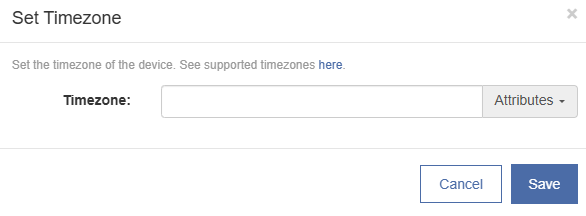
Type the timezone in the Timezone box or specify an Attribute.
For more information, see the list of supported timezones. If the timezone is unrecognized, the device will be set to UTC.
BEST PRACTICE:Instead of a static timezone such as America/New_York, use an attribute to look up data from a device or Launchpad custom attribute.
In this way, a single Workflow may set personalized timezones on each device.
When restoring from a backup, the Set Automatically option in your restore image will override the timezone — Imprivata recommends that you turn Set Automatically OFF when creating your backup.


