Add Wi-Fi
The Workflow actions available to you depend on the Workflow model you select, the MDM system you use, and the OS of your devices.
The Add WiFi action installs one or more profiles onto your devices with information on how to connect to your Wi-Fi networks.
Click to enlarge
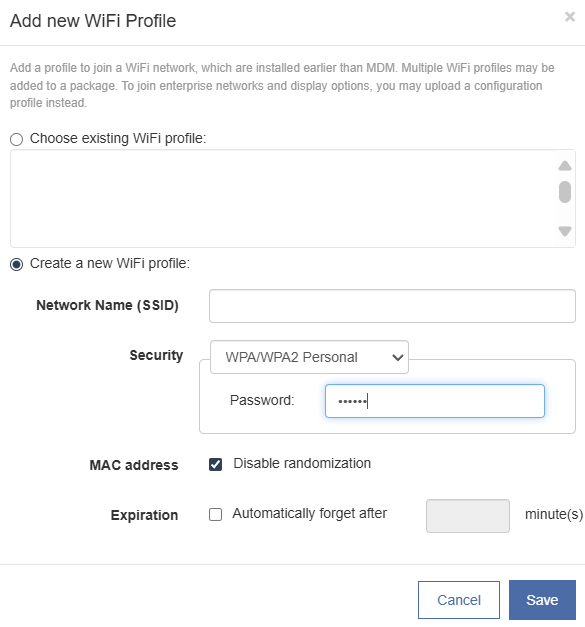
Choose existing WiFi profile: Select any previously-configured profiles from this list. If any need editing, use the Assets tab in the main navigation.
Create a new WiFi profile: This option prompts for at least three pieces of information: the Network Name (SSID), the Security type, and the Expiration.
The security type is based on your authentication requirements.
-
None: Use this for open Wi-Fi networks.
-
WPA/WPA2 Personal: Use this for normal Wi-Fi networks that require a password.
-
WPA/WPA2 Enterprise: Use this for enterprise Wi-Fi networks that require both username and password.
Disable MAC Address Randomization
Imprivata recommends selecting Disable randomization when creating a new Wi-Fi profile.
If you have an existing Wi-Fi profile you would like to modify, go to the Cache tab to make changes there. Modifying a WiFi profile via the Cache tab will also update any existing workflows where the profile is in use.
The Automatically forget setting causes the devices to automatically disconnect from the Wi-Fi network after the designated period of time. The device will effectively forget the Wi-Fi SSID and any saved passwords. The forgetting happens even if the device is disconnected from Mobile Access Management.
The network used for device provisioning should be a temporary network that the device connects to for setup only. Networks with CAPTCHA portals are not supported. Once enrolled into the MDM, devices should transition to the production network via an MDM deployed profile.
To ensure a smooth transition, the provisioning network and production network should not share the same SSID.
Ensure all ports and IPs are allowed on both networks.
WPA/WPA2 Enterprise
The Enterprise Wi-Fi network isn’t a single standard, but rather a collection of several standards. This makes it unlikely that a unified interface can set up every network. MAM creates a profile that connects to the most common Enterprise Wi-Fi configurations.
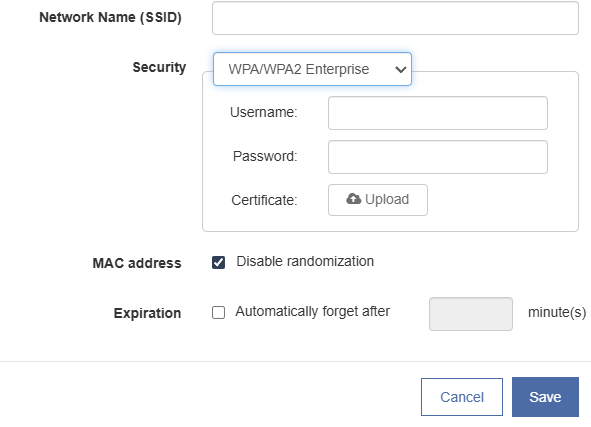
At this time, MAM requires a single username and password to be used across all your devices. Individualized credentials for each device are not yet supported.
The certificate is used by the device to ensure the Wi-Fi network is not being spoofed. Usually, you can obtain this certificate from your own Mac or Windows PC.
-
Connect your Mac or Windows PC to the Enterprise Wi-Fi network.
If this is the first time you are connecting, you may be asked to trust the network. Your computer stores the certificate.
-
On Mac, the certificate resides in the Keychain Access app:
-
Go to Finder > Applications > Utilities > Keychain Access. On the left side, click Certificates.
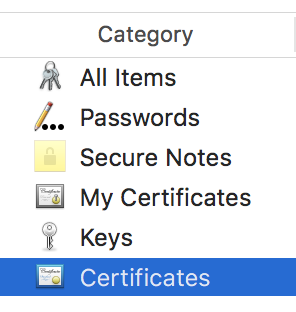
Unfortunately, the correct certificate can have any file name. Usually, the certificate has a name referencing the company or organization it protects. It may include part of your organization’s domain name.
Once you identify the certificate, drag it to your Mac’s desktop to export.
-
Upload this file, named .PEM or .CER, to MAM.
-
After you test, you can easily replace the certificate with another. Go to the Assets tab in the main navigation menu and edit your Wi-Fi profile.
-


