 minute read
Launch App
The Workflow actions available to you depend on the Workflow model you select, the MDM system you use, and the OS of your devices.
At the end of a deployment, Mobile Access Management can launch a specified app that is installed on a device.
This action applies to pre-installed apps, Enterprise Apps, and apps downloaded via MDM.
If the app is being downloaded from MDM, you can set the criteria for how long to wait for the app to install.
If using an Enterprise App, follow the instructions in Trust Enterprise Apps to ensure it is installed successfully on the device.
Requirements
The Launch app action requires the App ID of the intended app and Wi-Fi connection on the device.
To add a Launch App action:
-
In the MAM console, go to Workflows.
-
Create a new Workflow, or edit an existing Workflow.
-
Click Add an action > Apps > Launch App. Configure the following settings:
-
Specify the App ID.
-
Specify the Pre-Launch Delay time in seconds. This delay is the number of seconds to do nothing while the app is installing.
-
Specify the Timeout in minutes. This is the maximum number of minutes to wait for the app to install.
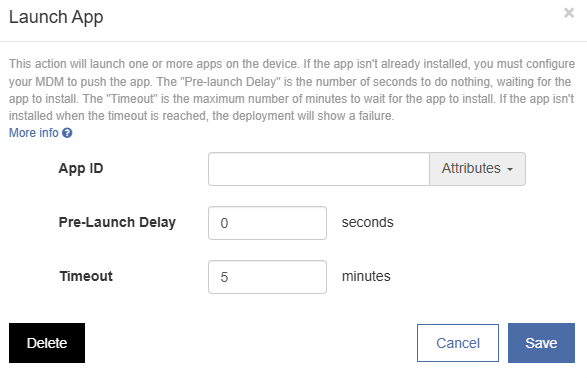
If the app isn't installed when the timeout is reached, the deployment will display a failure.
-


