 minute read
Configure Ivanti Neurons for MAM

This document covers Ivanti Neurons (formerly MobileIron Cloud).
For Ivanti Endpoint Manager Mobile (formerly MobileIron Core), see Configure Ivanti EMM.
Mobile Access Management can enroll your devices touch-free. Devices are assigned to anonymous users, but may then be re-assigned to your users.
Ivanti Neurons API Integration for ADE and Non-ADE Devices
API integration with Ivanti Neurons unlocks additional functionality for both ADE(formerly DEP) and non-ADE devices, including retiring devices and assigning them to different users.
-
For ADE devices, the Perform MDM Command action is displayed as option after the API integration is configured.
-
For non-ADE devices, additional options will become available under the Enroll in MDM action.
Configure Ivanti Neurons API Integration
-
In the MAM console, go to Admin > MDMs. Click + Add, and select Ivanti Neurons.
-
Switch the API Integration setting to ON. Click Configure.
-
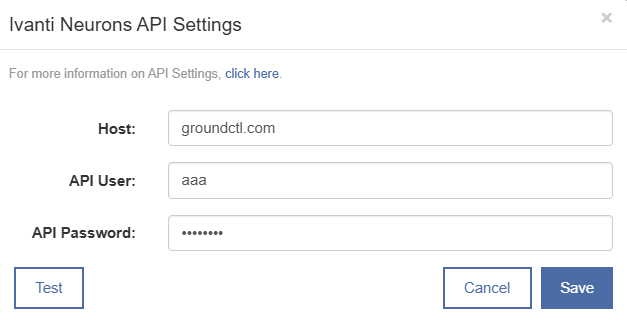
In the API Settings dialog, add API settings that you obtain from the Ivanti Neurons admin console.
-
The hostname of your Ivanti Neurons server. Often this will just be the server name without an additional path.
-
A username and password for a user with the API role in Ivanti Neurons.
-
-
Click Test to verify the settings and credentials.
Click to enlarge
Download the Enrollment Profile — Non-ADE Devices only
For non-ADE devices, export the MDM profile that connects Mobile Access Management to Ivanti Neurons.
-
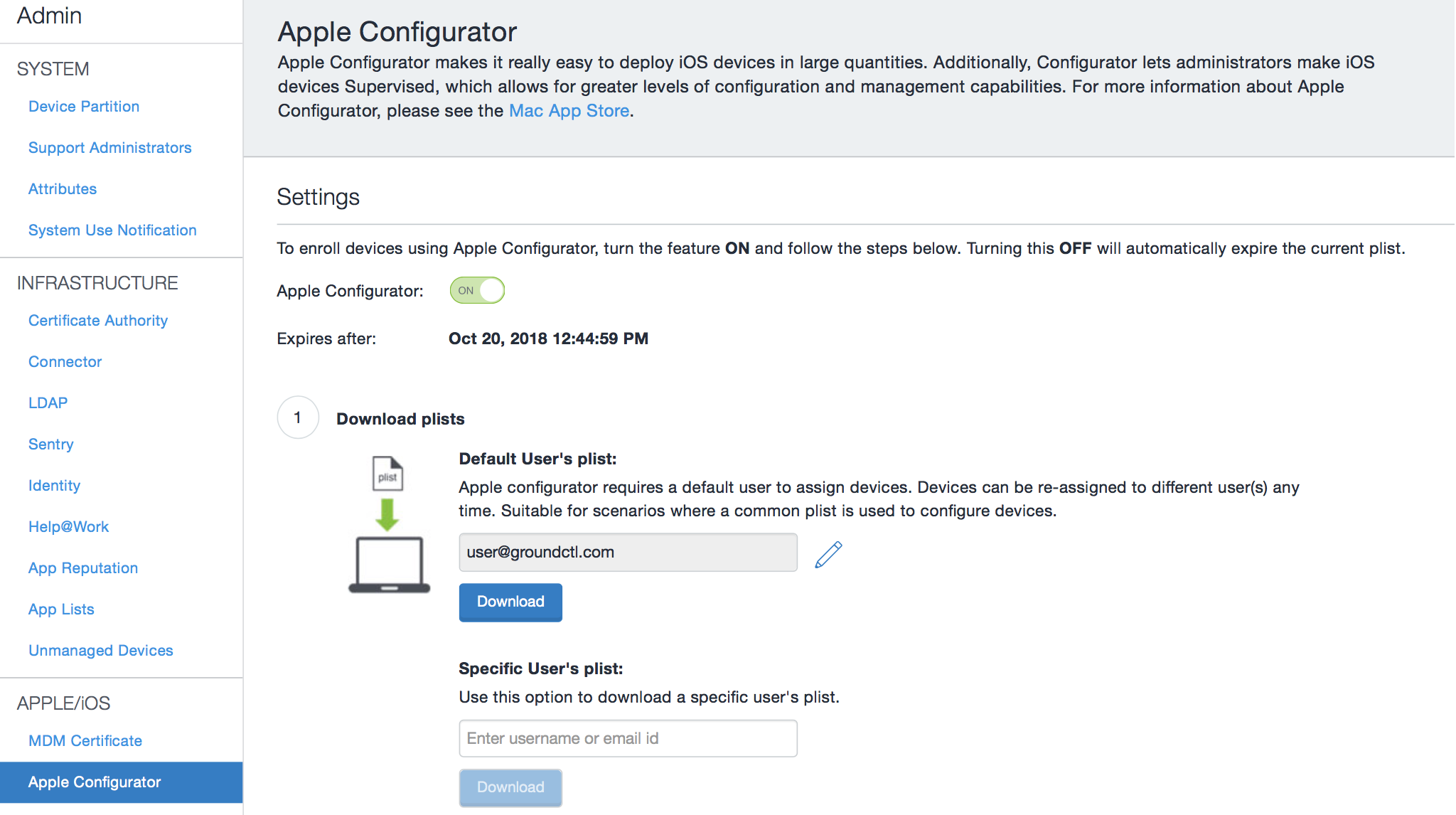
In the Ivanti Neurons console, click Admin > Scroll and locate the iOS section to the left of the screen. Click Apple Configurator.
-
With the Apple Configurator switched to OFF, set the expiration period to its maximum value: 365 days/1 year.
-
Switch Apple Configurator to ON.
-
Type the desired 'Default User", the user you want devices to be enrolled to by default.
-
Click Save.
-
Click Download.
Click to enlarge
-
If you are using a Mac, it will try to install the downloaded profile. Click Cancel.
-
Locate the downloaded file. It may be called
configurator.mobileconfig.Rename this file if you like, but keep the
.mobileconfigfile extension.
-
Ivanti Neurons does not allow simultaneous use of different configuration profiles.
Downloading a new configuration profile disables any older ones.
Upload the Profile to Mobile Access Management
-
In the MAM console, go to the Admin tab > MDMs, click Add and select Ivanti Neurons.
-
Upload the enrollment profile you downloaded above.
-
Test by enrolling a device:
-
Create a new workflow or edit an existing one from the Workflows tab.
-
Add the Enroll in MDM Action to the workflow.
Your iOS device must be on Wi-Fi to accept the MDM enrollment profile. If you include it in a Workflow, MAM will always install Wi-Fi first.
-


