 minute read
Configure Samsung Knox Manage for MAM
NOTE: Applies to Android devices only. Supports Android and OTA Workflows.
Mobile Access Management supports MDM integration with Samsung Knox Manage.
Requirements
-
The Imprivata Locker Android app must be granted Lock Task permissions in the MDM. In Samsung Knox Manage, this is called Kiosk mode.
-
The Locker app must be added to the allowlist in your MDM.
Configure Mobile Access Management
The integration of MAM with Samsung Knox Manage requires that you configure the API Integration and Android Locker App.
The MAM console and your MDM require API settings from each other. Open both consoles at the same time so that you can easily transfer information.
-
In the MAM console, go to Admin > MDMs. Click + Add, and select Knox Manage.
-
Switch the API Integration setting to ON. Click Configure.
-
In the configuration dialog, add API settings that you obtain from the Samsung Knox Manage console in Step 1: Configure the API Integration.
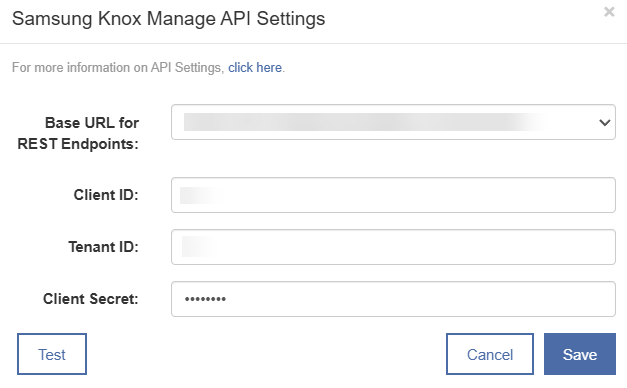
-
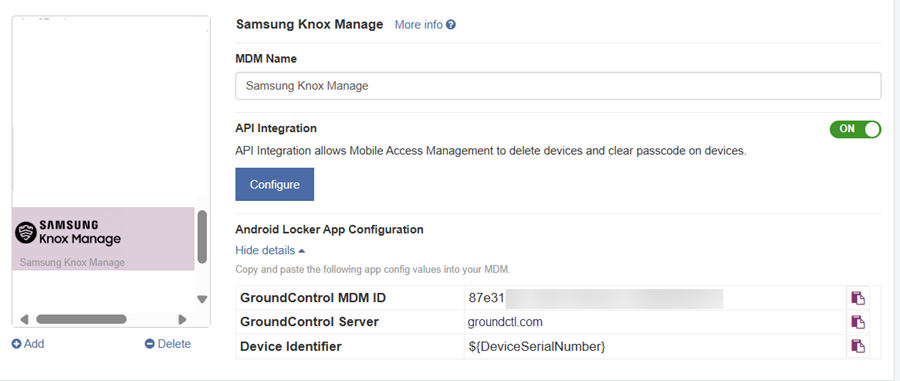
In the Android Locker App Configuration section, click Show details.
-
Copy the three AppConfig values using the clipboard icon next to each item. Save these values for use in Step 2: Configure the Locker Android App:
- GroundControl MDM ID
-
GroundControl Server
-
Device Identifier
 NOTE:
NOTE:The Device Identifier AppConfig value may be formatted differently, depending on your MDM.
Configure Samsung Knox Manage
To configure Knox Manage:
 Step 1: Configure the API Integration
-
Click Add API Client. In the Add API client dialog, enter the following:
-
Client ID: Assign a unique client ID. This must be under 50 characters.
Take note of the Client ID for use in the MAM console.
-
Client secret: Type a password between 8 and 30 characters. The password must be a combination of letters, numbers, and at least one special character.
Take note of the Client secret for use in the MAM console.
-
Token validity period: Set the access time in seconds for how long the authentication token is valid for. The default is 3600 seconds.
-
Permission Level: Set the client’s permission levels. You can grant Can edit or Read only access. Read only clients can only make GET calls.
-
-
Click Add.
-
Take note of the remaining information required to complete the API Integration dialog in the MAM console:
-
Base URL for REST API endpoints: Determined by your Knox Manage region.
-
North America: https://us01.manage.samsungknox.com/emm/oapi
-
Europe: https://eu01.manage.samsungknox.com/emm/oapi
-
Asia Pacific: https://ap01.manage.samsungknox.com/emm/oapi
-
-
Tenant ID: Knox Manage registration and tenant configuration pages display the tenant ID.
-
Step 2: Configure the Locker Android App
-
In the Knox Manage admin console, go to Group and create a user group for the MAM users.
-
In Application, add applications, including the Imprivata Locker app for Android.
-
Assign the applications to the user group.
-
Set up the app configuration for the Imprivata Locker app:
-
Click Modify settings, then click Set Configuration.
-
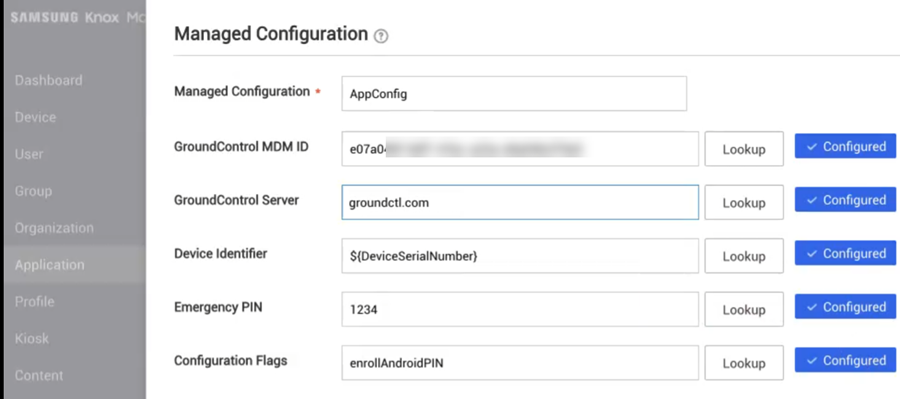
In the Managed Configuration box, type AppConfig. Enter the AppConfig values.
-
In the GroundControl MDM ID box, click Configure and type the GroundControl MDM ID.
-
In the GroundControlServer box, click Configure and type the GroundControl server.
-
In the Device Identifier box, click Configure and type the Device Identifier.
-
Optionally, in the Emergency PIN box, type the Emergency PIN.
-
Optionally, in the Configuration Flags box, type enrollAndroidPIN to allow the use of the native Android PIN.
-
-
Save the AppConfig settings.
Step 3: Configure Kiosk Applications
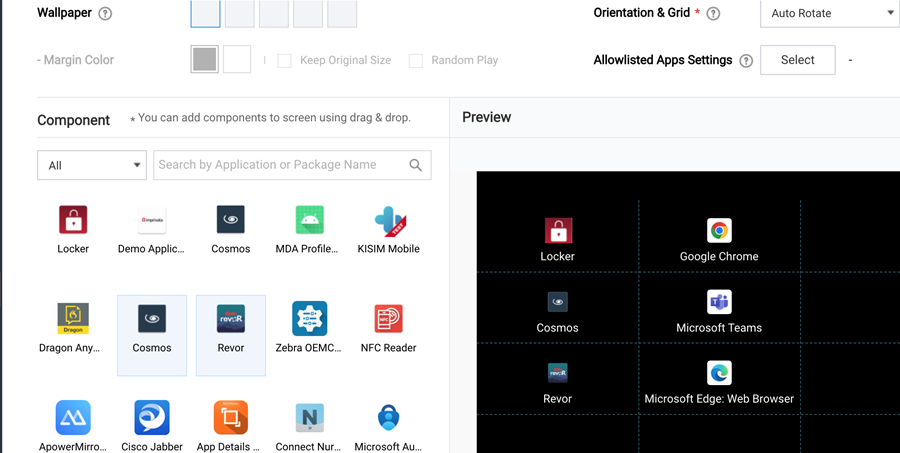
In Knox Manage, specify a collection of approved apps, including the Imprivata Locker app.
-
In the Knox Manage admin console, go to main menu > Kiosk.
-
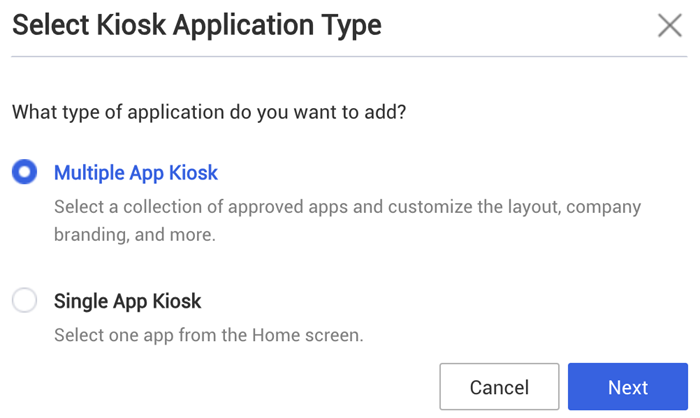
Select Multiple App Kiosk and click Next.
-
Add components to the screen, including the Imprivata Locker into the Preview pane.
Step 4: Enroll Devices
Knox Manage device enrollment begins with a factory reset of the device.
To enroll a device:
-
Wipe the device by using the full factory reset.
- Turn on the newly reset device.
-
On the Welcome screen, select your language.
-
Connect to the Wi-Fi, and then choose NEXT.
-
Accept the Google Terms and conditions, and then choose NEXT.
-
On the Google sign-in screen, enter afw#KnoxManage instead of a Gmail account, and then choose NEXT.
-
Complete the enrollment.


