minute read
Configure Unattended MAM Launchpads
Mobile Access Management Launchpad systems must be set up for unattended use.
An unattended Launchpad operates continuously without a specific user logged into the host operating systems.
The Launchpad application manages Smart Hubs that are physically connected to the workstation, enabling device Check In and Check Out workflows.
Imprivata recommends a headless system, with no display, mouse or keyboard.
Before You Begin
Confirm that your Mac and Windows computers meet all of the hardware, software, and networking requirements for Launchpads.
-
The computer should be dedicated for Mobile Access Management, and not shared with other apps.
-
Some method of VNC or other remote access is required to all stations.
-
Enable Launchpad Monitoring. For more information, see Launchpad Monitoring.
Mac Launchpads
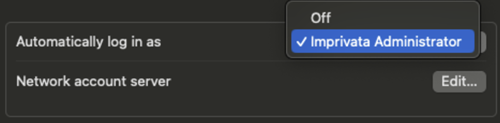
 Enable User Auto Login
-
Go to System Settings > User & Groups.
-
Set Automatically log in as to the desired log in account.
Click image to enlarge
Modify Lock Screen Settings
-
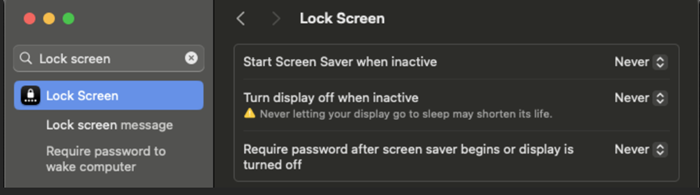
Go to System Settings > Lock Screen.
-
Set Start Screen Saver when inactive to Never.
-
Set Turn display off when inactive to Never.
-
Set Require password after screen saver begins or display is turned off to Never.
Disable Mac Automatic Updates
-
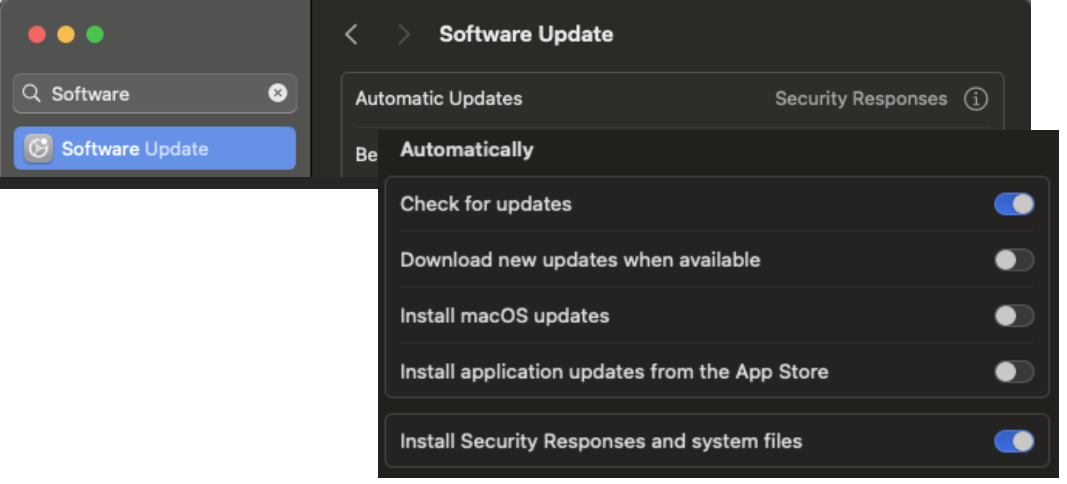
Go to System Settings > Software Update > Automatic Updates. Click the information (i) icon to access the settings dialog.
-
For Check for Updates, switch the toggle to ON.
-
For Download new updates when available, switch the toggle to OFF.
-
For Install macOS updates, switch the toggle to OFF.
-
For Install applications from the App Store, switch the toggle to OFF.
-
For Install Security Responses and system files, you can switch the toggle to ON.
Install the Launchpad App in the Applications Folder
Install the Launchpad app in the Applications folder.
-
If the local user is an Administrator, install the app in
/Applications. -
If the local user is a Standard User, install the app in
~/Applications.”For more information, see Launchpad Update & Auto Launch on Mac.
-
Add Launchpad application to Login Items so it launches automatically:
-
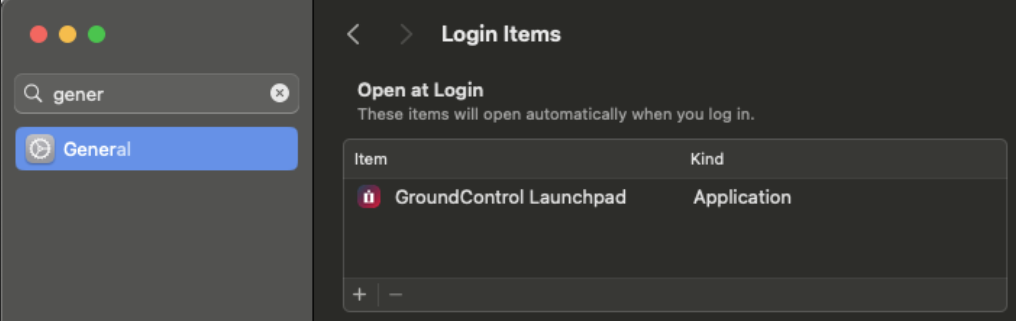
Go to System Settings > General > Login Items.
-
Under Open at Login, click the + and browse to and select GroundControl Launchpad, and click Open to add the application to the list.
Optional - Enable Content Caching Preferences
-
Go to System Settings > General Sharing.
-
Under the Content & Media section, set the Content Caching toggle to ON.
Windows Launchpads
-
Mobile Access Management runs as a foreground service, so the computer must automatically log in as a user.
-
The login user should not have admin privileges.
-
Set the Launchpad application to run at start.
Verify the Settings to Automatically Restart in Case of Shutdown
Set the computer to automatically boot in case of an unexpected shutdown. On Windows, this is turned on by default.
To verify the setting:
-
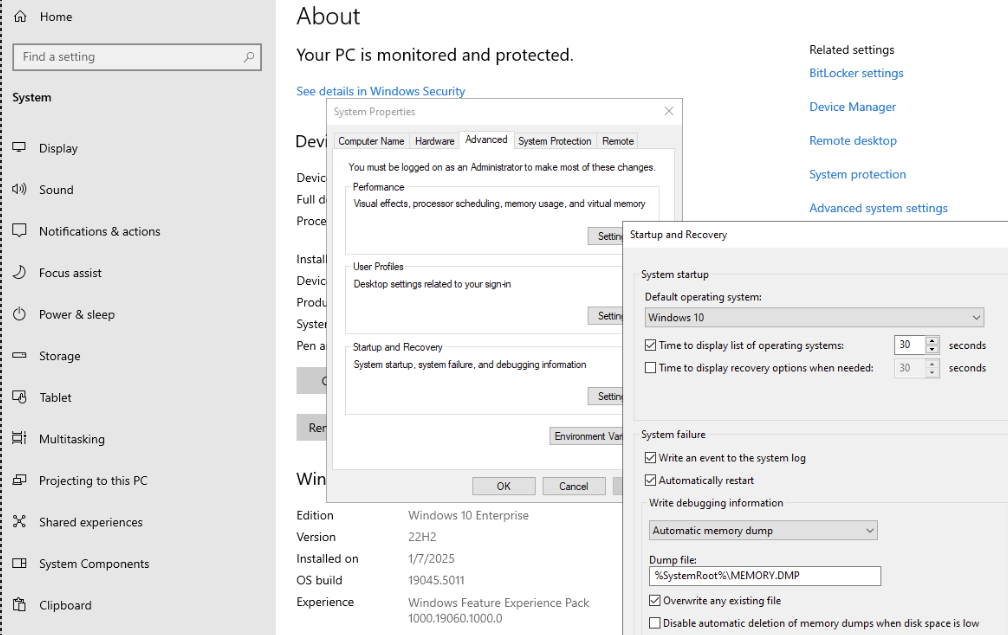
Go to Settings > System > About. Click Advanced system settings under Related links.
-
Click on Settings under the Startup and Recovery section in the System Properties dialog.
Confirm under the System failure section that Automatically restart is selected.
Click image to enlarge
Configure the Power Settings to Never Sleep
The computer must be set to never go to sleep.
-
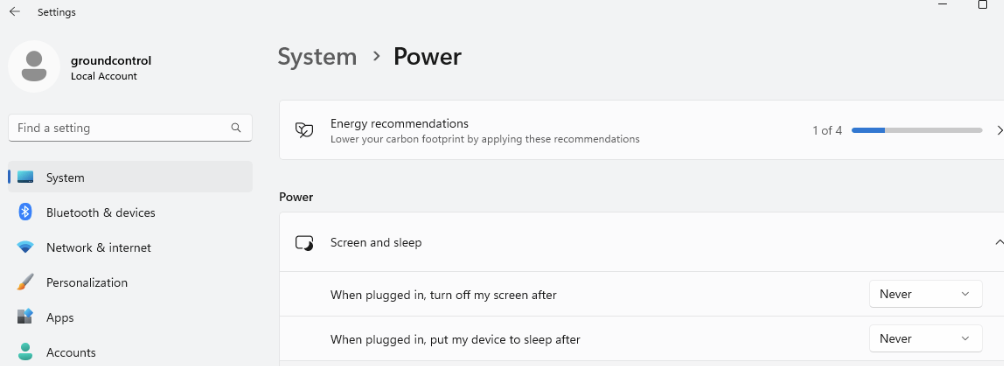
Go to Settings > System > Power. Expand the Screen and Sleep section.
-
Set When plugged in, turn off after to Never.
-
Set When plugged in, PC goes to sleep after to Never.
Click image to enlarge