 minute read
Configure Supervision Identities
The Supervision Identity allows pairing with your iOS devices, even when the MDM ADE profile assigned to your devices does not allow pairing with other hosts. The option effectively secures devices while retaining management capabilities with Mobile Access Management.
-
The Supervision Identity is unique to your organization in Mobile Access Management.
-
MAM exports only the "public" component of the supervision; the private key is kept encrypted and is not exportable.
-
Mobile Access Management stores its pairing information in a private database. This operation to allow pairing to MAM does not allow other apps on the same host, such as iTunes or Configurator, to manage the device.
Changes to Supervision Identity profiles can only affect devices during activation.
Therefore, already-activated devices must be erased and reactivated to receive these settings.
This is a limitation of ADE.
The process below preloads MAM's identity to your devices during ADE activation. The identity allows MAM to do more with your ADE devices:
-
Avoids the "
Trust this Computer?" prompt. Instead, devices pair automatically with any Launchpad app for your organization, even if your ADE profile prohibits pairing. -
Set Wallpaper
-
Launch Apps
-
Hide Apps
-
Check In / Check Out
-
Set Restrictions
-
Wait for App Installation
-
Lock or unlock from App
-
Restore a backup, including system settings
-
Removes the "
Unpaired. Please reconnect." status message.
Specific instructions for various MDM systems are included below.
These steps are not required for non-ADE ("Manage with Mobile Access Management") deployments.
Prerequisites
Before you begin, verify that you have:
-
Access to the applicable MDM console.
-
ADE devices available for testing.
-
MAM 7.3 or later, if you are migrating an expiring supervision identity.
Step 1: Generate the Supervision Identity
Beginning with MAM 7.3, generate a supervision identity on the MAM server before registering your first Launchpad.
Registering a first Launchpad continues to generate a supervision identity automatically, if registration occurs first.
To generate a supervision identity:
-
In the MAM console, go to Admin > Supervision Identities.
-
If your organization does not have a supervision identity, click Create Supervision Identity.
The console creates the supervision identity and displays its expiry date.
NOTE:Beginning with 7.3, new certificates are issued with a 20-year expiry, stamped at generation time.
Take note of the expiry date for your records.
-
Click the link to download your supervision identity.
Click to enlarge
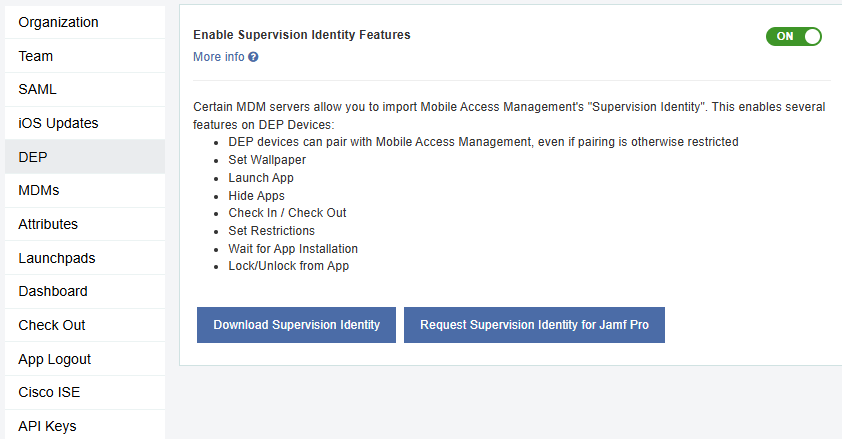
MAM saves a cryptographic file in .cer format.
The certificate file name contains the <organization name>_<expiration date>, so the download is easily identifiable.
Keep this file for the next step.
Step 2: Import the Identity into Your MDM
The tasks you perform to import the identity depend on your MDM.
 Omnissa Workspace ONE
-
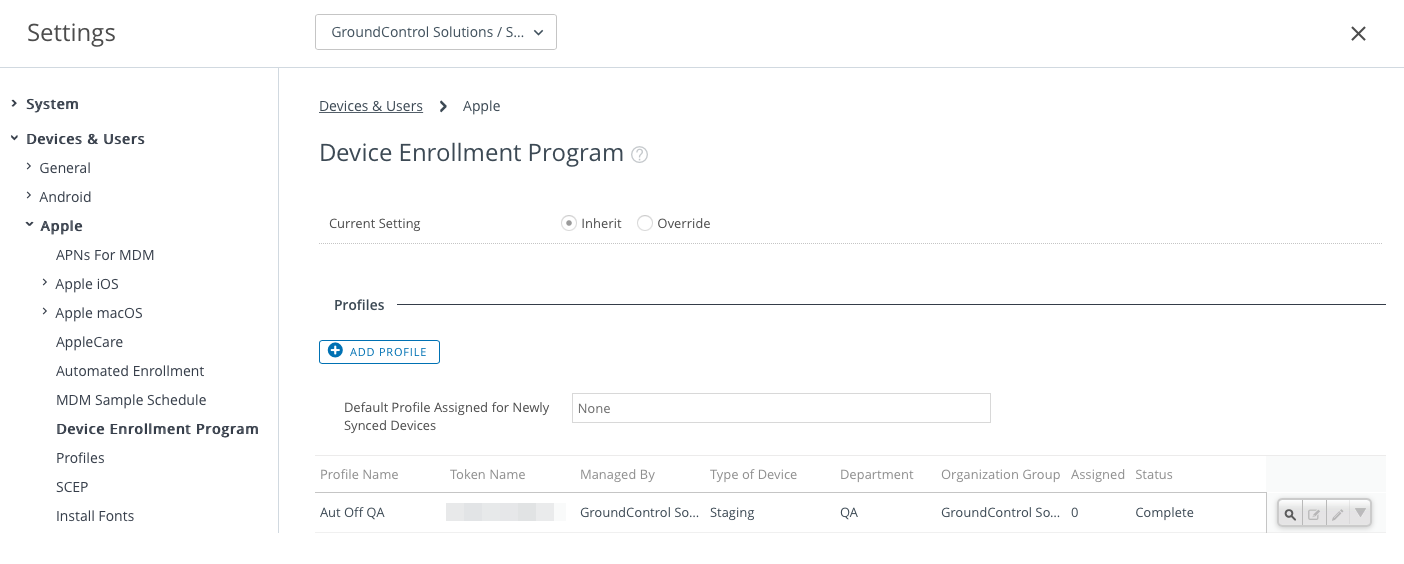
Log into the Workspace ONE Console and ensure you are viewing the correct organization group. Visit Devices > Devices Settings > Apple > Device Enrollment Program. One or more ADE profiles are listed.
-
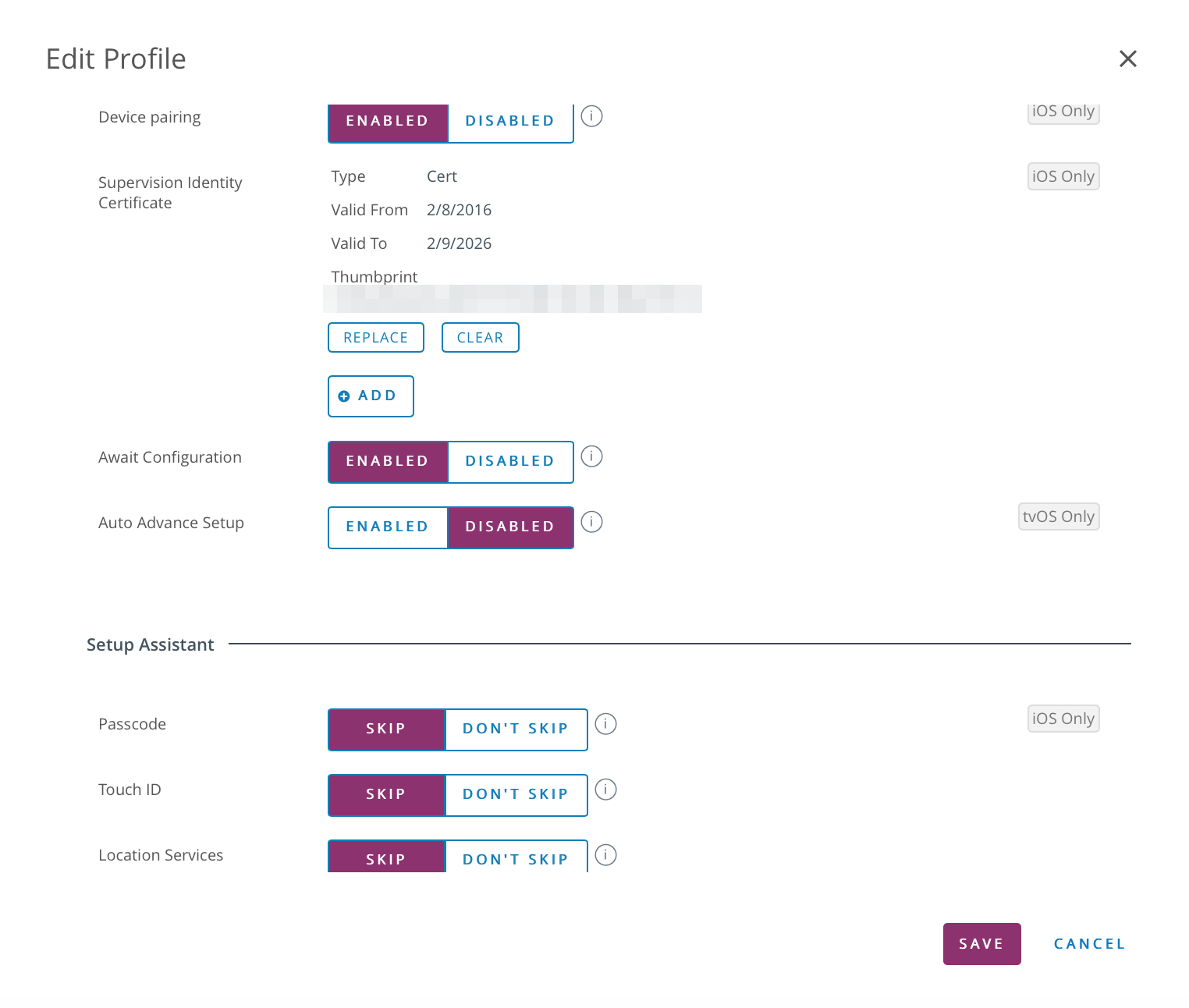
Edit the profile which will receive the supervision identity.
-
Scroll down to the option for Device pairing. Decide whether you want pairing enabled or not.
-
Click Add and upload the supervision identity file you downloaded from Mobile Access Management in step 1.
-
Save the profile and exit settings.
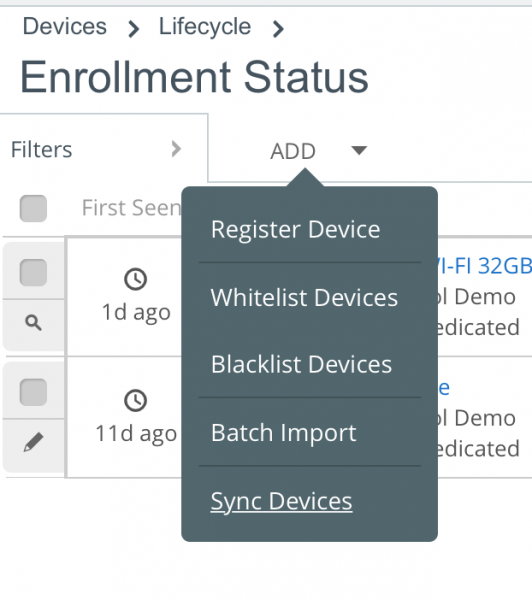
NOTE:Imprivata recommends that you re-sync with Apple to ensure Apple has the updated profile. Go to Devices > Lifecycle > Enrollment Status, then click Add > Sync Devices.
Jamf Pro
The supervision identity for Jamf Pro cannot be exported from the MAM console.
Contact Imprivata Support to obtain it.
After you have obtained the supervision identity:
-
In the Jamf Pro console, go the gear icon > All Settings.
-
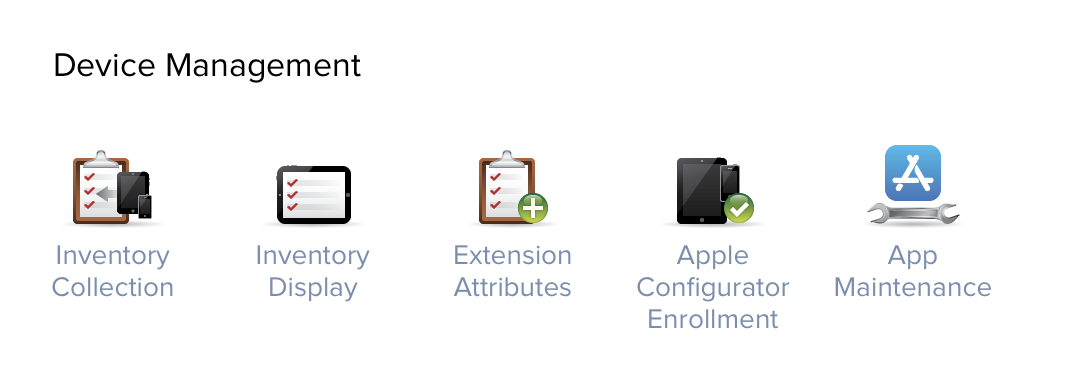
Select Device Management > Apple Configurator Enrollment.
-
Under Supervision Identities, click Edit > Upload. Upload the .p12 file provided by Imprivata support.
-
After the file is uploaded, enter the password provided by Imprivata support and click Done, then Save.
-
From within Settings, go to Global Management > Automated Device Enrollments and select your device enrollment instance. Click Edit.
-
Select the Supervision Identity and click Save.
-
If you have more than one instance or site, go to PreStage enrollments and ensure the PreStage enrollment with the applicable instance/site is assigned to the devices that will be used with Mobile Access Management.
NOTE:Imprivata strongly recommends creating a new PreStage enrollment configuration to avoid issues with supervision identity association.
Microsoft Intune
-
In the Microsoft Intune console, go to Device enrollment > Apple Enrollment > Enrollment Program Tokens > Token.
-
Select your DEP profile, and click Properties > Configure Settings > Sync with computer > select Allow Apple Configurator by Certificate > Upload Certificates.
-
Upload your supervision identity from Mobile Access Management.
Ivanti Endpoint Manager Mobile (MobileIron Core)
-
In the Ivanti Endpoint Manager Mobile admin console, click Devices & Users > Apple DEP to list your DEP connections. Most organizations will have only one DEP connection.
-
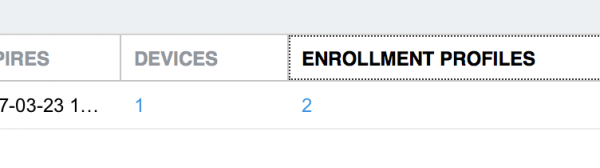
Now list the enrollment profiles by clicking on the number under the column Enrollment Profiles.
-
Edit the desired enrollment profile. At the bottom of the dialog is a section on Pairing Certificates.

-
Upload the supervision identity you downloaded in Step 1. Save the profile.
BEST PRACTICE:Imprivata recommends that you re-sync with Apple to ensure Apple has the updated profile. Go to Devices & Users > Apple DEP, then click Check for Updates.
Ivanti Neurons (MobileIron Cloud)
-
In the Ivanti Neurons console, go to Admin > Device Enrollment Program. This lists the DEP connections (most organization have only one).
-
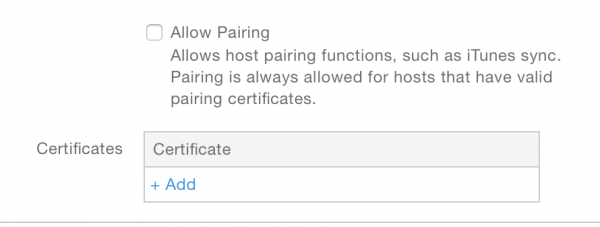
Click Actions > Edit DEP Profile. Scroll down to the Certificates section.
-
Add the .p12 supervision identity you downloaded in Step 1. You may give the identity any name you wish.
-
Save the profile.
Step 3: Test the Pairing
Pairing records are remembered by the host, and survive device erasures. Testing can easily be contaminated by old data. Follow these steps to make sure you are testing correctly.
Test A (Single Launchpad)
-
Erase a DEP device and configure it by hand, without using Mobile Access Management. This ensures Mobile Access Management does not grab the pairing record from the erased device.
-
On your Launchpad choose Reset Launchpad from the File menu (Windows) or Launchpad menu (Mac).
This action removes any saved pairing records from that Launchpad. Register the Launchpad when prompted.
-
Plug in the device to the host. After a few moments, you should see the device show up as “DEP, Limited operations available.”
You should not see the trust prompt on the device. This means that Mobile Access Management has successfully paired with the device, without additional prompts.
Test B (Multiple Launchpads)
-
Begin by resetting the Launchpads on at least two computers. Then register both Launchpads and have the software running.
-
On computer 1, deploy an ADE-enabled Mobile Access Management workflow to one device. Make sure the device is past all setup screens for the next step.
-
Plug the configured device into the second computer. After a few moments, you should see the device show up as “DEP, Limited operations available.” You should not see the trust prompt on the device. This means that Mobile Access Management has successfully paired with the device, without additional prompts.
Migrate from an Expiring Supervision Identity
Supported in MAM 7.3 and later.
In the future, as your supervision identity reaches its expiry date, you must migrate from the expiring one to a new one.
-
Only create a new supervision identity when the existing one is about to expire.
-
Devices previously provisioned with the existing supervision identity will continue to connect to the Launchpad.
-
Use the new supervision identity to upload into any new or modified MDM enrollment profiles.
Supervision identities cannot be deleted.
MAM allows only two supervision identity certificates per organization at any time.
Requirements
-
Requires MAM 7.3 and later
-
Requires Launchpads running 7.3 and later. You must upgrade your Launchpads before the existing supervision identity expiration date.
Expected Behavior
The following example describes the scenario:
-
Your organization has an expiring supervision identity. Imprivata notifies you of the pending expiration.
-
You create a second supervision identity and add it to your MDM, so that your devices are being supervised by both identities.
-
Already-deployed devices stay supervised by the old certificate until they are erased and re-activated.
-
Click Create Supervision Identity.
The new supervision identity is created, and indicates its expiry date.
NOTE:Take note of the expiry date of the new supervision identity for your records.
-
Click the link to download the new supervision identity.


