 minute read
Integrate Proximity Card Readers
Mobile Access Management supports USB-connected proximity card readers manufactured by rf IDEAS, which is the most common reader on the market. Many brands resell rf IDEAS readers, including Imprivata.
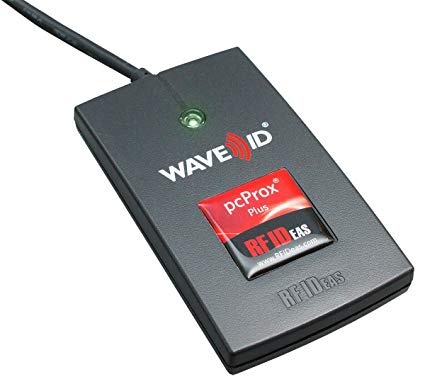
Supported Readers
For more information on supported proximity card readers, see the system requirements.
Enabling Support for Proximity Badge Readers
To enable Mobile Access Management support for proximity badge readers:
-
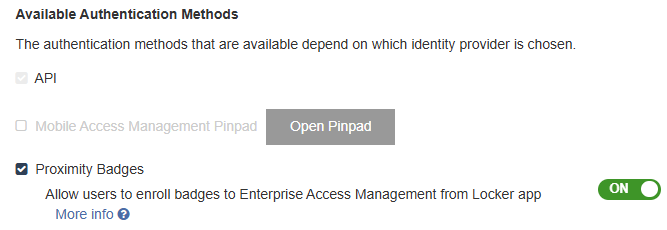
In the MAM console, go to Admin > Checkout. For the Authentication method, select Proximity Badges.
Click to enlarge
Assuming you are still using the Mobile Access Management User Service you previously set up, there is an easy way to read the ID from the card.
-
Start your Launchpad app, with the Proximity Card Reader connected via USB.
-
Scan a sample Employee badge. You will hear several beeps. If you do not hear any beeps, you may need to configure the reader to scan a different frequency.
-
Open the Users directory from the MAM console.
-
The lower section of the User Directory will display Unknown PINs — the first one should be not a PIN but the hexadecimal ID scanned from the badge.
-
Copy the ID, and click Add User. Add a new user with this hexadecimal value as the PIN. It is okay to repeat usernames in this directory.
-
After you add this ID to the user database, you should be able to scan the badge again to initial a checkout.
Allow MAM to Use a Proximity Badge Reader - macOS
Applies to macOS Launchpads only.
When using the MAM Check Out feature and a proximity badge reader, your Mac may display an additional security prompt of ""Applications" would like to receive keystrokes from any application".
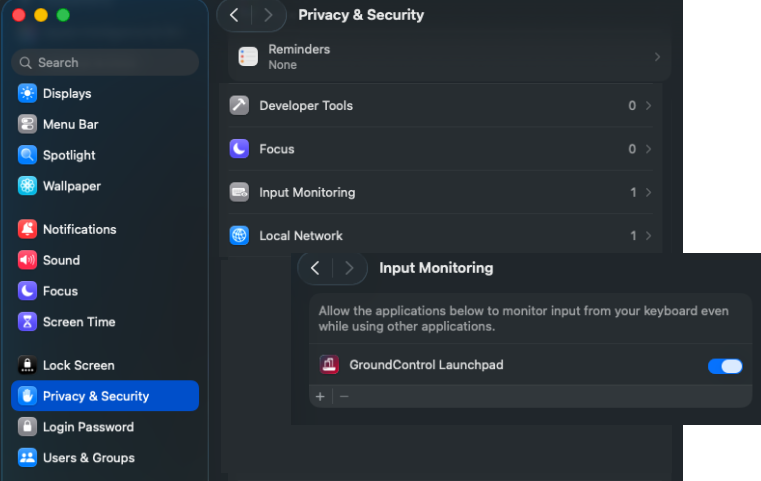
To use a proximity badge reader, you must grant permission for Input Monitoring to the Launchpad app.
-
Choose Apple menu > System Settings, then click Privacy & Security in the sidebar. You may need to scroll down.
-
Click Input Monitoring.
-
Locate the GroundControl Launchpad app in the list and turn the ability to monitor your input devices on.
If the Launchpad app is running, you are prompted to restart the app in order for the changes to take effect.
Click to enlarge
Understanding the Beeps
Mobile Access Management uses beeps to communicate status.
| 1 Beep | Good Scan |
| 1 Beep ... then 2 Beeps |
User Error: ID not found in the User Table |
| 1 Beep ... then 3 Beeps |
Device Error: No devices available or automation error |
| 1 Beep ... then 4 Beeps |
Already Has Device: Admin > Checkout has the option enabled Limit one device per user, and the username is already associated with a device. |


