Mapping Locations
Upload a file of machine location mappings to use for location-based reporting for machines and users.
File Requirements
File format: .CSV
File size: up to 2 MB.
File data:
-
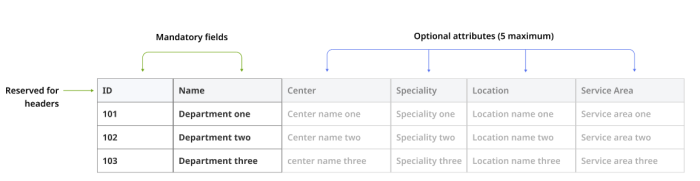
The file must contain the two mandatory columns: ID and Name.
-
The first row is reserved for headers.
-
The file can contain a maximum of five additional columns for optional attributes that correspond to the locations in your organization.
-
The file can contain as many rows as needed.
Data Format
The following diagram illustrates the file data format of an organization.
Example
| ID | Name | Building | EMR | Facility | Location | Speciality |
|---|---|---|---|---|---|---|
| 101 | East Department | Building 2 | Epic | East Tower | Maguire Hospital | Neurology |
| 102 | West Department | Building 1 | Epic | Outpatient Clinic | Macquire Hospital | Oncology |
Upload a File of Locations
To upload a file of locations:
-
In the Patient Access Admin Console, click Configurations.
-
On the Location page, click Upload file.
-
In the dialog box, browser to the file location and click Open.
The locations are uploaded to Patient Access.
-
To allow registrars to choose and update their location from the Patient Access user interface, switch Enable registrar mapping to ON.
By default, this setting is set to OFF.
User mapping is only available when the Enable registrar mapping setting is switched ON.
If the setting is switched to OFF, only machine mappings will be used.
View the Location Details
To view the details of a location:
-
On the Locations page, in the Name column, click the location you wish to view.
The Location details page displays the location details, including:
-
the attributes you defined previously for the location
-
any machines associated with this location
-
the users associated with this location
-
Edit the Location Details
To edit the details of the location:
-
On the Locations page, in the Name column, click the location you wish to view.
-
Click Edit location.
-
In the Attributes section, edit the location attributes as needed:
-
To delete a location attribute, click Delete (
 ). In the confirmation dialog, click Yes.
 -
To edit the text of a location attribute, type in the attribute box.
-
To add an attribute, click Add an attribute.
NOTE:You can add up to a maximum of five attributes for the location.
-
Click Save.
-
-
To remove the location from the Locations page, click Remove location. In the confirmation dialog, click Yes.
NOTE:Removing a location archives the location in the Patient Access system; it is not permanently deleted from the system. The archived location is hidden from view in the list of locations.
When a location is archived, both machine mappings and user mapping associated with the location are deleted.
An archived location is unarchived when an administrator uploads a new file with the same ID.
Machines
Add your Patient Access endpoint machines to the appropriate locations in your organization.
A machine can be a physical workstation tied to a single physical location within your organization - a desktop workstation, a kiosk, but can also be a laptop computer or a workstation on wheels (WOWs).
-
Machine mapping is a one-to-one mapping between the name of a machine and a location. A machine can only be mapped to one location at a time.
-
Kiosks are self-service endpoint machines that do not have a registrar user. For a kiosk to be able to be properly associated with the location, it must be mapped in the Patient Access Admin Console by an administrator.
Requirements and Considerations
Consider the following requirements and considerations:
-
Machine names must be unique. If the machine name is already used at the current location, Patient Access displays an error.
-
A machine can be added to only one location. If the machine is already added to another location, Patient Access displays a dialog prompting you to update the location to the current location.
-
In VDI environments, map the name of the endpoint machine, not the VDI host.
-
Machine names are not case sensitive.
Add a Machine to a Location
To add a machine to a location:
-
On the Location details page, in the Machines section, click Add machine.
-
In the name box, type the name of a machine and click the checkmark (
 ) to confirm.
The machine is added to the location.
Delete a Machine from a Location
To delete a machine from a location:
-
On the Location details page, in the Machines section, select the machine name you want to delete and click Delete (
).-
-
When a machine mapping is deleted, its associated user mappings are also deleted.
-
Users
Users are not tied to physical locations in the same manner as machines. Users can be in the same location every day, or in multiple locations within a single day.
To track the user activity through your organization, Patient Access maps a location to the pairing of the user name and the machine name.
-
User mapping is only available when the Enable registrar mapping setting is switched ON.
If the setting is switched to OFF, only machine mappings will be used.
-
When a user mapping is created or updated through the Registrar client user interface, the machine that user is logged into is also mapped to that location.
-
When a machine mapping is deleted, its associated user mappings are also deleted.
On the Location details page, in the Users section, view the list of users associated with the selected location.


