Enforced Policies and Alerts in Access Intelligence Platform
Enforced Policy: a report that is scheduled to produce alerts when report criteria is met.
Alerts: the product of an enforced policy; notifies users when specific behavior is identified.
Creating a MAM Alert for Users with 3+ Devices Checked Out
-
From Reports > Report Library > Access Management > EAM Analytics, select the ellipsis menu next to the report MAM Users with 3+ Devices Checked Out, and click Save to My Reports.
-
Go to My Reports, select the ellipsis menu next to the report MAM Users with 3+ Devices Checked Out and click on Schedule Enforced Policy. Next, follow the steps below:
• Select how frequently to run the Alert (recommendation is daily).
• If you would like a digest of all users who met this criteria in the time period, select Create an Alert Per Enforced Policy Run. If you would like a separate alert per user, select Create an Alert Per Other Field and choose User ID. Click Schedule.
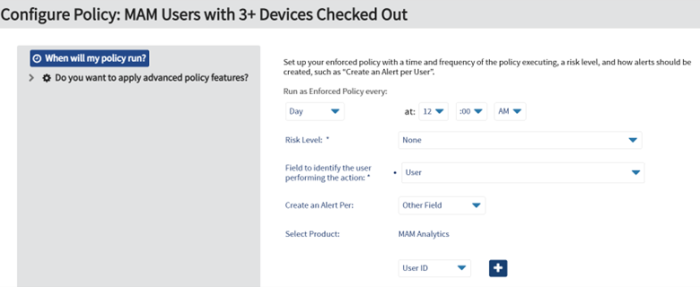
-
Each day, the results will be available under the Alerts tab.
• If there are no results, check to make sure that the Enforced Policy is running after all data has been processed.
Creating a MAM Alert for Devices with Battery at 80% of Below Original Capacity
-
From Reports > Report Library > Access Management > EAM Analytics, select the ellipsis menu next to the report MAM Devices with Battery at 80% or Below Original Capacity and click Save to My Reports.
-
Follow the steps above, with the following changes:
-
Create an Alert Per Other Field and select Device Name.
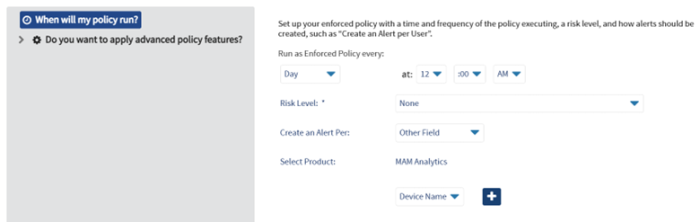
-


