 minute read
Navigate the User Interface
This guide contains a quick introduction to the User Interface, detailing the high-level features you can encounter.
This guide is intended for
Third Party users can navigate ourThird Party Onboarding Guide.
User Interface
 1. Navigation Menu
The left-most navigation menu contains the main elements of your server. Depending on your role as System Administrator or Internal User, you will see the following items:
2. Sub-Navigation Menu
Depending on which navigation menu you select, the sub-navigation menu displays different granular actions you can perform within.
For example, in Applications menu shown, you can view the application list, configure services applications, and list the available gateways.
Some navigation menus do not have a sub-navigation menu.
Explore the User Interface to discover all available features.
3. Action Pane
After you select a navigation and sub-navigation menu, the action pane displays one of the following content types:
-
Lists
-
Forms
-
Creation or configuration workflows
The action pane enables you to view, create, edit, enable or disable, or delete assets in your server.
4. Top Settings
The available top settings in your server are:
| Setting | Description |
|---|---|
| Quick Connect | Display the Quick Connect session menu to send a connection invitation to an email address. The System Administrator must enable Quick Connect sessions at the server-level for this button to appear. |
| Switch to Legacy UI | Toggle between the current version of the UI and the Legacy version. The Legacy UI does not have features from version 25.1 or greater. Imprivata recommends you use the latest version of the UI. |
| About (?) |
Displays a drop-down menu with the following:
|
| Profile |
Displays the options to navigate to My Account or to Log Out of the server. The My Account page enables you to edit:
|
Legacy UI
The
Imprivata recommends you use the latest version of the UI to get access to the latest features.
Learn More
The Legacy UI contains three key sections:
Pages tagged with an arrow enable you to explore the features and functions in the latest version of the UI.
Navigate the latest version to get access to the latest features!
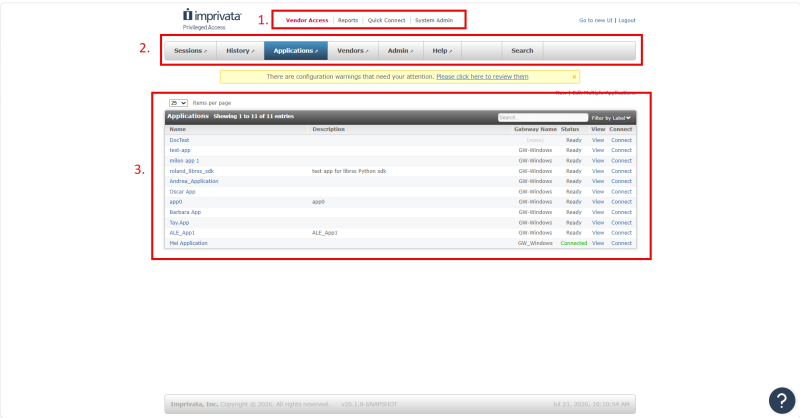
1. Top Navigation Menu
Contains the high-level categories for actions you can take in the server.
2. Sub-Menus
Contains actions you can take within the top navigation menu items.
3. Action Pane
Displays lists, forms, and creation and configuration workflows.


