 minute read
Generating an Application Profile
When you generate an application profile with the Imprivata Application Profile Generator (APG), you typically perform all the tasks described in this topic.
You may require additional tasks to meet specific needs, which are described in other topics:
-
Configuring the Screen Details — Add details for each screen in the profile.
-
Testing Application Profiles — Make sure that the profile recognizes and responds correctly to each screen.
-
Deploying Application Profiles — Deploy application profiles to your users.
-
Additional Profiling Techniques — Information on Imprivata APG advanced tools.
 Starting the Imprivata APG
The Imprivata APG starts automatically in a new window when you add a new profile or edit an existing profile.
Your Enterprise Access Management release and the type of application you want to profile determine whether you should open the Imprivata Admin Console and the Imprivata APG using your choice of Google Chrome or Microsoft Edge Chromium. In addition, to use Chrome or Edge Chromium, a Chrome extension must be enabled. For details, see Application Profile Generator Support for Chrome and Edge Chromium.
To start the Imprivata APG:
-
Make sure that there is an Imprivata agent installed and running on your computer. The agent version must match the Enterprise Access Management server version.
-
Launch the target application in Google Chrome, or Edge Chromium.
-
In the Imprivata Admin Console, go to Applications > Single sign-on application profiles, and click Add or select a profile to edit.
NOTE: If you do not see the Imprivata APG open in its own window, it may be blocked as a pop-up by a security application.
Naming the Application Profile
Create an internal reference name for the application profile. The name you choose appears only in the applications profiles list, and is not visible to users.
To identify the application to be profiled:
-
Start the APG and enter a name for the profile, which can be up to 30 characters long.
-
BEST PRACTICE: You may be profiling many applications, some with similar names. Develop a simple naming system that includes the name of the application and its version. Include text to distinguish between Google Chrome and Edge Chromium profiles in the profile name.
-
Indicate whether you will be profiling a host-based application.
- The Imprivata APG does not consider Windows client applications and Web applications to be host-based applications.
-
Click Next. The Application Screens page opens.
You can also modify the finished application profile for additional operating systems, see Adding an Operating System (Windows Applications Only).
Learning the Screen Parameters
To learn an application screen:
-
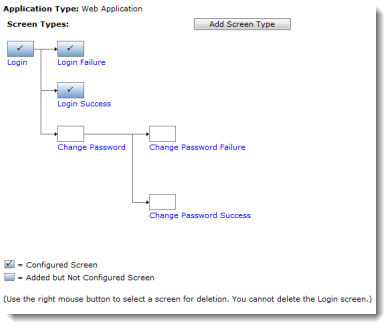
Open the profile’s Application Screens page, which displays a tree view of basic screen types, as illustrated below.
-
Click the screen you want to work on. The Login screen must be the first screen learned. The Learn Screen page opens.
-
Drag the magnifier icon from Learn Screen and drop it on the application screen. The Imprivata APG identifies the application type and then identifies the fields of the screen.
The Imprivata APG automatically identifies the title of the screen and any controls present. When it is finished, a Screen Profile Learned bubble opens above the Imprivata agent icon in your system tray.
Application Screen Example:
Once any screens are learned, the Imprivata APG also learns the application type, which is listed above the diagram of screens. In this case it is a Web Application.
NOTE: If the Imprivata APG discovers too few fields (or even nothing at all) then use one of the advanced learning techniques described in Advanced Screen Learning Techniques.
The Configure Screen page has information about recognizing the screen, capturing credentials, and proxying the credentials.
-
The next step is to refine the information, described in Configuring the Screen Details.
If you need a screen type that is not represented in the diagram, you can create a custom screen. See Generating an Application Profile.
- It is important to learn the login success and login failure screens. They provide internal error-checking that helps to assure recognition of other screens.
- Applications that will share credentials in a credential store must have the same fields learned. If one application has more fields than another application profiled in the store, then choose Ignore This Field in the Meaning in Imprivata APG column.
NOTES:
Duplicate Screen Types
The Imprivata APG provides profile templates for common screen types. If an application uses multiple instances of a screen type, you can add a duplicate screen type.
For example, an application may use three different login screens, so you profile the default Login screen. Then you add the new Login2 and Login3 screens and profile them.
Adding Duplicate Screen Types
To add a new type of screen:
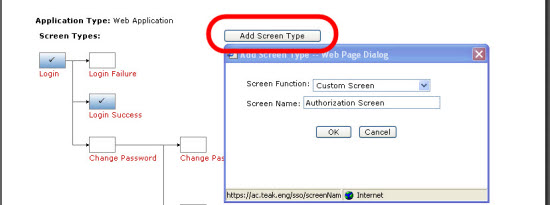
- In the Application Screens Page, click Add Screen Type.
- Choose one a default screen, or choose Custom Screen. To create a custom screen, see Custom Screens.
- In the Add Screen Type dialog box, enter a name for the screen type, and click OK.
-
Custom Screens
If your applications screen type is not available on the Choose Screens page, you can create a custom screen.
To create a new custom screen:
- On the Application Screens page, click Add Screen Type.
- In the Add Screen Type dialog box, select Custom Screen from the Screen Function drop-down list.
- Enter a name, and then click OK. The Custom Screen opens, as show in the following image. Learn the screen normally.
NOTE: Custom screens can proxy credentials, but cannot be used to capture credentials. Custom screens have an audit flag that must be set for the screen if you want the Imprivata APG to audit appearances of the screen.
Configuring Logoff and Shutdown Sequences
The Imprivata APG can execute a keystroke sequence to close, or log off an application, in these cases:
- Before the application is shut down by Enterprise Access Management
- During fast user switching on a kiosk workstation
- When the workstation locks
By default, the Imprivata APG shuts down the application when the user logs off, or during a fast user switch. You can have the user log off rather than shut down the application.
To leave the application open, deselect Shut down the application during Fast User Switching (on a Shared kiosk workstation.
The keystroke sequence is executed on log off or fast user switch whether the application is shut down or not.
Web applications also require the browser window title to determine which browser instance to leave open or to execute keystrokes against.
Set application logoff and shutdown sequences on the Application Screens page.
The Imprivata APG allows fast user switching within an application, so the application remains open while a new user authenticates. To do this, configure screen-specific overrides as detailed in Configuring Screen-Specific Logoff Settings.
These cases are supported by the Imprivata Shared Kiosk Workstation agent.
For applications delivered by Citrix or Microsoft Terminal Services, only the case during fast user switching on a kiosk workstation is supported by the Imprivata Citrix or Terminal Server agent, when the Citrix or Terminal server is also configured for Fast User Switching.
The cases Before the application is shut down by OneSign and When the workstation locks are not supported by the Imprivata Citrix or Terminal Server agent.
For more details on configuring Fast User Switching on Citrix or Terminal Servers, see Enabling Fast User Switching with Citrix or Terminal Servers.
Configuring Screen-Specific Logoff Settings
After you configure default settings on the Application Screens page, you can configure override settings for specific screens. For example, if an application is frequently used by multiple people with different credentials, you can configure a logoff sequence for the commonly used screens to avoid requiring each user to launch the application separately.
Screens you configure this way use their own settings, while any other screen in the same application uses the default settings that you specified on the Application Screens page, as described in Configuring Logoff and Shutdown Sequences.
NOTE: You cannot override the shutdown sequence, only the logoff sequence.
You can trigger the logoff sequence from:
-
A control on the screen selected from a drop-down list
-
A custom keystroke and/or mouse click sequence using the Imprivata APG keystrokes detailed in Keystroke Codes
Configuring Walk-Away Security
To secure an unattended workstation, you can configure a screen lock to be triggered when any application is idle. You determine which screens indicate that the application is idle, and the computer policy executes the preferred screen lock behavior when the screen opens.
Enable this in the Inactivity-based presence detection section of the Walk-Away Security tab of a computer policy, as detailed in Configuring Walk-Away Security for Unattended Workstations.
To identify this application screen for walk-away security, select the The application is idle when this screen is present option.
Using Custom Flags with Application Profiles
NOTE: Misuse of flags can make troubleshooting very difficult. Use this feature only under the direction of Imprivata Support.
Custom flags are used by Imprivata Support to help ensure optimal SSO behavior. You may activate them if you are working with an Imprivata representative to improve or troubleshoot profiles.
Recording Notes About a Profile
You can record maintenance, historical, or other reference notes for a profile at the bottom of the Application Screens page.
To record notes about an application profile:
- Open the Application Screens page of the profile in the Imprivata APG.
- At the bottom of the page, or on any screen, click Notes... to enter text.
You can also record screen-specific notes on individual screens.


