 minute read
The Imprivata Appliance Console
You can manage any appliance in your enterprise using the Imprivata Appliance Console, which includes tools for configuring and maintaining the appliance. There are two Administrator levels in the Imprivata Appliance Console: Administrator and Super Administrator. Only a Super Administrator can perform Enterprise-wide actions.
All tools for administration of Imprivata accounts and compliance tools are in The Imprivata Admin Console, which is different from the Imprivata Appliance Console. Imprivata Appliance Console username and password credentials are different from those used to authenticate to the Imprivata Admin Console.
 Imprivata Appliance Console Supported Environments
| Domains | Application Environments |
|---|---|
|
Microsoft Active Directory Imprivata Directory (internal) |
Workstations Server deployed applications Citrix Terminal Server SoftGrid |
Determining Appliance and Enterprise Information
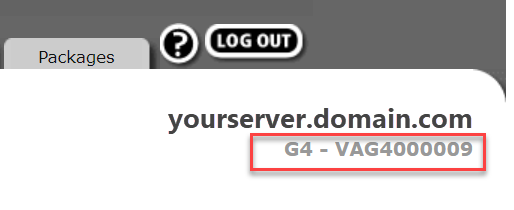
The appliance and enterprise version number, along with the appliance’s serial number, are listed at the top right of every page in the Imprivata Appliance Console, for example:
-
G4 indicates that the virtual appliance and enterprise is a fourth generation appliance or enterprise.
-
The number to the right is the appliance serial number. Serial numbers begin with VAG4 for fourth generation virtual appliances.
Imprivata Appliance Console Functions
The Imprivata Appliance Console provides system parameters, controls, and tools:
Managing Imprivata Appliances
The following topics provide information about managing Imprivata appliances:
Securing Appliance Console Access
The following recommendations help to protect Imprivata Appliance Console administrative access.
Protecting Appliance Console Credentials
It is recommended that you protect Imprivata Appliance Console administrator credentials by:
-
Using a privileged access management (PAM) solution, such as Imprivata Privileged Access Management. The use of a PAM solution helps secure privileged credentials, centralizes credential management, and maintains an audit trail of administrative activities.
-
Adhering to established password complexity best practices.
Disabling Access to the Appliance Console
By default, access to the Imprivata Appliance Console is enabled. You can increase the security posture of your enterprise by disabling access to the Imprivata Appliance Console, and re-enabling it only when required to perform enterprise maintenance.
For example, you would re-enable the Imprivata Appliance Console to restage the appliance or to complete an enterprise upgrade.
Disabling access is not a global setting. Be sure to disable access for each appliance in your enterprise.
To disable access:
-
Open the virtual machine console.
-
Select Login and press Enter.
-
At the login prompt, enter menu and press Enter. If prompted, enter the password for the menu user and press Enter.
-
Enter 5 and press Enter to open the Enable/disable Appliance UI option.
-
From the prompt, update the value to 0 and press Enter.
-
Enter 9 to exit Imprivata virtual appliance menu.
You can re-enable access at anytime by updating the value to 1.


